Get back what a cleanup took by mistake
If files are already gone, the first thing that matters is not software: stop scanning, and stop writing anything to that disk. Every write is a chance to land on the blocks you want back. What follows is how DuoBolt handles removal — it records each file's identity before anything moves, and can rebuild that file afterwards from a copy that is still on your machine. If it was another program that deleted them, the last question on this page is the one for you.
A reconstruction, not an undelete
The distinction decides everything this page can promise. An undelete tool reads the disk underneath the filesystem and tries to reassemble a file out of blocks nothing has claimed yet. It degrades by the minute, and it fails silently. DuoBolt does something narrower and far more reliable. Removing duplicates always leaves something behind — the copy you chose to keep — and before anything moves, DuoBolt writes down where each file was, when it was made, and a fingerprint of what was inside it. Putting one back means finding a file that still matches that fingerprint exactly, copying it to where the original lived, and restoring the dates and permissions it had. Because the match is on the contents, a file is never rebuilt from something that merely resembled it, and a photo is never rebuilt from a look-alike. Because it needs a copy that still exists rather than disk blocks nobody has overwritten yet, it works after the Trash has been emptied, after a permanent delete, and just as well a month later . The limit is the other side of the same fact: remove the last file holding those bytes and there is nothing left to rebuild from. DuoBolt says so on the row, instead of trying and failing.
Recorded before anything moves
Where the file was, when it was made, what its permissions were, and a fingerprint of its contents — all written down first, while the file is still there to be measured. Afterwards there is nothing left to read.
Rebuilt from a verified copy
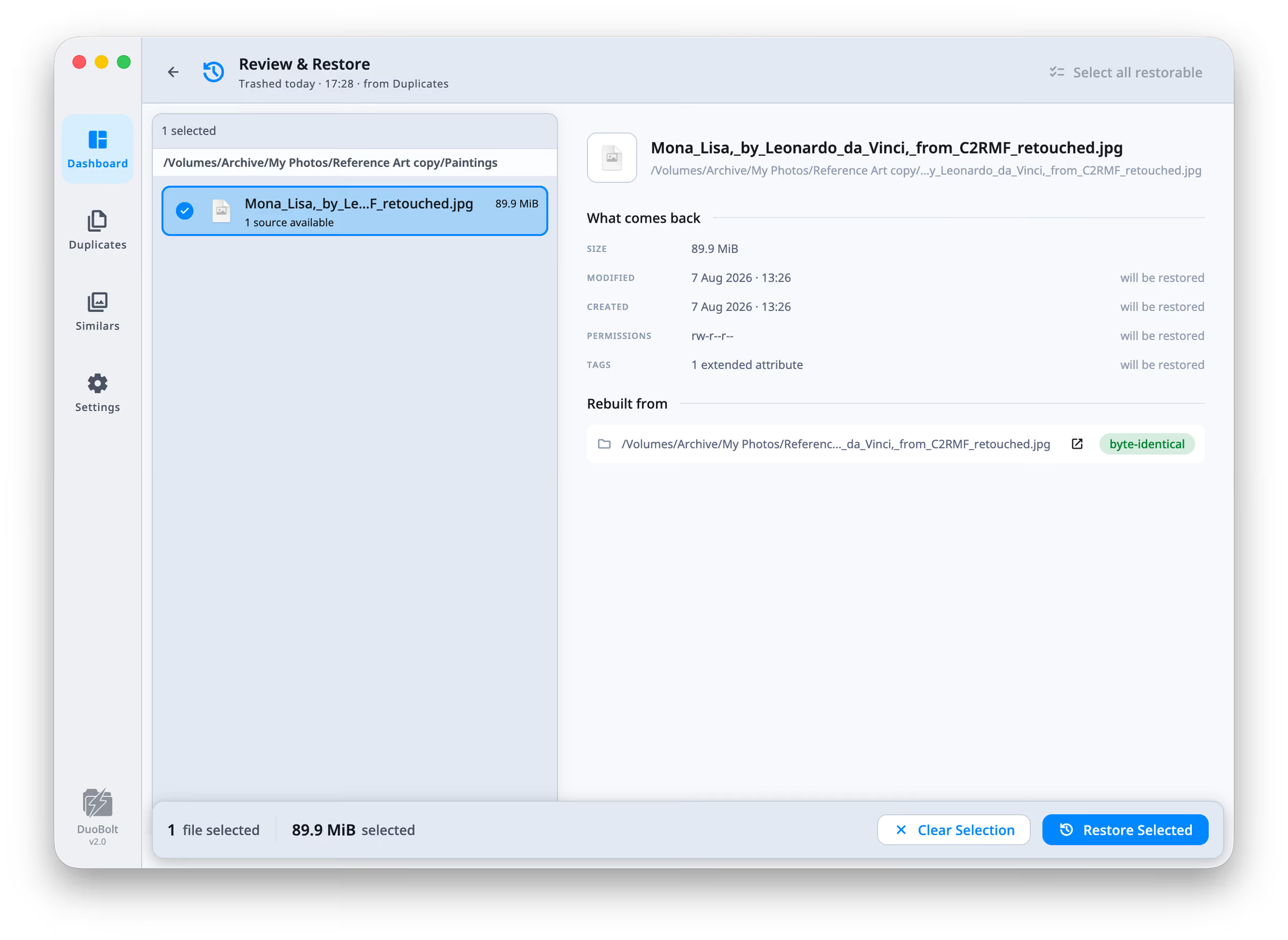
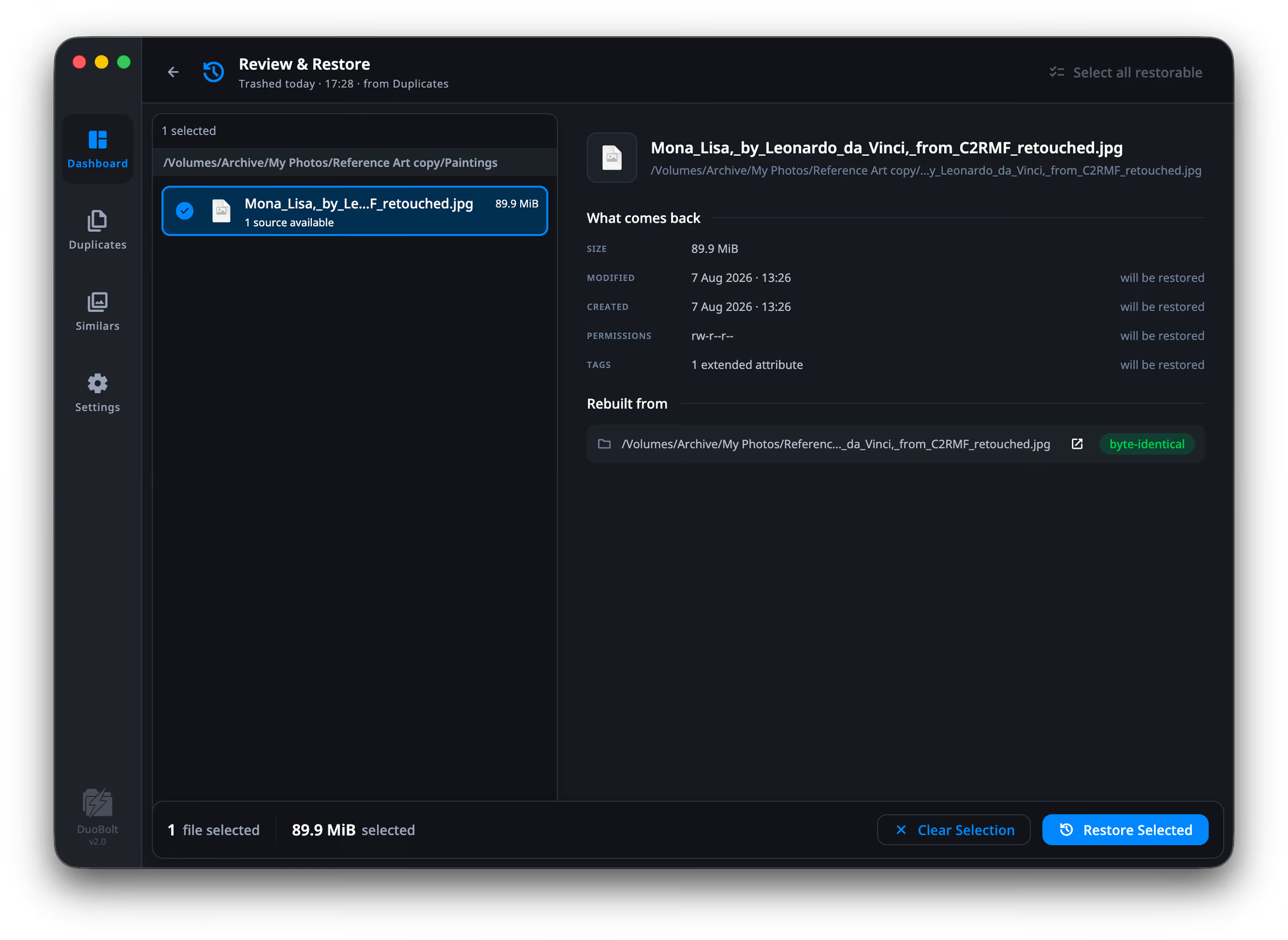
A removal from a duplicate group leaves the copy you kept. Restore takes that copy, checks it is byte-identical by content hash, writes it back to the original path and reinstates the recorded identity. The match is on contents, so a photo is never rebuilt from one that merely looked like it.
Works after the Trash is emptied
Restore does not read the Trash and does not depend on it. That is why it still works after a permanent delete, and why it keeps working weeks later — as long as a byte-identical copy is still somewhere on your machine.
It never overwrites
If something already occupies the original path, DuoBolt does not replace it. The restored file arrives beside it as name (restored).ext, and the result says which files came back under a new name.
Putting a file back
Four steps, from the list of what DuoBolt has done to the files arriving where they were.
- Step
Open Operations History
Every batch DuoBolt has run is listed with its date, what it did — Trashed, Deleted, Archived or Copied — what it touched and how much it freed. Find the one that went wrong.
- Step
Choose Review & Restore
The files are grouped under the folders they came from. Each row states its own situation: how many sources are available to rebuild it, that it is already in place, or that no surviving copy exists.
- Step
Read what comes back
Select a file and the detail pane splits in two. What comes back lists the size, the dates, the permissions and the tags, each marked will be restored. Rebuilt from names the surviving copy and says whether it is byte-identical.
- Step
Restore Selected
Tick the rows you want and press the button. The operation's row in the history picks up a Recovered chip, so a month from now it is clear what was put back and what was not.
Undoing a deletion — FAQ
- Can DuoBolt get files back after I emptied the Trash?
- Yes, when a byte-identical copy of them still exists somewhere on your machine. Restore does not read the Trash — it rebuilds the file from a copy DuoBolt recorded as kept, verifies that copy by content hash, and reinstates the dates, permissions and extended attributes it captured before the file moved. Emptying the Trash does not affect any of that.
- What if no copy of the file survives?
- Then it cannot be brought back, and DuoBolt says so on the row rather than failing at the end. "No surviving copy" is a real state in Review & Restore. Restore is a reconstruction from something that still exists; it is not undelete, it does not read raw disk blocks, and it is not forensic recovery software. If you removed the last file holding those bytes, they are gone.
- Does the restored file keep its original dates and permissions?
- Yes. The modification and creation dates, the permissions, the read-only flag, the extended attributes and the file's tags are captured before anything moves and written back on the way in. The detail pane lists each of them marked "will be restored" before you commit, so you can see exactly what is being reinstated.
- Is restore only in the paid tiers?
- No. Operations History and Review & Restore work in every tier, including Free. The free tier caps how much a single removal moves — 25 files or 500 MB, whichever comes first — but it does not cap scans, results, or getting something back.
- Can DuoBolt restore files that another program deleted?
- No. The journal is DuoBolt's record of its own operations, so there is nothing to read for a removal it never made. What it can do is tell you whether the bytes still exist: scan the volumes you still have, and look for the file by name or size in the results. If a copy turns up, you never needed recovery software in the first place.
- What happens if something is already at the original path?
- Nothing is overwritten. The restored file comes back beside it as name (restored).ext, and the result report names the files that arrived under a new name. A restore cannot destroy what is currently on disk.
- How do I avoid needing this at all?
- Four things, all on by default or one setting away. Move to Trash is the default operation. Review Selection sits between marking files and removing them, and counts what would be left without any surviving copy. Protected Folders makes files unselectable rather than warning afterwards — the checkbox refuses. And keep rules let you decide once, in writing, which copy survives, instead of deciding group by group.
Keep exploring
History and restore, documented
Scan History, Operations History and Review & Restore screen by screen — the three states a row can be in, and the three kinds of operation that have nothing to put back.
Read moreThe four operations
Trash, delete permanently, archive or copy — what each does to your files, which are reversible, and which is the only one that is not.
Read moreProtected folders
Mark a folder and its files stop being selectable anywhere in the app. The way to make this page unnecessary before the fact rather than after it.
Read more