Imported your photos twice? Keep the first import
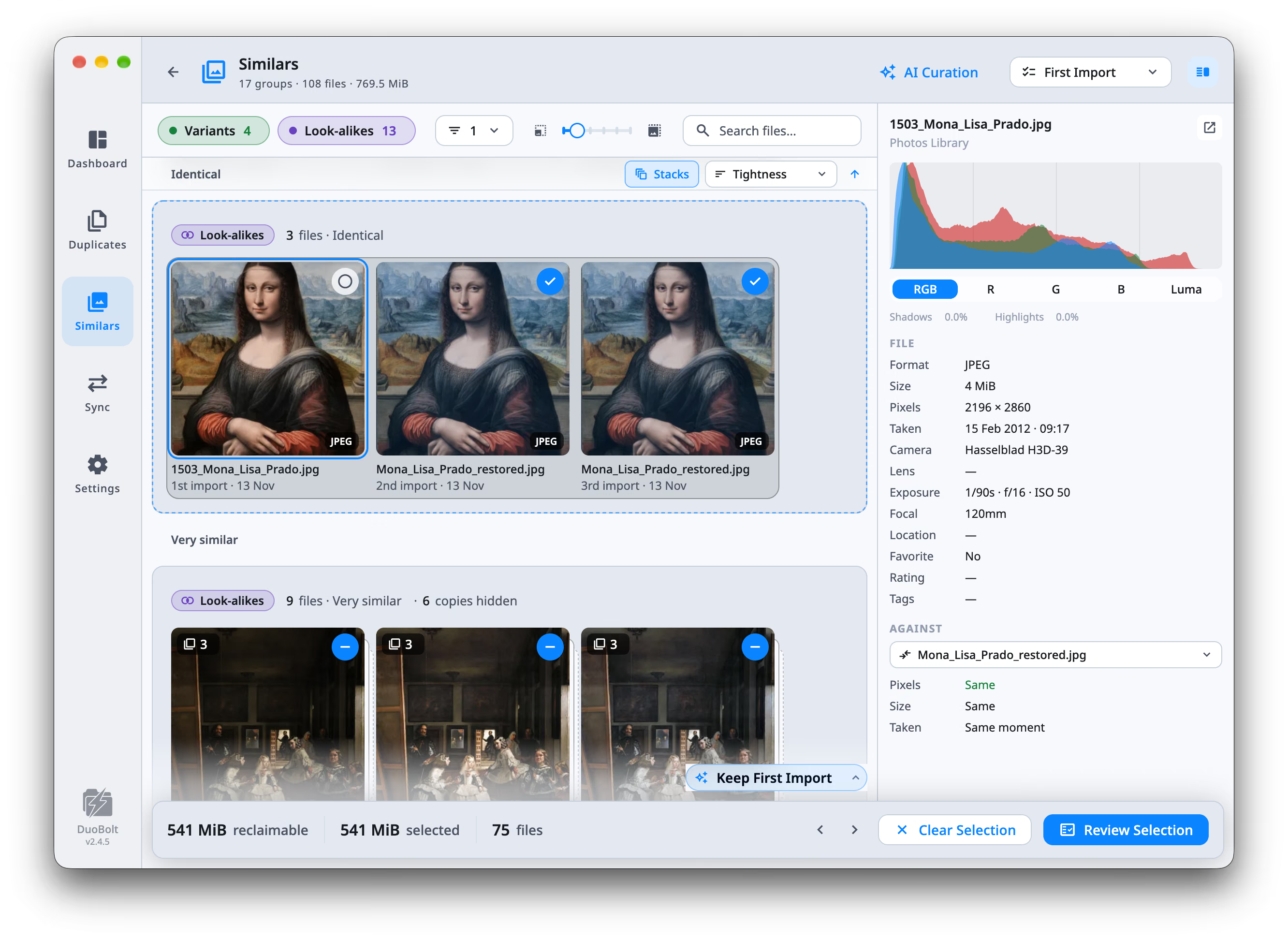
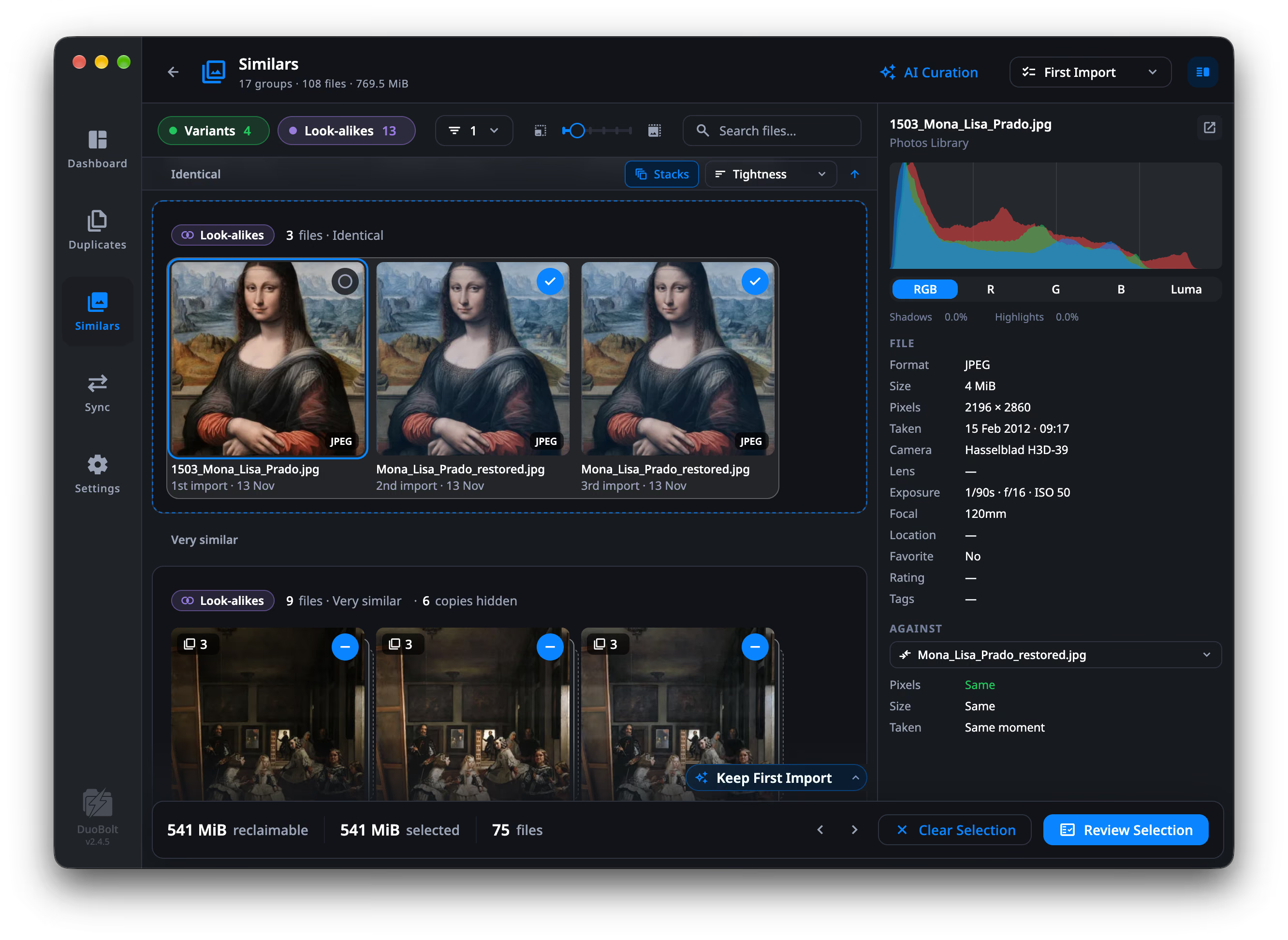
A second import leaves every photo in the library twice: the same file under two import dates, and nothing in Photos to tell you which is which. DuoBolt reads the library, labels each copy with the import it came from, and keeps the first one in every group at once — bursts included.
It never takes a look-alike for a copy
The fear with any clean-up is losing a photo that only looked like another one: the shot with the eyes open, next to the one with them closed. Imported more than once does not judge what photos look like. It counts a copy only when it finds the same bytes under two import dates , which a different photo cannot be. A burst imported twice is handled the same way, frame by frame: each frame is paired with its own copies, and the frames themselves are left alone.
Each copy says which import it is
Photos shows the same picture twice and nothing else. DuoBolt labels every copy in a group with the import it came from — 1st import · 16 Jun 2023, 2nd import · 3 Aug 2025 — so the question of which one to keep has an answer you can read.
Only the same bytes count
Imported more than once keeps only the groups where two copies are identical byte for byte under different import dates. A name means nothing to it: photos a restore renamed are still found, and two different photos that happen to share a name are never taken for one.
Bursts imported twice, too
Ten frames of the same moment, imported twice, are twenty photos that all look alike. DuoBolt stacks each frame with its own copies and keeps the first import of every one. The frames themselves are different pictures, and none of them is offered for removal for looking like another.
Removed through Photos
Nothing inside the library package is touched. A photo goes to Recently Deleted through Photos itself, with its edit, its Live Photo video and the RAW of a pair, and stays there 30 days. The confirmation counts all of it before you agree.
From a doubled library to one decision
Four steps, and only the last one removes anything.
- Step
Scan the library
In Similars, pick Photos instead of Folders. DuoBolt reads the library itself: nothing is exported or copied. The first scan asks for access and walks the whole library; later ones only look at what changed.
- Step
Keep only what was imported more than once
Open Filters and, under Photos, tick Imported more than once. What stays on screen are the groups with a second import in them, and nothing else.
- Step
Keep the first import, everywhere at once
Bulk Select → Keep First Import leaves the earliest copy of each photo unmarked and marks the later ones, in every group. A group it cannot decide, it leaves alone and says how many.
- Step
Review, then delete
Review Selection lists every marked photo before anything happens. Delete sends them to Recently Deleted in Photos, where they stay 30 days if you change your mind.
Photos imported twice — FAQ
- How did my photos end up in the library twice?
- Usually by importing the same source a second time: an iPhone restored from a backup and imported again, a library migrated to a new Mac and then topped up from the old one, a memory card or a folder of exports brought in twice. Either way the result is the same file under a second import date.
- Doesn't Photos already have a Duplicates album?
- Since macOS Ventura it does, under Utilities, and Merge keeps one copy and moves the rest to Recently Deleted. It is free and worth trying first. What Apple does not document is what Photos counts as a duplicate or which copy Merge keeps. DuoBolt tells you both: copies only count when their bytes match, and each one says which import it came from before you choose.
- Which copy does Keep First Import keep?
- The one from the earliest import, in every group. It goes by import order and nothing else.
- What if I edited the second copy?
- Keep First Import will still mark it, because it only reads the import order. Before removing, open Filters and tick Edited to see those groups. Or write a rule order in Settings → Selection with the edited copy above the first import, and run Keep by my rules (⌘R) instead. A favorite works the same way: put the favorite first if a later copy is the one you starred.
- Can I get the photos back?
- Yes, for 30 days. They go to Recently Deleted in Photos, the same as any photo deleted in Photos, and you put them back from there.
- Does it work with iCloud Photos?
- With every photo whose original is on this Mac. A photo that only lives in iCloud, because the library is set to optimize storage, is set aside and counted rather than judged from its thumbnail. Hidden photos are not scanned: macOS does not show the Hidden album to other apps.
- Does it work on Windows?
- No. Scanning the Photos library is a macOS feature. On Windows, DuoBolt's Similars scans folders, and exact copies there are what Find Duplicates is for.
Keep exploring
The Photos library
What a library scan reads, what each tile says about a photo, and how removal goes through Photos.
Read moreDuplicate photo finder
Exact copies and photos that only look alike, in folders or in the library, and how DuoBolt tells the two apart.
Read moreKeep rules
The first import, the favorite, the edited copy and the rest: write an order once and run it over every group.
Read more