On a NAS, years of phone backups, photo libraries synced from three devices, a second copy “just in case” — it all stacks up on the same volume and grows for years before anyone looks.
DuoBolt finds them from the Mac or PC that has the share mounted, and nothing is installed on the NAS. It is free to scan on macOS and Windows, with a free tier that also cleans. Download DuoBolt →
This page covers how to find duplicates on a Synology with and without DuoBolt, what makes network storage different, what the engine does differently on a share, and a step-by-step guide for Synology, QNAP, TrueNAS, Unraid and any SMB or NFS share.
DSM includes Storage Analyzer, and its report profiles have a Find duplicate files when generating reports option. You set the maximum number of duplicates to list, and Synology offers to ignore file name or modified time “to speed up the analysis” (DSM documentation). The report then gains a File Duplicates section.
It is the right first stop: it is already on the NAS and costs nothing. Its limits, from Synology’s own pages:
Each report displays no more than 5,000 duplicate files, and reports export as CSV (DSM 7.4 specifications).
A higher maximum takes longer to process, and usage reports do not count snapshots. File system level deduplication may affect the results (DSM documentation).
Hybrid Share folders are not included in usage reports (specifications, above).
Synology does not document how the report decides that two files are the same.
Every group is confirmed by a full BLAKE3 hash of the file contents, never by name or date.
Results are groups you review in the app, with the copy to keep chosen by keep rules you can change, and nothing is removed until you confirm it on the Review screen.
#snapshot, #recycle and @eaDir are skipped by default, so visible snapshots do not turn every file into a duplicate.
Download it for macOS or Windows, mount the share over SMB, add it as a scan root, and follow the step-by-step guide below.
QNAP — QuMagie, its photo app, finds “exact duplicate files, plus burst shots and near-identical photos” (QNAP). For other files, QNAP’s own blog walks through installing jdupes over SSH, and notes that it is not an official QNAP utility (QNAP blog).
UGREEN — the UGREEN NAS File Manager lists finding duplicate files among its features (UGREEN).
dupeGuru in Docker — there is no dupeGuru package for DSM; the suggestion in dupeGuru’s own discussions is a third-party Docker image (GitHub).
DuoBolt scans any of these the same way, because it never talks to the NAS — only to the folder your computer mounted.
Scanning a NAS is not the same job as scanning a local SSD. Three things work against any scan of one:
Every request is a round trip
Listing a folder, reading a file’s size and opening it each go over the
network. A local disk answers in microseconds; a share answers at the speed
of the link and the NAS behind it, and a large share asks that question
hundreds of thousands of times.
Spun-down disks
A NAS set to park its drives after idle minutes has to spin them back up
before the first read. The first folder of a scan can take seconds to answer.
Snapshot folders
Synology, QNAP and ZFS can expose snapshots as ordinary folders inside a share. Each one holds a byte-identical copy of every file, so a scan that walks into it reports duplicates that are not there.
The first two decide how long a scan takes. In our benchmark suite, 1.09 TiB of music and video over SMB took DuoBolt 10 seconds and Czkawka 11 — a tie, within that tier’s measurement resolution. dupeGuru took 17 seconds, also too close to separate. Gemini 2 took 3m39s.
So speed is not what sets DuoBolt apart over a network share; on that medium the wire decides. What differs is what happens around the scan: the vendor folders skipped before they can invent duplicates, a rescan cache with its own network threshold, and a review step before anything on the share changes.
DuoBolt marks each scan root as local or network, and a scan that includes a network root reads differently.
Size first
Files that are the only one of their size cannot have a duplicate, so they are never opened. On a share full of music and video, almost nothing shares a size, and most of the scan is listing folders rather than reading files — which is why 1.09 TiB takes seconds.
A shorter prehash on a share
Before a full hash, DuoBolt hashes a small window of each candidate to drop files that only match by size. On local disks that window is the first and last 128 KiB. When a network root is in the scan it is the first 4 KiB alone, which spares a second read at the end of every file.
Fewer threads on a share
When a network root is in the scan, hashing uses up to two-thirds of the cores rather than all of them.
One walk per root
Each scan root is walked on its own thread, so /Volumes/NAS/photos and /Volumes/NAS/videos are listed at the same time rather than one after the other.
Only files that survive the prehash are read in full and hashed with BLAKE3, and only a full-hash match makes a group.
420 GiB of music and 699 GiB of video, over SMB 3.1.1 on gigabit Ethernet, measured 20 September 2026 on an M2 Max. Before every run the NAS page cache was dropped and both shares were remounted; the NAS’s services and disks stayed warm. DuoBolt’s three passes came in at 10, 10 and 13 seconds, so anything under 20 seconds on this tier carries about ±30%.
Duplicate File Finder (54s) and Gemini 2 (3m39s) are well outside that margin. Both, and the full method, are on the benchmarks page.
When DuoBolt hashes a file, it records the BLAKE3 hash with the file’s size and modification time. On the next scan, a file whose size and modification time are unchanged skips hashing and takes its hash from the cache.
On a NAS that matters more than anywhere else, because every hash taken from the cache is one file DuoBolt does not read over the network. The check is also looser on a share in one specific way: NAS servers commonly virtualize a file’s change time, and some drop the sub-second part of the modification time across a remount, so on a network volume DuoBolt does not count either as a change.
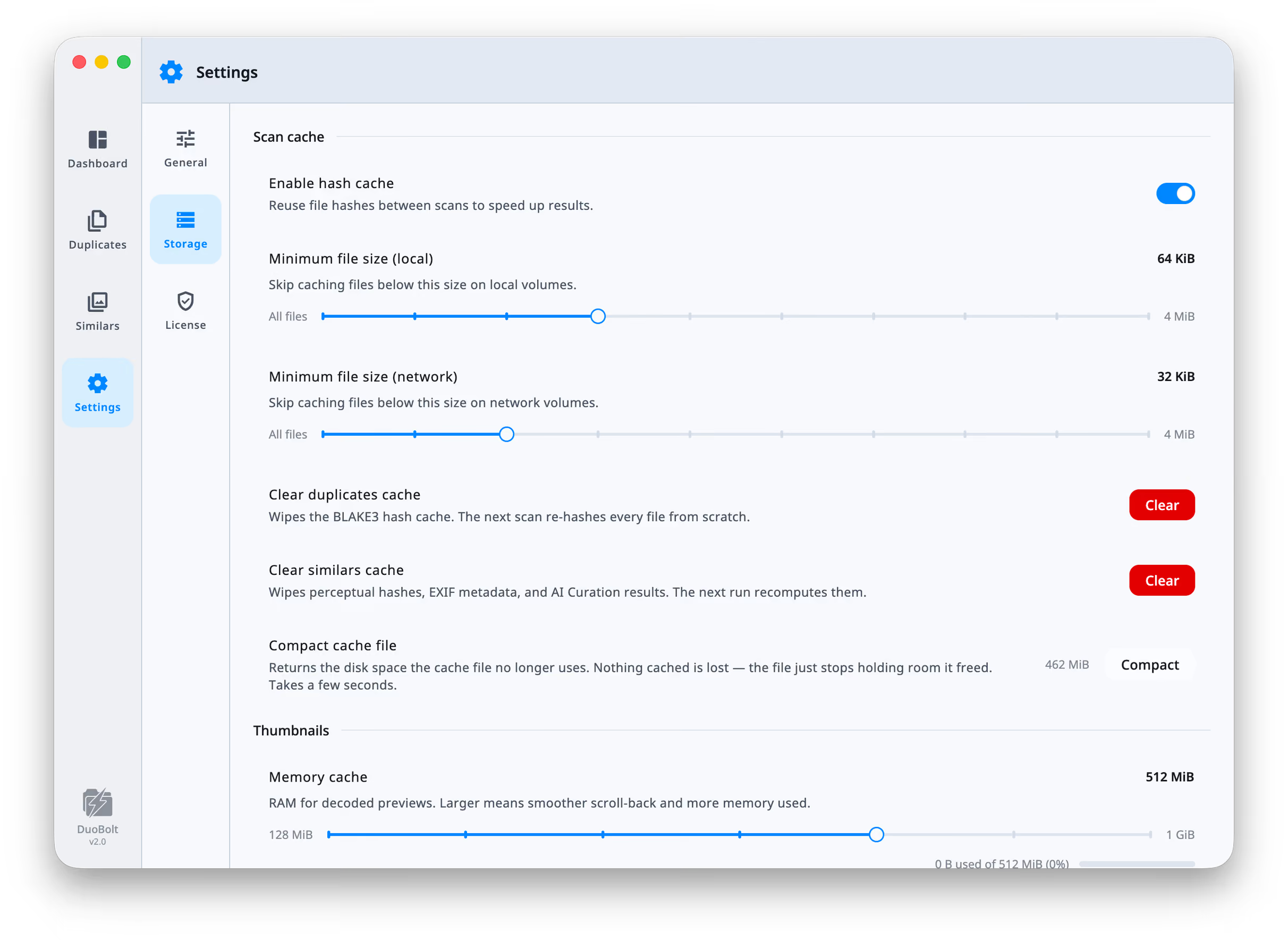
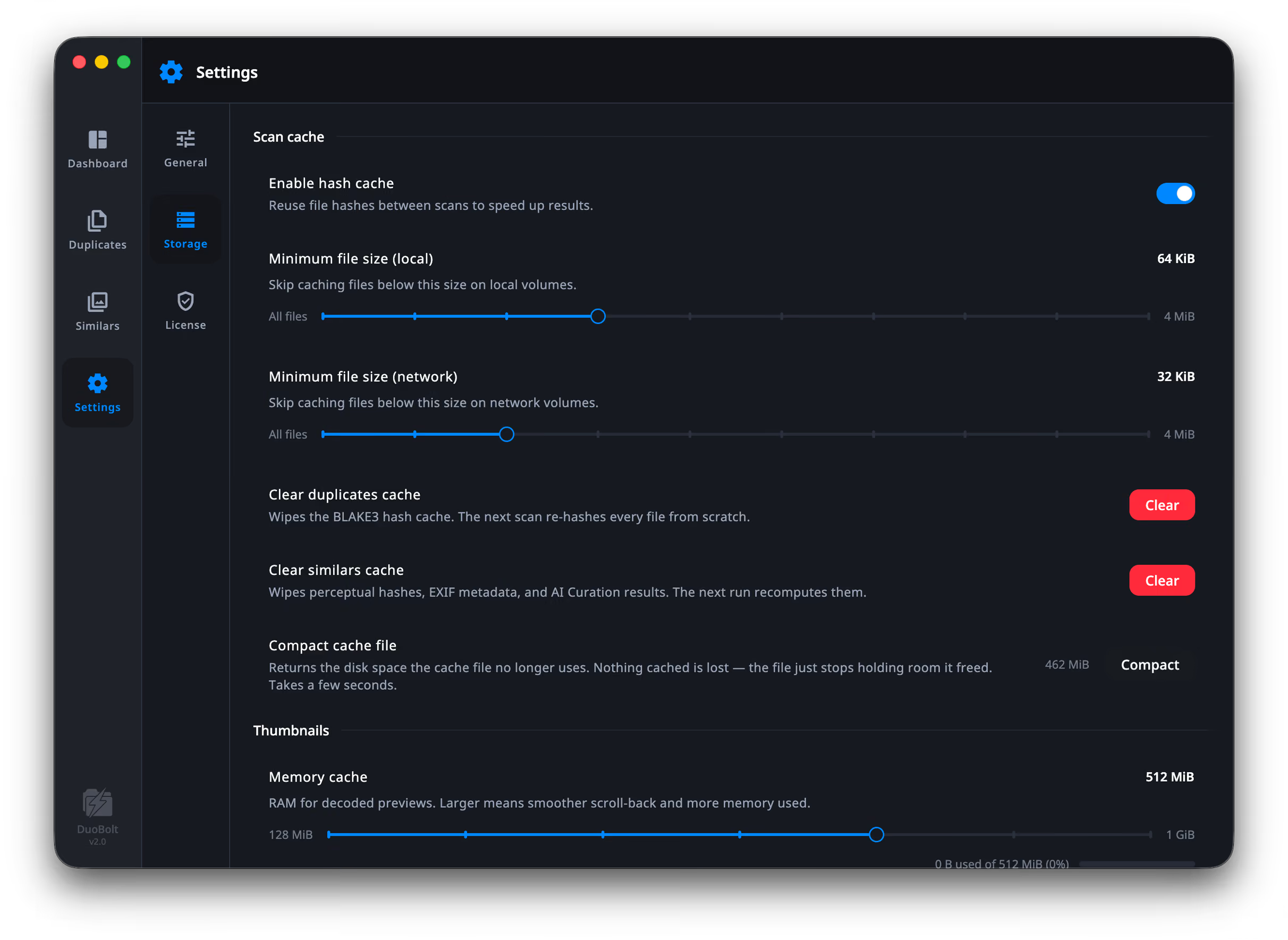
Configure the cache under Settings → Storage. Toggle the hash cache on or
off, and set separate minimum sizes for local and network volumes — the network
one defaults lower, because re-reading a small file over SMB costs
far more than caching it does. Every control, with its
default.
The Minimum file size (network) slider is the one to reach for on a NAS — lower it to cache smaller files on slow NAS shares, raise it to keep the cache lean. Compact cache file reports what the cache is holding and returns the room it no longer uses, without dropping anything it has cached.
Click Add folder and choose the mounted share, or a folder inside it (e.g., /Volumes/NAS/photos).
Check the scan parameters (optional)
In Scan parameters:
Folders → NAS & system folders is on by default. It skips the snapshot, recycle and thumbnail folders that Synology, QNAP and TrueNAS keep inside shares — the full list.
Files → File size range: raise the minimum to 1 MiB or more to skip thumbnails and small metadata files.
Files → Ignore options:System files, Hidden files and Hidden folders are on by default.
Run the scan
The first scan reads everything that shares a size with something else. Later runs take unchanged files from the cache.
DuoBolt runs on a desktop that has the share mounted, not on the NAS itself. It never speaks to the appliance: it reads whatever the host operating system presents as a folder.
Measured here:
Synology DS920+, DSM 7, three HDDs, over SMB on a gigabit link. The 1.09 TiB figures on this page and in the benchmarks come from that machine and no other.
Works because the mount works:
Any share the host can mount — Synology, QNAP, TrueNAS, Unraid, Asustor, TerraMaster, UGREEN, a Windows file server, a Linux Samba or NFS export. DuoBolt sees a folder in /Volumes or behind a drive letter and treats it as one. We have not measured these. If your host mounts the share, the scan works the same way it does on the Synology above.
DuoBolt does not speak network protocols directly. It scans through whatever the host operating system mounts, so the protocol choice lives entirely on the mount side — but it can change how long a scan takes.
SMB (SMB3) — what macOS and Windows use to mount a modern share, and the configuration every figure on this page was measured on. Supports multichannel, encryption and signing. Start here.
NFS (v4) — common on Linux hosts and ZFS-backed NAS. Lower per-operation latency than SMB in many setups, at the cost of trickier UID/GID permission semantics. We have not benchmarked it, so treat that as a reason to try it rather than a result.
AFP — on the way out. Apple’s own guidance is that Time Machine backups to a NAS over AFP are not recommended, and will not be supported in macOS 27 or later. Mount over SMB instead.
SSHFS — convenient (any machine with SSH access works), but every file costs a round trip, which adds up on scans of tens of thousands of small files. Usable for ad-hoc scans; a poor default.
iSCSI / block-level mounts — appear as local disks to the OS and to DuoBolt. Fast, but the target is exclusive to one client at a time.
Not everything on a NAS that looks like a duplicate is one. Snapshots, recycle bins and media indexes keep copies and thumbnails that inflate a scan without being redundancy you would want to remove.
NAS & system folders skips these by name, wherever they appear in a share:
Folder
What it is
#snapshot
Synology. With Make snapshot visible on, snapshots “can be accessed via file services in #snapshot folders of the shared folder” (DSM documentation)
#recycle, @eaDir
Synology. Both are names DSM reserves, along with #snapshot (DSM documentation); #recycle is a shared folder’s Recycle Bin (DSM documentation)
@Recently-Snapshot
QNAP. Lets you view a shared folder’s snapshots over SMB, AFP or FTP (QNAP)
@Recycle
QNAP. Created in every shared folder after QTS is installed (QTS documentation)
.@__thumb
QNAP. Thumbnails generated by Multimedia Console (QNAP)
.zfs
ZFS, so TrueNAS and QuTS hero. Sits at the root of every dataset; hidden by default, but still reachable (OpenZFS)
It also skips .snapshot, .snapshots and System Volume Information.
The snapshot folders matter most. A visible snapshot is a byte-identical copy of the share as it was, so without the skip every file on it forms a group with its own snapshot. The thumbnail folders are a different cost: their files never match your photos, but they add a folder to walk beside every real one.
The recycle bins hold files someone already deleted on purpose. If you are reclaiming space, emptying the recycle bin on the NAS is the faster way to get it back; turn NAS & system folders off only if you want to see what is in there.
Time Machine on a network share is stored as a .sparsebundle disk image rather than as loose files. It is a directory underneath, so a scan will walk into it and find its internal band files. Exclude by directory extension: sparsebundle.
macOS metadata on a non-Mac filesystem.._* AppleDouble sidecars carry the resource fork and metadata that the share’s filesystem cannot store natively, and .DS_Store carries Finder’s per-folder view settings. Both are covered by Ignore system files.
Managed library bundles (macOS):
*.photoslibrary, *.aplibrary, *.itlp, *.imovielibrary — appear as single files in Finder but are large directory trees inside. Exclude by directory extension: photoslibrary, aplibrary, itlp, imovielibrary.
Windows noise:Thumbs.db and desktop.ini, also covered by Ignore system files.
Your NAS may keep other folders of its own. Check your vendor’s documentation for what it writes inside a share, and add those names to the scan’s ignore rules.
QNAP’s QuTS hero and TrueNAS are both ZFS, and ZFS can deduplicate inline: identical blocks are stored once and referenced twice, with no sign of it at the file level. Two files can be byte-for-byte identical, and real, and occupy one copy’s worth of pool.
That is the same problem APFS clones create on a Mac, and DuoBolt solves it in exactly one place: APFS, on macOS. There is no equivalent check for ZFS. On a deduplicated pool the reclaimable figure DuoBolt reports is an upper estimate — every duplicate it finds is real, but removing one may free less than the number says, or nothing.
The verdict is unaffected either way. A BLAKE3 match is a statement about the contents of two files, and it stays true whatever the pool did with the blocks underneath.
Expect the second run to be faster. The first pass fills the cache; the second is what day-to-day use feels like.
Set a sensible minimum file size. Thumbnails, sidecar metadata, and app config files are rarely worth hashing and inflate scan counts without reclaiming space.
Exclude managed library bundles (.photoslibrary, .aplibrary, .itlp). These look large but are not user-facing duplicates. A NAS is where photo libraries usually end up, and the repeats inside one are rarely byte-identical: bursts, exports and re-saves need the duplicate photo finder rather than a hash.
Scan during off-peak hours if the NAS is also handling Time Machine backups, streaming, or other heavy workloads — the NAS’s other work slows the scan.
Re-run an audit from Scan History. It keeps the exact setup a scan used, so a monthly NAS pass is one click rather than a set-up job.
Storage Analyzer can add a File Duplicates section to its usage reports, as described above. Each report lists at most 5,000 duplicate files and exports as CSV. DuoBolt runs on your Mac or PC instead, reads the mounted share, and confirms every group by its contents.
Why does a scan of my NAS show every file as a duplicate?
Usually a snapshot folder: #snapshot on a Synology, @Recently-Snapshot on a QNAP, .zfs on ZFS. Each snapshot is a full, identical copy of the share as it was. DuoBolt skips them by default; a tool that does not will report every file twice or more.
No, and it does not need to be there. DuoBolt runs on your Mac or PC and reads the share the way any other application does. Nothing is installed on the appliance, no package is added to DSM or QTS, and there is no daemon left running when you close the app.
Mount the share first — in Finder, Go → Connect to Server; in File Explorer, map it to a drive letter or type the UNC path. Once it appears as a folder, add it as a scan root like any other. The scan is the same one you would run on an internal disk; only the speed is different, which is what the cache layer above exists for.
Czkawka is open source, actively developed, and hashes with BLAKE3 by default — the same algorithm DuoBolt uses, so its verdicts about which files are identical are as trustworthy as ours.
The part to check is what its delete does. Files are removed outright unless you enable Move deleted files to trash in its settings, and it documents no review step before a removal and no way to restore after one. On a NAS holding things you cannot re-create, that is worth knowing before you start rather than after.
Yes, from a computer with the share mounted, or in a third-party Docker container on the NAS itself. On our 1.09 TiB Synology share it took 17 seconds against DuoBolt’s 10, which is too close to call — the benchmarks have the method.
The thing worth knowing comes from dupeGuru’s own documentation: network storage is listed as a case where sending files to the Trash can fail, with a “directly delete files” option offered as the workaround. Taking that workaround on a NAS turns a recoverable removal into a permanent one.
A scan reads. Hashes, thumbnails and similarity data are cached on the machine running DuoBolt, not on the share — you can see the cache and clear it under Settings → Storage. Nothing on the NAS changes until you choose an operation and confirm it on the Review screen.