Two copies, one frame, and a line between them
This is for the moment you have two versions of one photograph and have to decide which one to keep. DuoBolt puts them both in the same frame at the same zoom and lets you wipe a line across, with the light in each of them measured. It is not a general image viewer: the comparison runs on copies DuoBolt grouped for you, so you cannot hand it two unrelated pictures. If that is what you need, this is the wrong page and we would rather say so here than after you install.
Where the difference hides
Open one picture, look at it, open the other, look at that. What you have just done is not a comparison — you are comparing the second photo with your memory of the first , and memory is generous about sharpness and hopeless about a third of a stop. The differences that separate two copies of one photograph are exactly the size that memory loses: a slightly better focus, a marginally cleaner sky, one of them re-encoded a generation further down. Putting the two in one frame removes the memory from the loop. Same size, same position, same zoom — so when the line passes, the only thing that changes is the thing that differs. Then the histogram answers what the eye cannot, because a screen turned up hides crushed shadows and a screen turned down hides blown highlights, and neither of those is recoverable in the copy you keep.
A curtain you drag between the copies
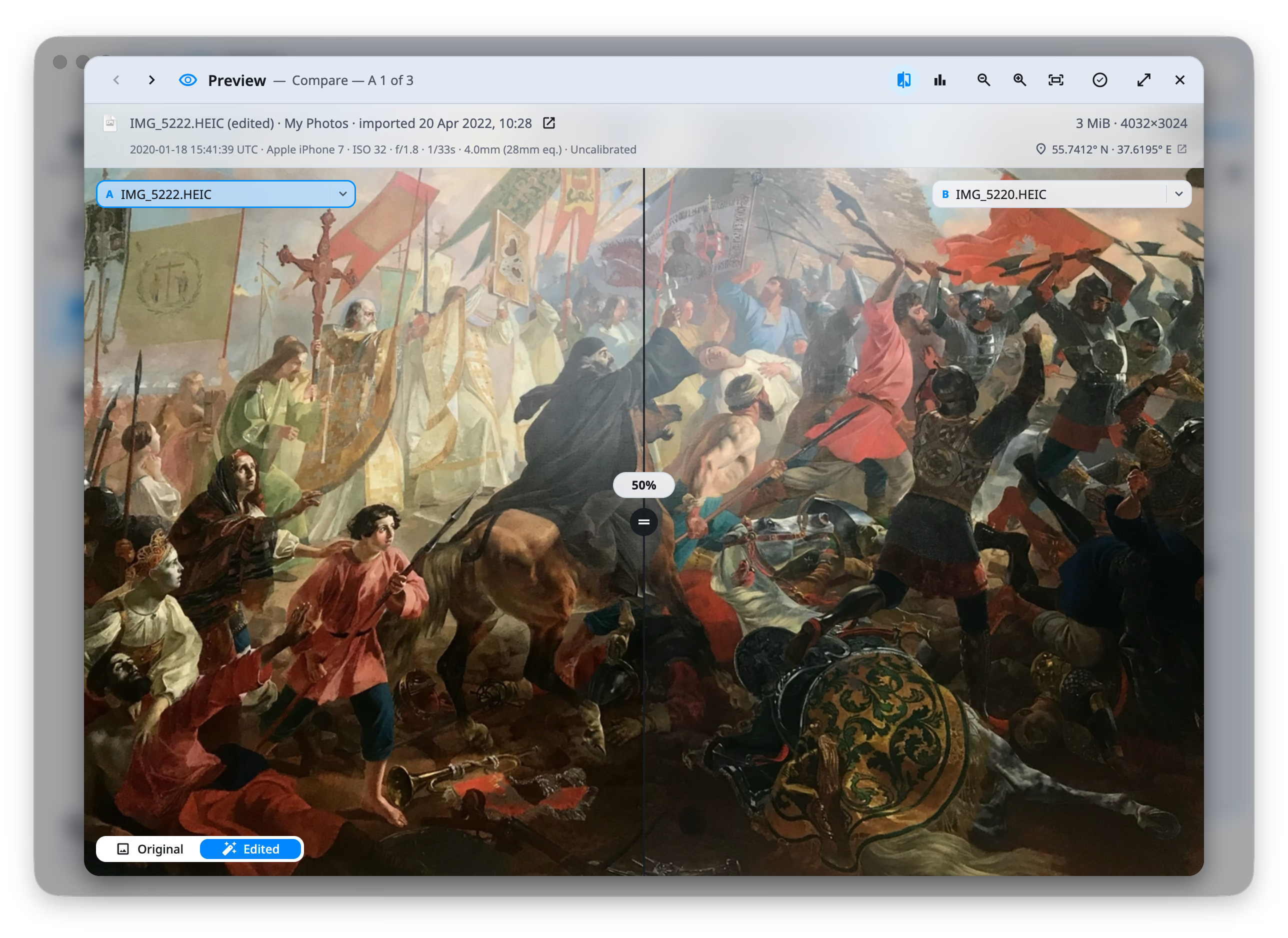
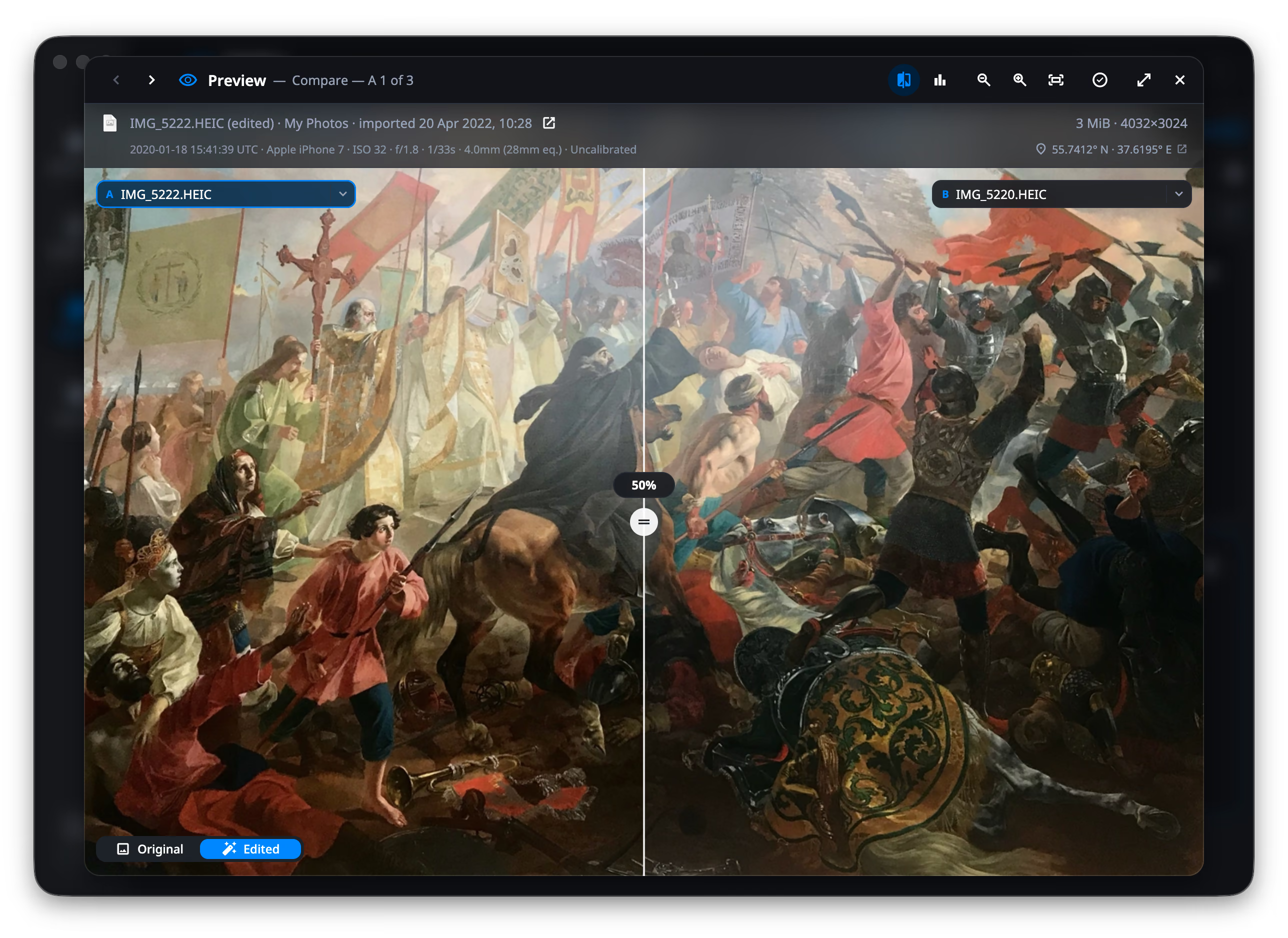
Two panes halve each picture and make your eye travel between them, which is exactly where a small difference stops being visible. The curtain puts both copies in the same frame at the same fit, zoom and position, with a line you drag across.
Zoom once, for both
Drag anywhere away from the line and both copies pan together. Zoom into a face, an edge, a corner of the sky, and the detail stays framed while you wipe the line back and forth across it.
The light, measured
Press H and a histogram draws over the picture: the three channels together, any one alone, or Rec. 709 luminance. Underneath it, the share of the frame pinned at pure black and at pure white — over 1% turns red, because that share is no longer detail.
Free to use
The curtain, the histogram and the difference overlay are in the free tier, with no account and no card. A free scan shows the first eight look-alike groups whole, and everything on this page works inside them exactly as it does with a license.
Comparing two copies, step by step
Four steps. The comparison itself is one key.
- Step
Scan the folder they live in
Point Similars at the folder, the card or the Photos library. It groups the pictures that are repeats of one another — bursts, exports, edits, re-saves — which is how the two copies end up in one place to be compared.
- Step
Open one and press C
The frame becomes a curtain. Chips at the top corners name the two copies, and where the names are identical they say what tells them apart instead: how many megapixels, how large, whether it is an edit or a RAW.
- Step
Wipe, and look at the same spot twice
Drag the line, or hold ⇧ and use the arrow keys for 5% steps. X swaps the two sides. Double-click puts the line back in the middle. In a group of more than two, the chevrons walk one side through the rest.
- Step
Mark the one that loses
Decide, select it, and it goes through the Review screen with everything else you marked. Nothing is removed from the preview itself — the comparison ends in a decision, not in an action.
Comparing two photos — FAQ
- Can I compare any two photos I choose?
- Not any two. The curtain works inside a group, on the copies of one photograph that DuoBolt found for you — a RAW and its JPEG, an original and its edit, two frames of a burst, an export and what it came from. If two pictures are unrelated they never land in the same group, and there is no way to load two arbitrary files side by side. If that is what you came for, DuoBolt is the wrong tool and you should not have to install it to find out.
- Why a wipe instead of two pictures next to each other?
- Because the copies are nearly the same picture. Side by side, each one is half the size it could be, and your eye has to travel from one to the other — which is the exact moment a small difference in sharpness or exposure stops being visible. In one frame, at one size, in one place, the difference appears under the line as it passes.
- What does the histogram tell me that looking cannot?
- Where the picture has stopped holding detail. A screen with its brightness up hides crushed shadows, and a screen with it down hides blown highlights. The readout states the share of the frame pinned at pure black and at pure white, and turns red over 1%. Comparing two copies, Δ lays the other copy's curve over this one's — the same measurement on both, so the difference is the thing you are reading rather than an impression.
- Does it work on RAW files?
- Yes. The fullscreen preview develops the RAW rather than showing the small JPEG the camera wrote inside it, and decodes a HEIC rather than reading its embedded thumbnail. The difference shows in shadows and in fine detail, which is where a comparison is usually decided.
- Do I have to compare every group by hand?
- No, and you should not. Write the decision down once as a keep rule — keep the RAW, keep the copy with more pixels, keep the one that still has its EXIF — and run it over every group at once. The curtain is for the groups where the rule had nothing to say, or where you want to check it before agreeing.
- Is it on Windows too?
- Yes, with Ctrl in place of ⌘. The compare curtain, the histogram and the difference overlay are identical on both platforms. On Windows, HEIC and AVIF previews need two free Microsoft Store extensions; without them those files are still found and grouped, you just cannot see them.
Keep exploring
Every shortcut, documented
The full key list for the curtain and the histogram, what each chip and chevron does, and how the curve is scaled so one blown sky does not flatten the rest.
Read moreKeep rules
Decide once instead of group by group: an ordered list read top to bottom, where the first rule with an opinion wins and a tie is left alone.
Read moreDuplicate photo finder
How the groups get built in the first place — bursts, exports and re-saves that no hash can match, grouped by what the pictures look like.
Read more