Sync two folders, and see every difference first
A folder on your computer and its copy on a drive, both edited since, and no way to tell which one is current. DuoBolt compares the two by their contents, shows every difference side by side, and brings them in line in the direction you choose: one way, the other, or both.
Why the dates never decide
A sync that trusts dates copies the newer file over the older one. But the newer file is not always the one that changed . Volumes keep dates at different precisions: a nanosecond on APFS, 10 milliseconds on exFAT, 2 seconds on FAT. A copy that does not preserve dates stamps the time of the copy instead. So DuoBolt compares every pair of the same size by its bytes, and in Both ways it asks the record of the last sync which side changed. When there is no record, or both sides changed, the pair is a conflict and waits for you. Newer wins is there, as a button you press, not as a rule it applies on its own.
Compared by contents
Two files of different sizes differ, and that is settled without reading them. Every pair of the same size is compared by its bytes. The hash cache is the one the duplicate scan uses, so comparing the same trees again does not read them twice.
Both ways knows which side changed
DuoBolt keeps what the two folders held when they last matched. A file changed on one side is copied to the other, a file deleted on one side goes to the Trash on the other, and a file changed on both sides waits for you.
Every pair can be told what to do
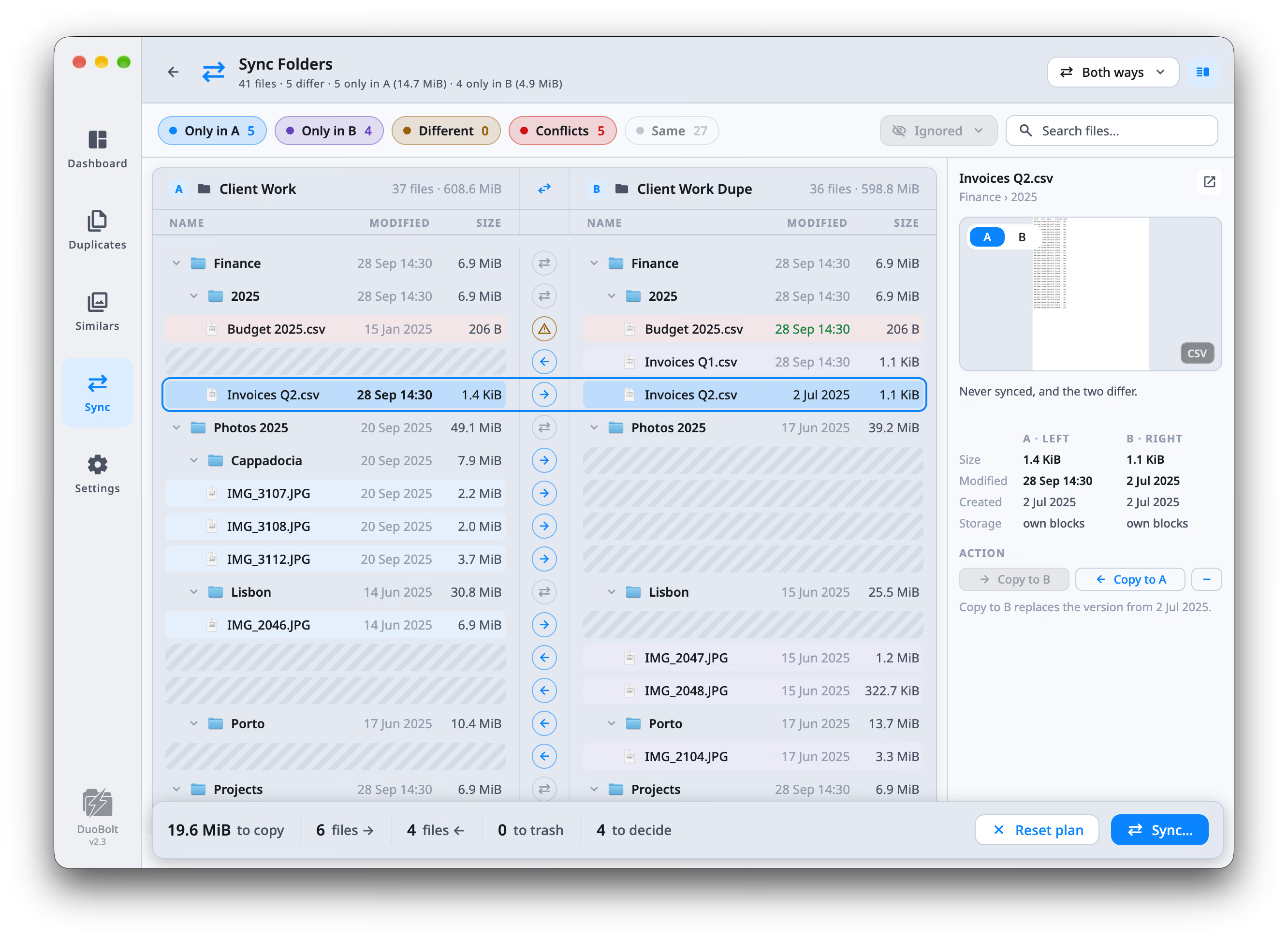
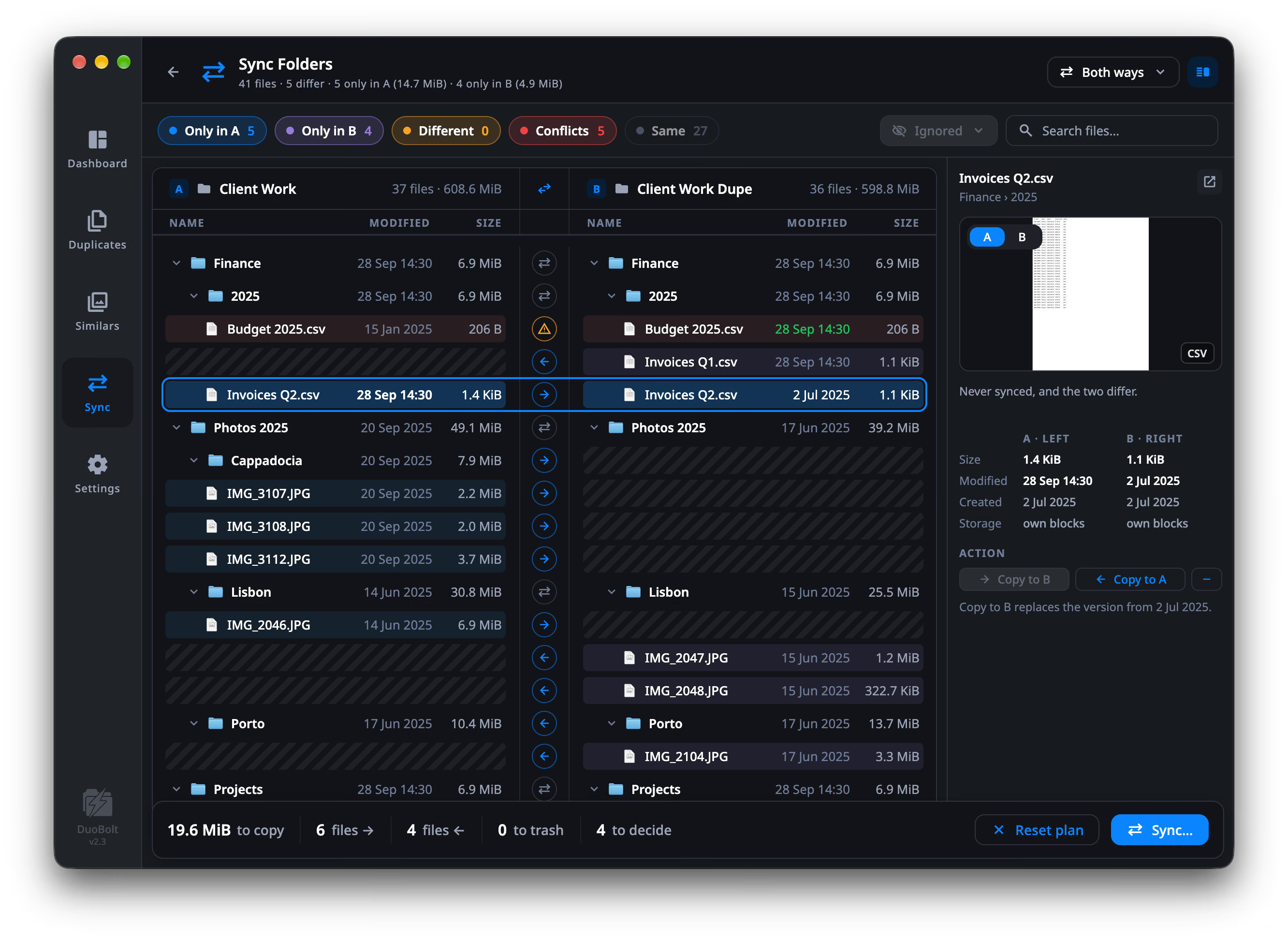
The button between the two sides opens a menu: copy to A, copy to B, move to the Trash, or leave both alone. On a folder it decides for everything inside. Chips and a search narrow the list, and anything can be ignored.
It holds back instead of guessing
A side that lost more than half its files since the last sync, a mirror that would trash more than half its target, or a side where nearly every file looks changed: each waits for you instead of spreading. So do a sync service's conflicted copies and half-synced app packages.
How a sync runs
Four steps, and nothing is copied until the last one.
- Step
Pick two folders and a direction
Folder A, folder B, and one of three: Mirror to B makes B a copy of A, Mirror to A the reverse, and Both ways carries changes each way. Recent setups are kept in the sidebar.
- Step
Compare, with nothing copied
Both sides are read and every pair is sorted into Only in A, Only in B, Different, Conflicts and Same. The results show the two folders as trees side by side, with what will happen to each pair in the middle.
- Step
Settle what it asks about
The inspector shows the pair under the cursor: both files, their sizes and dates, what will happen and why. Space opens the preview. Decide conflicts one by one, or let Newer wins settle every one the dates can decide.
- Step
Sync, after a check
Before anything runs, DuoBolt checks what would fail and says so. Files removed from a side go to its Trash, and on a Mac they can be restored from Operations History, as can a file a copy replaced.
Folder sync FAQ
- How do I sync two folders on a Mac or a Windows PC?
- Open Sync Folders in DuoBolt, choose folder A and folder B, pick Mirror to B, Mirror to A or Both ways, and press Compare. Nothing is copied while it compares. Review the pairs, settle any conflicts, and press Sync… to run it.
- Does it compare files by date or by contents?
- By contents. A pair of different sizes differs without being read; every pair of the same size is compared byte by byte. Dates are only shown, and used when you press Newer wins. Two files with the same size and date but different contents are reported as different.
- What happens the first time I sync two folders both ways?
- There is no record yet of what the two folders held when they last matched, so DuoBolt cannot tell which side changed a file. A file that exists on both sides and differs is a conflict, and waits for you to pick a side or press Newer wins. Files only on one side are copied to the other. After that first sync, Both ways knows which side changed.
- Can a sync delete my files?
- A sync can remove a file from one side when that is what the direction asks for, and every removal goes to that side's Trash. On a Mac, removed files and files a copy replaced can be restored from Operations History. Before a sync starts, DuoBolt checks what would fail, and a side that has lost more than half its files since the last sync, the way an unmounted drive looks, has its deletions held back.
- Does it work with external drives and network shares?
- Yes. A and B can be on different drives, including a network share. A drive with no Trash, such as many network shares, cannot take a removal back, so DuoBolt asks before anything there is deleted for good.
- What about files that are only in iCloud Drive or OneDrive?
- A file that lives only in the cloud is not downloaded to compare it. The pair is listed as not verified and waits for you, and DuoBolt offers to download it and compare again. It is never copied over on a guess.
- Can I stop and come back to a sync later?
- Yes. A plan you have started deciding is kept as a sync session, and can be resumed from the Dashboard or from the setup's sidebar.
- Is Sync Folders free?
- Comparing is unlimited, and every difference is shown. The free version carries out up to 25 files and 500 MiB per sync, and what is left stays in the list for the next one. A Standard license, a one-time purchase, removes the cap.
Keep exploring
Sync Folders, in full
The documentation: every direction, the record of the last sync, each case that waits for you, and the run dialog.
Read moreExact duplicate file finder
The same byte-for-byte comparison, pointed at one set of folders to find the files that are there twice.
Read moreUndoing a clean-up
Operations History and Review & Restore: how a removal is recorded and how a file comes back.
Read moreFree, Standard and Pro
What the free cap covers, what Standard removes, and what the 7-day trial includes.
Read more