The bytes DuoBolt shows you equal what your disk frees
Count logical file sizes on macOS and the total is a fiction: a file duplicated in the Finder shares its storage with the original, and deleting one of them frees nothing. DuoBolt finds these clones, counts each shared copy once and marks them in the results. For identical copies that do not share yet, Replace with clone makes them clones: every file stays where it is, and the disk stores the bytes once.
Why adding up file sizes is wrong on APFS
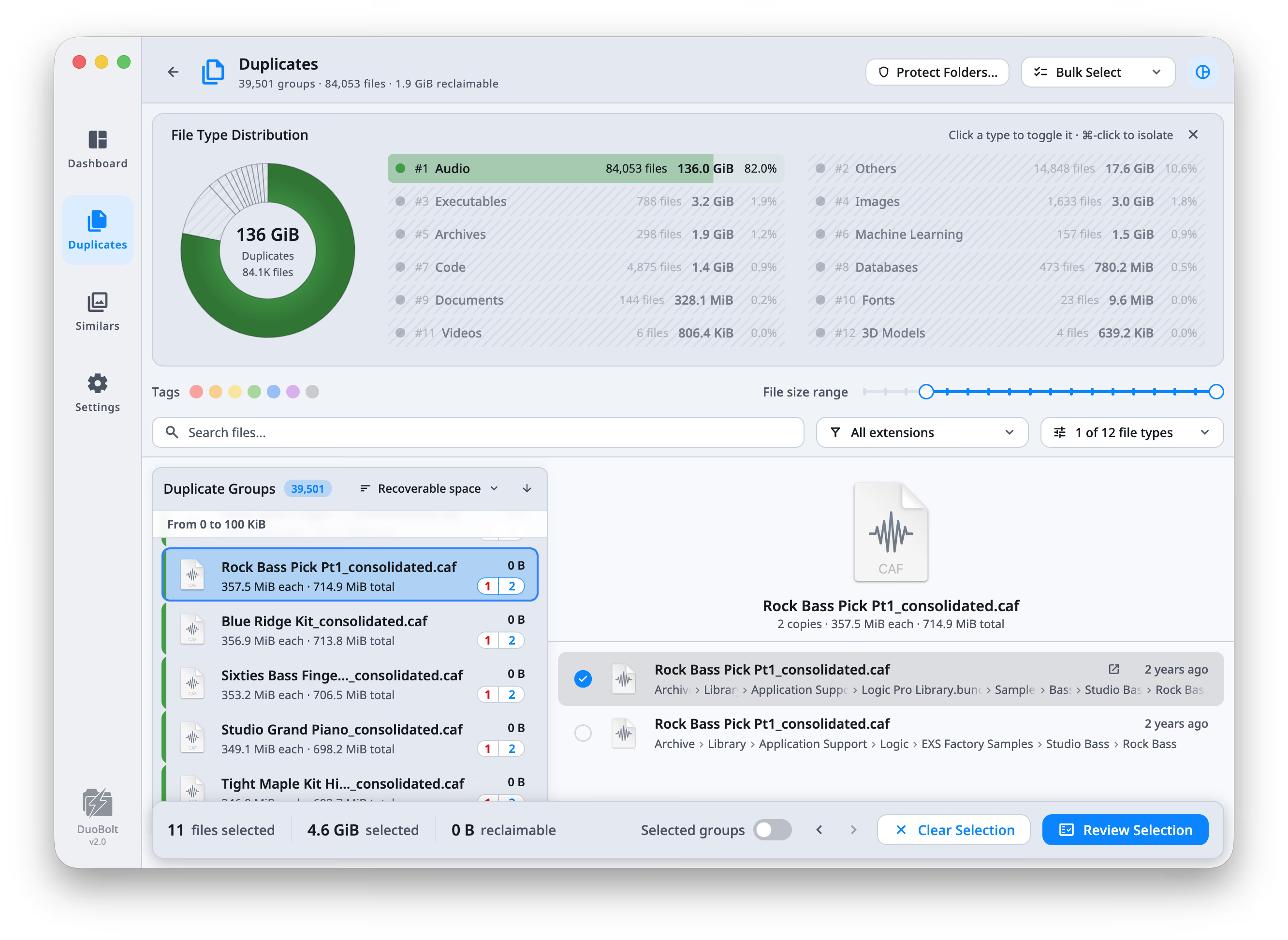
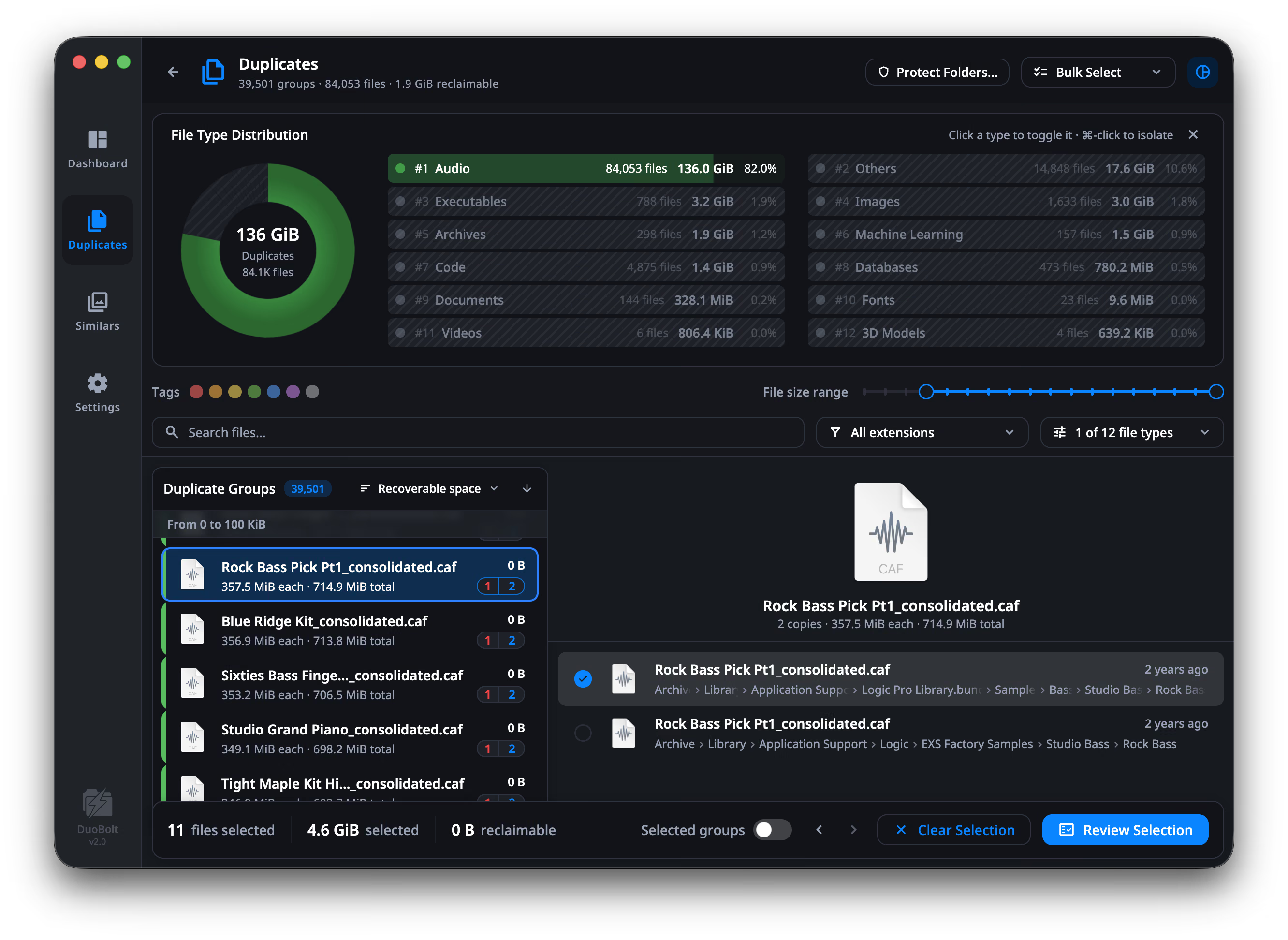
Duplicate a file in the Finder on an APFS volume and macOS does not copy its contents. It makes a clone: a second file with its own name and dates, pointing at the same blocks on disk until one of the two is edited. Delete either one and nothing is freed, because the other still uses those blocks. The screenshot above is a scan of such a folder: 80 files in 40 groups, 985 MiB by file size. Keeping one copy of each and adding up the rest comes to 492.4 MiB, and DuoBolt reports that as 492.4 MiB shared by clones, with 0 B reclaimable. The Mona Lisa group reads 0 B in the list, and its detail says why: 2 copies, 89.9 MiB each, 179.9 MiB total, all share one copy on disk. DuoBolt reads which files share storage from the filesystem during the scan, and the selection footer, the Review total and the confirmation all use the same figures, so the bytes you see before you confirm are the bytes your disk will free.
Replace with clone
A mode in Review, beside Move to Trash. Each marked copy becomes an APFS clone of the copy you keep on the same volume: same name, same folder, same dates, permissions and extended attributes. Nothing is removed, and the disk stops paying for the second copy.
Clones marked in the list
A group whose copies share storage says so on its row: 2 → 1 means two copies, one on disk. In the detail, each copy carries the letter of its clone set, and the caption reads "all share one copy on disk" or how many sets and independent copies there are.
Filter by clones
The Filters popover has a Clones choice: All, Only clones, or No clones. Only clones shows the groups whose copies already share storage. No clones hides them, and leaves the groups where removing a copy frees space.
Selection size is space freed
Select clones and the footer shows the bytes your disk will free, not file size × count. In the screenshot above, ten cloned files read 431.1 MiB selected and 0 B reclaimable.
How clone-aware accounting works
Four stages between the scan finishing and the recoverable number you see. The first is the ordinary duplicate pipeline; the next three are what clone awareness adds on top of it.
- Step
Group duplicates as usual
DuoBolt walks your scan roots and groups duplicates by full BLAKE3 hash — the same exact, byte-for-byte matching as any other DuoBolt scan.
- Step
Read APFS clone metadata
For each duplicate group on an APFS volume, DuoBolt asks the filesystem which files share physical storage. This is metadata, not content — milliseconds, not megabytes.
- Step
Compute recoverable per group
Each shared-storage chain counts only once toward the group's recoverable total. The "total" still reflects the logical sizes you'd see in Finder, so both numbers are available when you need them.
- Step
Propagate to every UI surface
The results header, the selection footer, the Review total and the confirmation all read from the same clone-aware accounting. What the header does not count as reclaimable, it reports as shared by clones.
APFS clone detection FAQ
- What is an APFS clone?
- When you duplicate a file in the Finder, or copy it with `cp -c`, on the same APFS volume, macOS doesn't copy the bytes on disk. It creates a second file that points at the same physical blocks. Both files are real and independent, with their own names and dates: editing one gives it its own blocks for what changed. Until then they share storage. How DuoBolt detects clones, and where it cannot →
- Why does my disk fill up if duplicate finders find gigabytes to recover?
- Because a logical file size is not the same as blocks on disk, and only the second one is what you get back. Take the scan in the screenshot: 40 groups, 80 files, 985 MiB of duplicates. Keeping one copy of each and adding up the rest would promise 492.4 MiB. DuoBolt's header says 0 B reclaimable and 492.4 MiB shared by clones, and every group in the list reads 0 B. Select ten of those files and the footer reads 431.1 MiB selected, 0 B reclaimable. The first number is what arithmetic on file sizes suggests. The second is what your disk will give back.
- What does Replace with clone do to my files?
- For each marked copy, DuoBolt hashes it and the copy you keep again, and goes ahead only if they are still identical. It then builds the clone beside the file under a temporary name, gives it the file's own name, dates, permissions and extended attributes, and renames it into place, so an interruption leaves either the original or the finished clone. A copy that already shares storage with the one you keep is skipped, and so is one with no kept copy on its own volume, since a clone cannot cross disks. The confirmation says how many of each before anything runs. In the free version, one run covers up to 25 files and 500 MiB, the same limit as a removal.
- Does clone detection slow down scans?
- No measurable impact. The clone check is a per-group metadata lookup against APFS — milliseconds across a typical scan. The expensive work (reading and hashing file contents) is unaffected. Scans take the same time with it on or off, within run-to-run variance.
- What happens on Windows or non-APFS volumes?
- Clone detection is a no-op. DuoBolt reports a single 'total' number per group. There is no APFS equivalent on NTFS, ext4, HFS+, or SMB shares, so nothing to detect. Cross-platform behavior is unchanged.
- Can I turn clone detection off?
- Yes, per scan. Open Customize… on the scan setup screen, go to the Advanced page, and untick 'Detect APFS clones' under Performance options. It is on by default, and most people have no reason to turn it off: when a volume has no clones the feature is invisible and every number is the plain one. Every scan parameter and its default →
Keep exploring
Clonemap, free
See how much of a whole drive is already clones, where they live, and what a local snapshot is holding back. A free Mac app from the makers of DuoBolt.
Read moreDuplicate finder for Mac
The four macOS facts a cross-platform scan tends to miss: clone-aware totals, library folders worth skipping, iPhone formats opened without a plug-in, and a Universal notarized build.
Read moreExact duplicate file finder
Why DuoBolt only flags byte-for-byte matches — and why exact matching is the foundation that makes clone-aware accounting trustworthy in the first place.
Read more