A duplicate file finder for Windows, native on x64 and ARM64
DuoBolt compares file contents byte for byte with BLAKE3. A Copilot+ PC gets a native ARM64 build rather than an emulated one, and nothing is removed until you have seen exactly what it found.
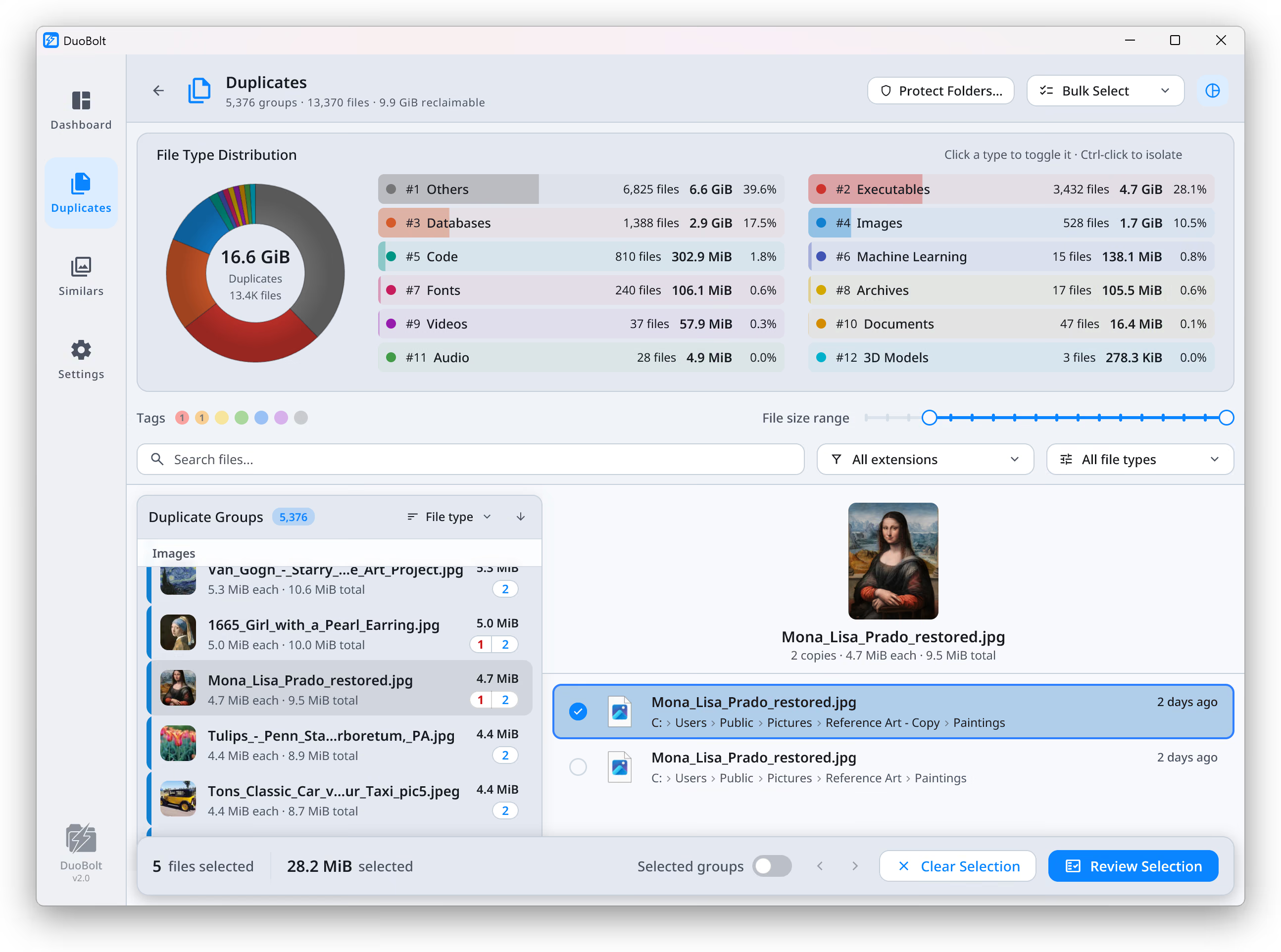
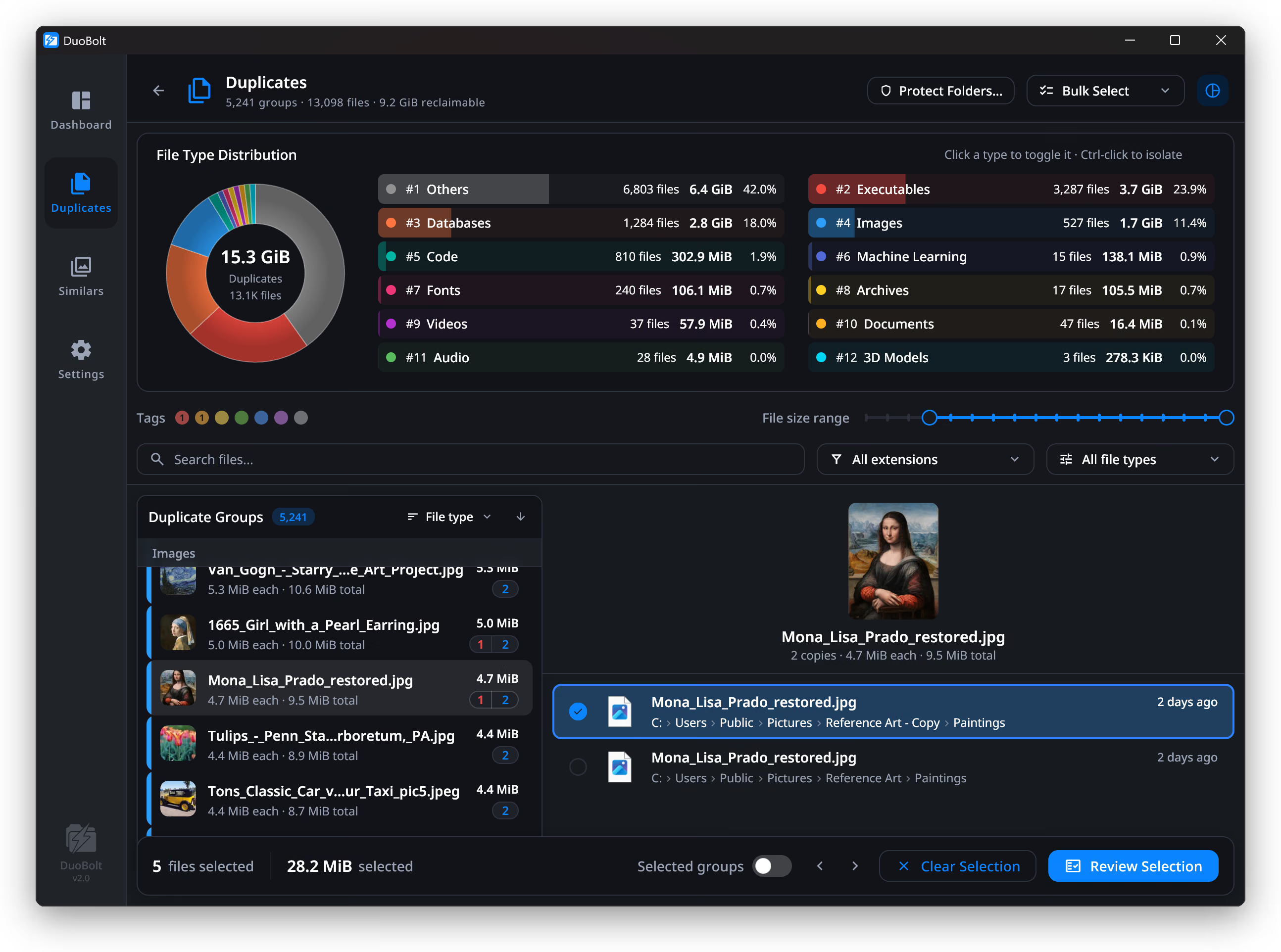
A native build for ARM64 Windows
On an ARM Windows PC, an x64 app runs through Windows' emulation, which translates its instructions as it goes. A duplicate scan is the workload where that shows: hashing is CPU-bound and runs across every thread you have. DuoBolt ships a native ARM64 build, so those threads hash instead of translating. On x64 it is the same engine as on a Mac, and it returns the same duplicate groups.
Native on both Windows chips
x64 and ARM64 builds, each native. On a Snapdragon X or any other Copilot+ PC, the ARM64 build runs without emulation.
Content-based matching
Every candidate is fully hashed with BLAKE3 and grouped only when contents match exactly. Identical files renamed across folders are still found; different files sharing a name are never confused for each other.
Recycle Bin, Archive, Copy or Delete
Move to the Recycle Bin, move to an Archive folder, copy somewhere else, or delete outright. Only the last one is final, and it says so — and every operation is written to a history you can restore from.
Local drives, mapped drives, UNC paths
Internal NVMe and SATA, USB externals, SD cards, mapped drive letters and raw UNC paths to a NAS or file server — all scan the same way, and duplicates are found across roots as well as inside them.
How a duplicate is proven
Four steps from a folder pick to a confirmed cleanup. The scan is entirely local: no account, no upload, nothing about your files leaves the PC.
- Step
Add folders or drives
Drop in any combination of local folders, mapped drives and UNC paths. Exclude anything you want left alone, set a size floor, and every scan root is walked in parallel.
- Step
Hash with BLAKE3
A head-and-tail prehash drops the non-matches first; whatever survives is fully hashed with multi-core BLAKE3 across every available thread.
- Step
Review every match
Each group shows full paths, sizes and previews. Use the bulk-select rules or pick by hand.
- Step
Choose what happens
Recycle Bin, Archive folder, a copy elsewhere, or a permanent delete. The operations history records what was touched.
Windows duplicate finder FAQ
- Does DuoBolt run natively on ARM Windows?
- Yes. There is a real ARM64 build, not an x64 binary under emulation, so a Snapdragon X or any other Copilot+ PC runs it at full speed. An x64 binary running under Windows' translation layer costs both throughput and battery; a native build does not pay either.
- Which versions of Windows are supported?
- Windows 10 and Windows 11, on x64 and ARM64. The installer is code-signed and needs no administrator privileges to scan your own folders.
- Does DuoBolt rely on file names or sizes to detect duplicates?
- No. A full-content BLAKE3 hash is computed before two files are ever called identical. Names, timestamps and sizes are shown for context and are never used to decide a match.
- Will DuoBolt delete anything without me confirming?
- Never. Nothing is selected by default, and nothing is removed until you confirm it on a review screen showing full paths, sizes and previews. You then pick between the Recycle Bin, an Archive folder, a copy elsewhere, or deleting outright.
- Can it scan a mapped network drive or a NAS share?
- Yes. Mapped drive letters, UNC paths and mounted SMB shares all work, and nothing is installed on the NAS itself. Large network scans benefit from raising the size floor so the walk skips the thousands of tiny files that dominate a share.
- Why does DuoBolt skip my iPhone photos on Windows?
- Because Windows cannot open HEIC on its own. Grouping look-alike photos means decoding the picture, and that needs a free Microsoft Store add-on: HEIF Image Extension, which covers HEIC and HEIF. AVIF is a separate format with its own free add-on, AV1 Video Extension — worth installing if you have AVIF images, though an iPhone does not produce them. Install what applies and the library groups normally. Finding byte-for-byte duplicate files is unaffected either way: that path never opens an image, it hashes the bytes. HEIF Image Extension → AV1 Video Extension →
- Does DuoBolt detect similar images or near-duplicates?
- Yes, on a second engine that is kept deliberately separate. The duplicate finder matches only when two files are byte-for-byte identical, and it will never call anything else a duplicate. Near-identical images — bursts, retakes, a RAW and the JPEG exported from it — are grouped by what the picture shows and ranked rather than declared identical, and the results label which verdict you are looking at.
Keep exploring
The same app on a Mac
One engine, two platforms: the same hashing, the same grouping, the same results — plus the macOS-only facts, like clone-aware totals on APFS.
Read moreUsing it for nothing
Every duplicate shown in full, no account, no expiry, and the one removal limit said out loud rather than discovered.
Read moreDuplicate and look-alike photos
The other engine: exact copies proven byte-for-byte, look-alikes grouped by what the picture shows and ranked with a reason.
Read moreDuplicates on a NAS share
Map the share to a drive letter and scan it. Nothing is installed on the NAS, and its snapshot and recycle folders are skipped by default.
Read moreWhich formats it can read
Images, RAW by manufacturer, and the two free Microsoft Store extensions Windows needs before HEIC and AVIF will preview.
Read more