Free up space on a full Mac
The disk is full and you don't know where it went. Scan Documents, Downloads and Movies for exact copies, read which of two numbers you'll actually get back, and send the extras to the Trash.
In this video
The numbers below are the ones in the video: a demo account with about 8 GiB of copies in Documents, Downloads and Movies. Your own scan will print different numbers in the same places.
Scan the folders your copies are in
Pick Documents, Downloads and Movies in Duplicates’ quick picks,
not Home. Home also takes in ~/Library, which holds app caches,
containers and mail rather than files you made, and it makes the scan longer
for nothing you would want to delete.
Leave Pictures out too. It walks into the Photos library, and duplicate photos are a different job.
Press Find Duplicates. Nothing is moved or deleted while it scans: it reads the files, hashes them, and compares the hashes. Two files land in the same group only when their contents are byte-for-byte identical.
Read the right number
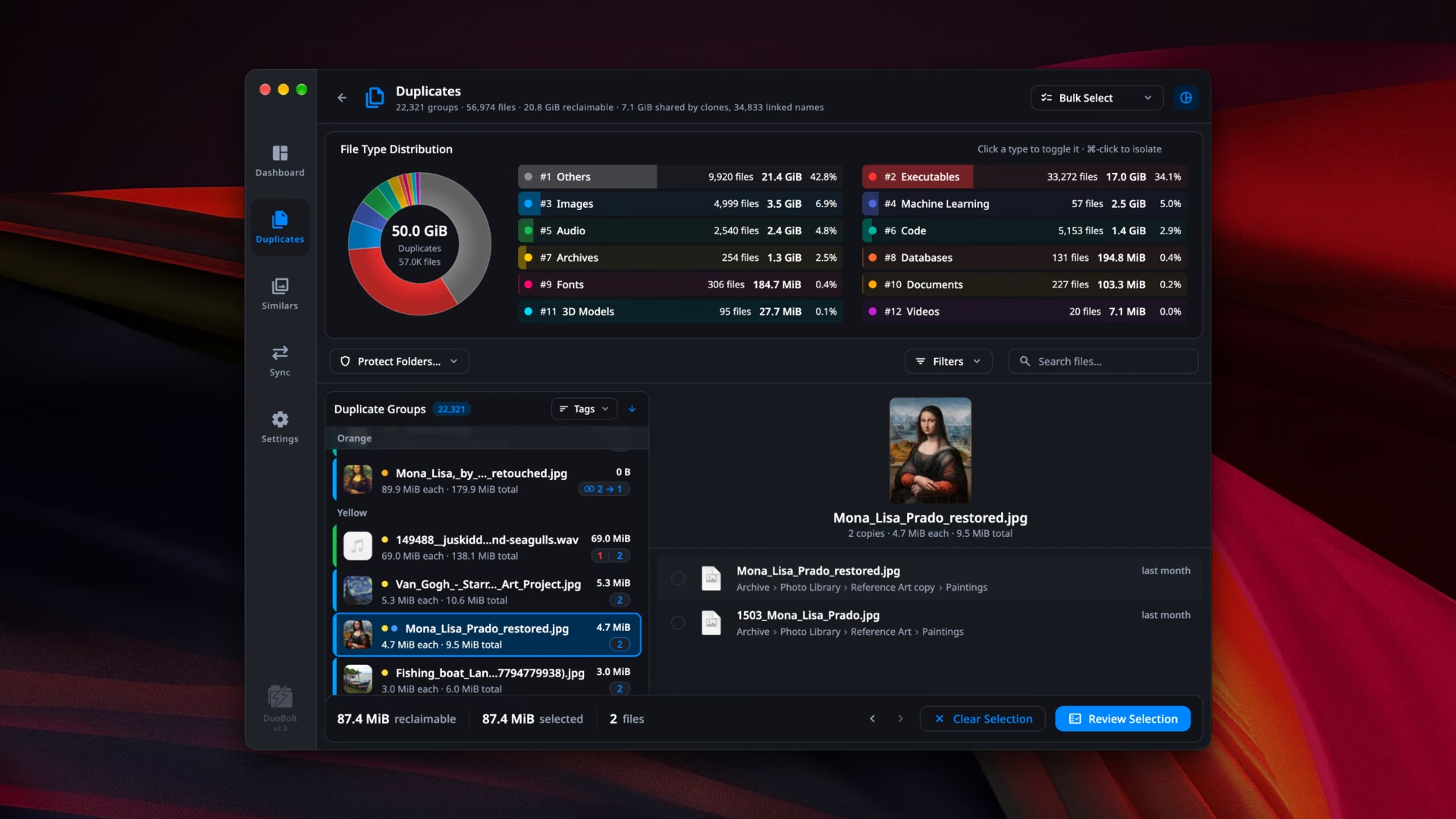
The results header prints two figures. In the video:
87 groups · 212 files · 4.0 GiB reclaimable · 1.1 GiB shared by clones
and the donut beside it reads 8.2 GiB of duplicates.
8.2 GiB is everything that has a copy somewhere, including the copy you are going to keep. 4.0 GiB reclaimable is what deleting the extras would actually free. That is the number to plan around.
Copies that already share their storage
Part of the gap is APFS clones. On a Mac, a copy made in the Finder can share its storage with the original, so the two files take one file’s worth of disk. Deleting one of them frees nothing. The header counts them as 1.1 GiB shared by clones, and their groups read 0 B at the foot of the list.
Filters ▸ No clones hides those groups, so everything left in the list is worth deleting.
Decide every group at once
Bulk Select ▸ Keep Newest marks every copy except the newest in each group. The footer adds up what is marked: in the video, 122 files, 4.0 GiB.
Before anything moves, Review Selection lists every file that will go, group by group. It is the place to catch a folder you did not mean to touch.
Move to Trash, then empty it
Move to Trash sends the marked files to the macOS Trash. The space comes back when you empty the Trash, not before.
In the video, the run moves 122 files from 84 groups. Afterwards Clear filters shows what is left: the three clone groups, at 0 B reclaimable.
If something turns out to be missing later, DuoBolt can rebuild it from the copy you kept, even after the Trash is emptied. See undoing a deletion.
On the free tier
Free DuoBolt scans without limits and shows every group. One removal moves up to 25 files or 500 MiB, whichever comes first. The rest stay marked, so you press Move to Trash again to continue. A clean-up the size of the one in the video takes several passes on Free and one with a license.