Review Selection
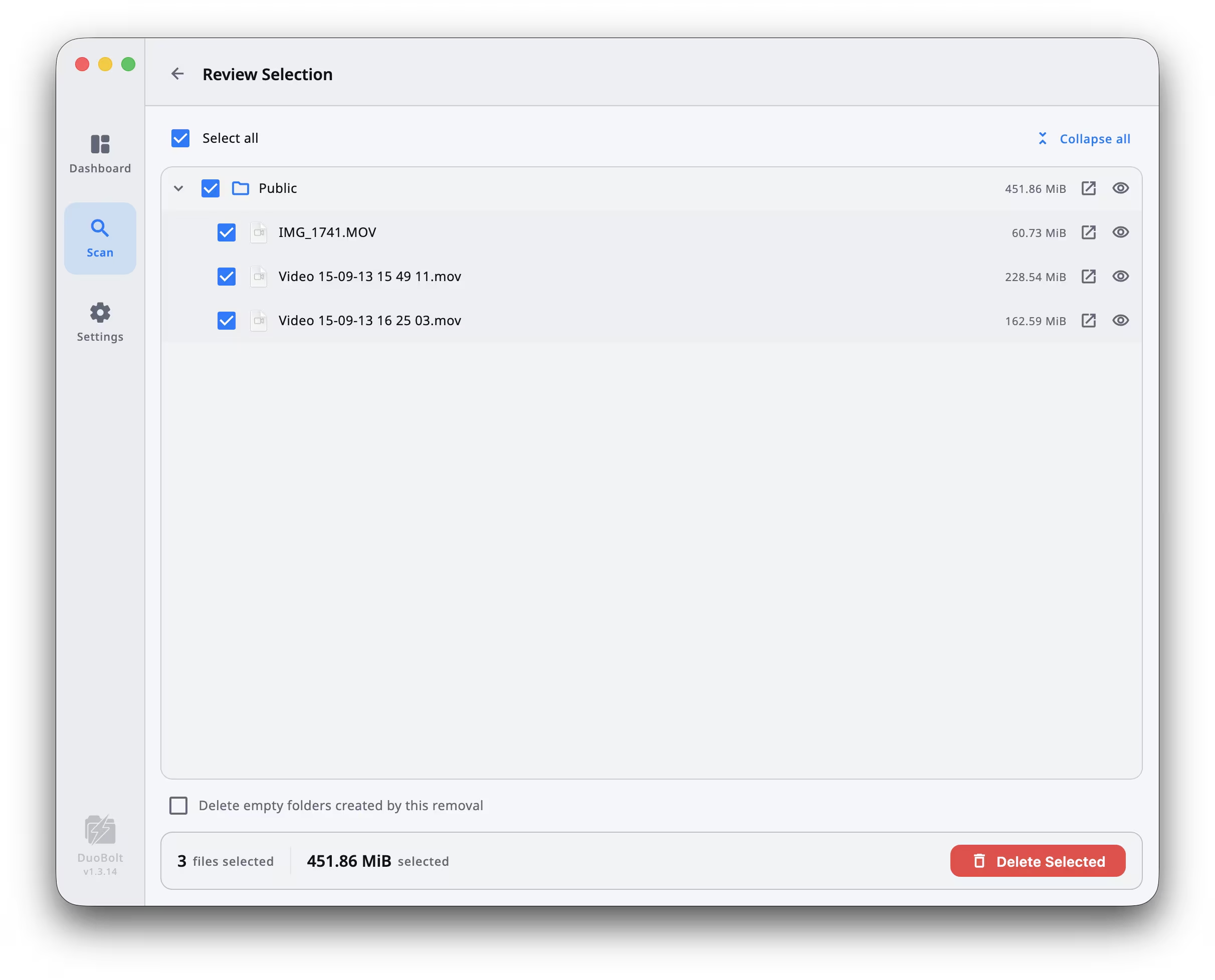
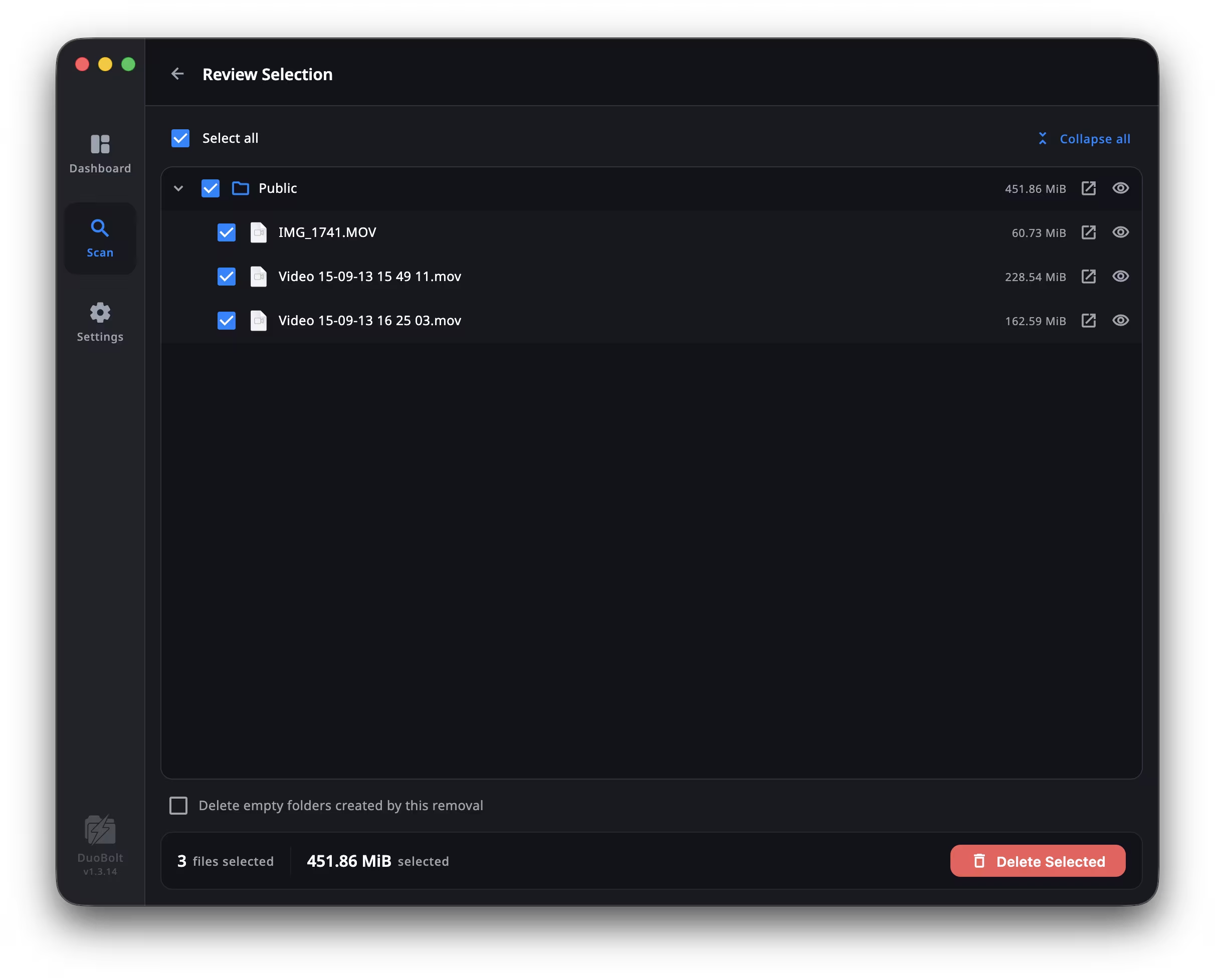
Nothing leaves a folder until you have been through this screen. It is shared by both halves of DuoBolt: duplicates and similar photos arrive here the same way, and leave through the same operations.
Open it with the Review Selection button in the footer, or press ⌘+Return — Ctrl+Return on Windows.
What it shows
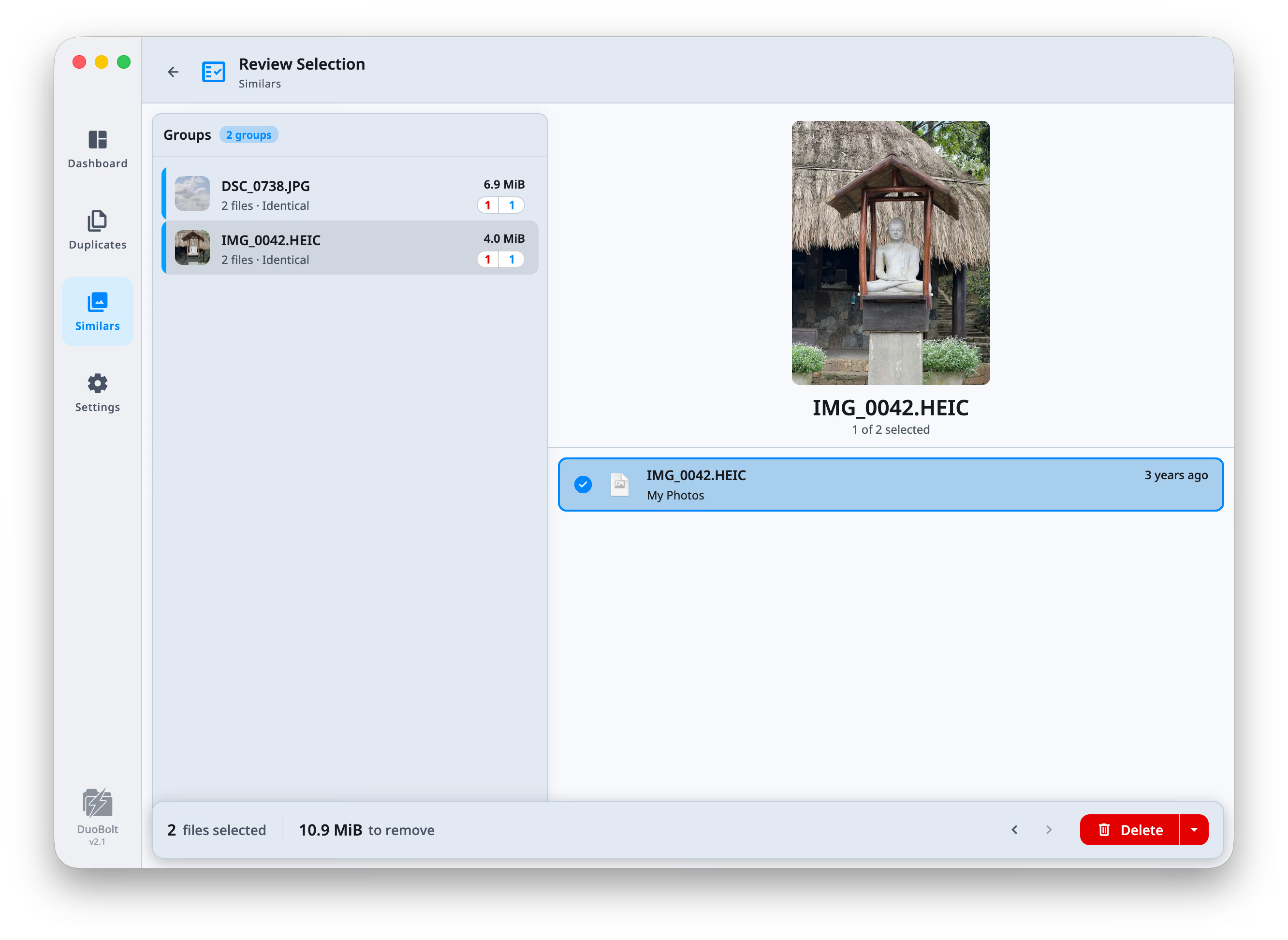
Section titled “What it shows”The left pane lists the groups you marked, with a count. The right pane shows the file you are on: its name, the folder trail that leads to it, and a preview where DuoBolt can render one.
On the duplicates side each group also states what it costs. The row carries the
per-copy size — 162.3 MiB each — and the detail pane says how many go and at
what price: 5 copies · 162.3 MiB each. A group where you are about to remove the
only large copy reads differently from one where you are trimming the fifth.
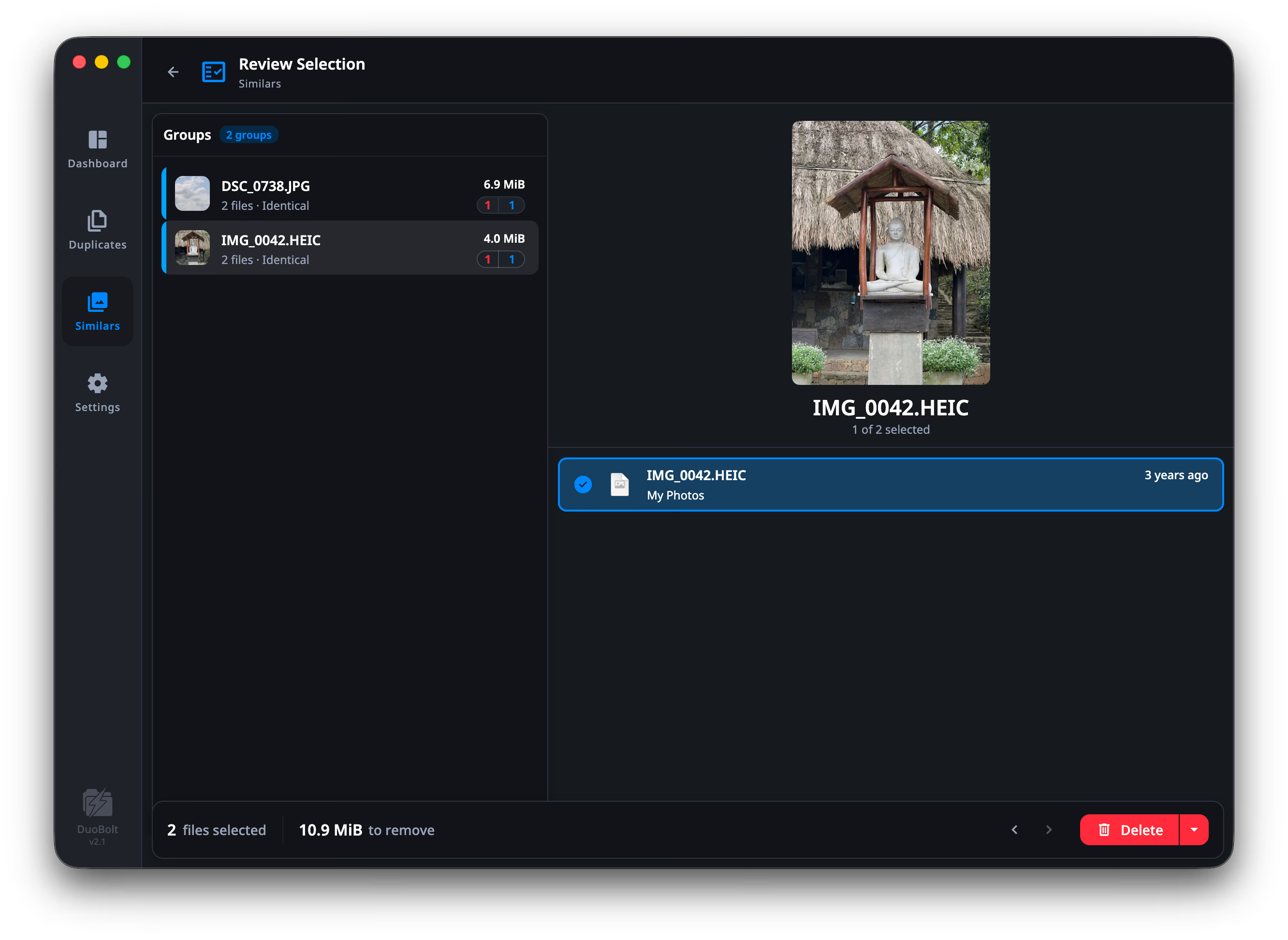
The photos side is the same screen. What changes is what a group is: the row
states how close the match is — 2 files · Identical, 4 files · Loosely similar — and the detail pane counts what you are keeping out of it,
1 of 2 selected.
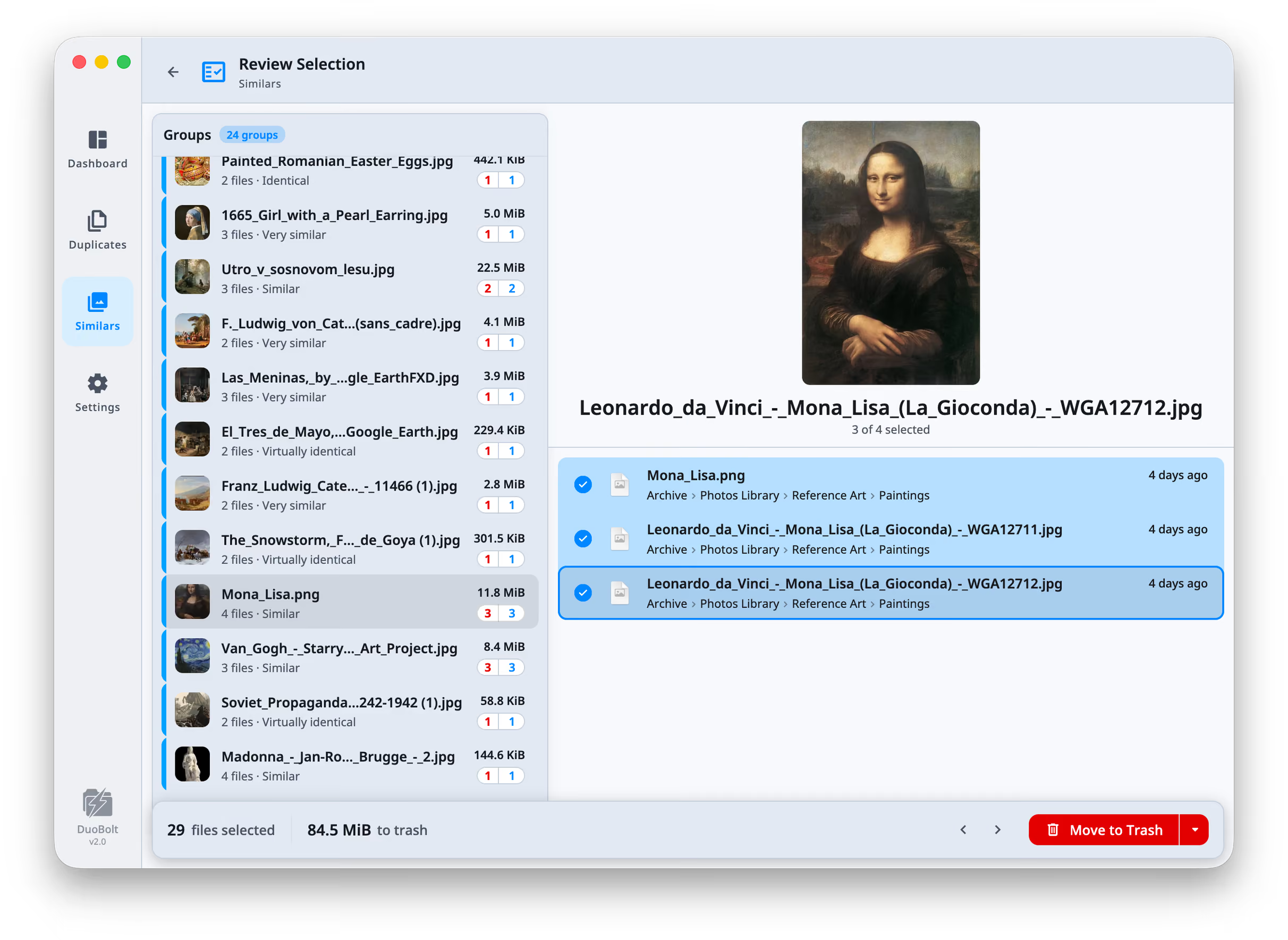
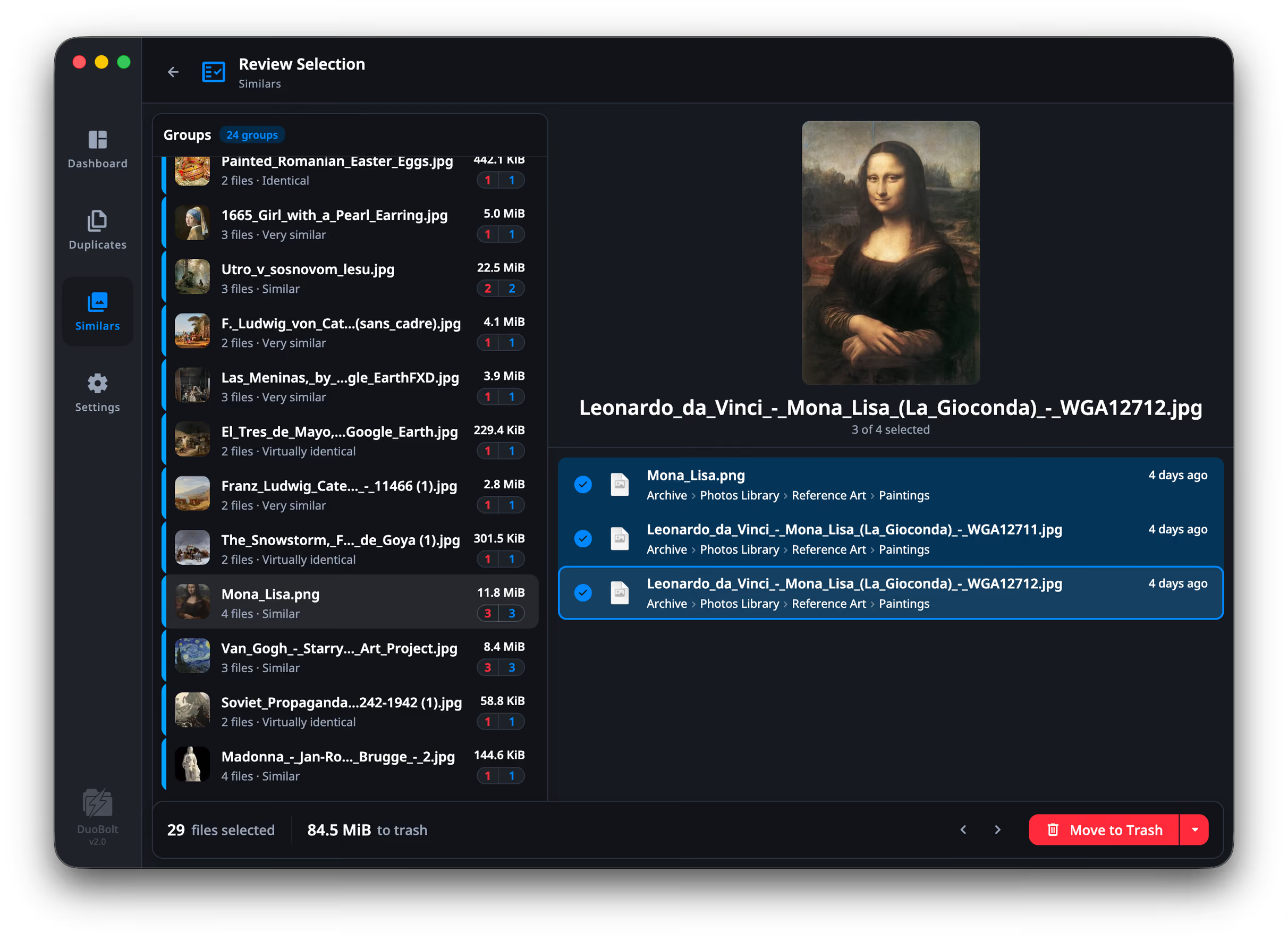
Move between marked files with ⌘+← and ⌘+→ — Ctrl in place of ⌘ on Windows. Press Space to open the file in Preview if you want a proper look before deciding.
Changing your mind
Section titled “Changing your mind”Everything here is still a mark, not an action. Untick anything you would rather keep and it drops out of the batch. Nothing on this screen writes to disk.
If you would rather start over, Clear Selection empties the whole batch — ⌘+Shift+A, Ctrl+Shift+A on Windows.
Choosing what happens
Section titled “Choosing what happens”The primary button carries the operation and its consequence. Press the chevron to switch between the others:
- Move to Trash — Recoverable from the Trash, and afterwards from a surviving copy.
- Delete permanently — Removed at once, without the Trash. Recoverable only from a surviving copy.
- Move to Archive — Files leave their folders but stay on disk.
- Copy — Originals stay where they are; this only adds copies.
- Replace with clone — Every file stays where it is, sharing one copy on disk. Nothing is removed. Exact duplicates on a Mac’s APFS drive only; see APFS clones.
Archive and Copy ask where to. The picker remembers the last place you used and offers it as Last used.
A Photos library scan offers two: Delete — Photos’ word for it: the photo goes to Photos’ Recently Deleted and stays there 30 days — and Copy to…, which exports each photo under the name Photos shows and can bring the untouched original along beside an edit. Archive and Delete permanently do not apply: Photos owns its files.
Each is explained in full under the five operations.
The confirmation
Section titled “The confirmation”One more screen, and it is the one that does the counting.
It states the batch — 18 files from 6 groups — and then warns about the two
things you cannot undo by clicking again:
- No copy left behind. “{n} files have no other copy left behind and could not be restored afterwards.” This is the sentence to read before a permanent delete.
- Another volume. Archiving or copying across disks adds the size there and, for an archive, frees it here. Both figures are given.
When it finishes
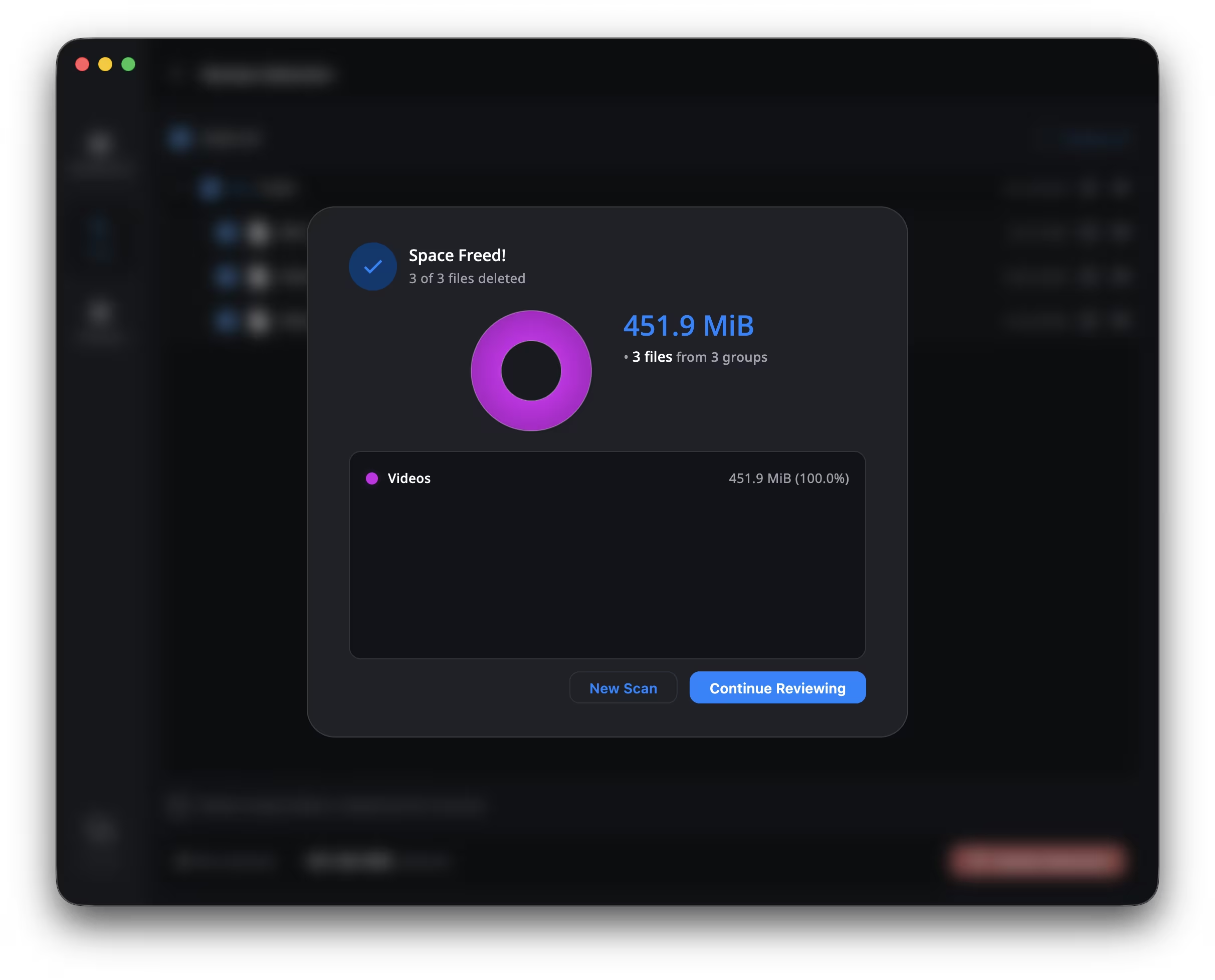
Section titled “When it finishes”You get the count, and anything that did not go through:
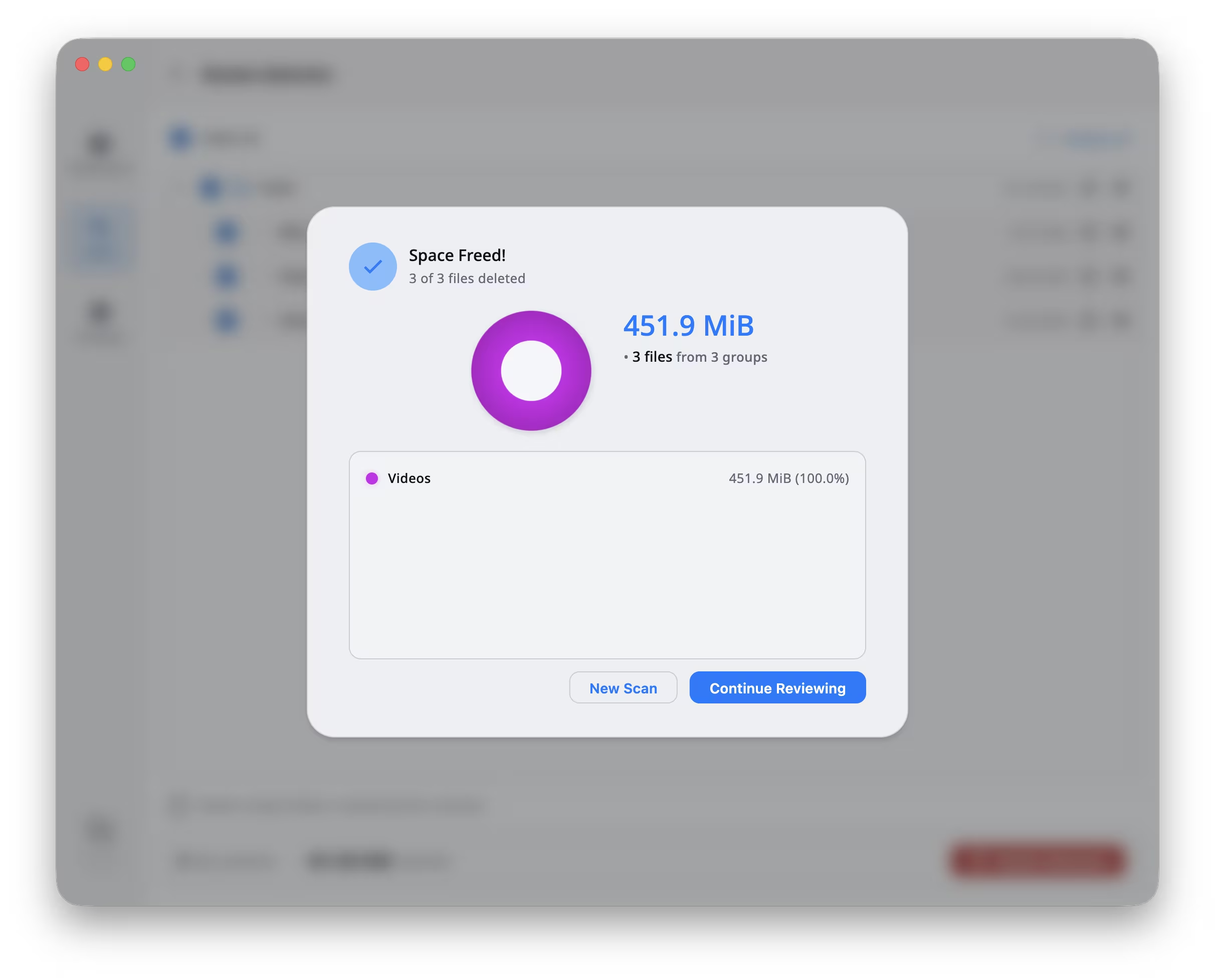
- Everything went through — nothing to look at.
- {n} could not be done. They stay where they are, each with its reason.
- {n} were already gone. The file had been removed by something else since the scan.
The figure says what happened to the bytes, not what the disk got back: files moved to the Trash or to Recently Deleted are removed, and the space stays taken until the Trash is emptied. The Dashboard counts them as space cleaned up.
On the free tier
Section titled “On the free tier”Free DuoBolt scans and shows everything without limit. What it caps is how much one operation may move: 25 files, or 500 MiB, whichever it reaches first.
The screen says so before you commit, rather than after:
Free moves the first 25 files (412.6 MiB) — the rest stay marked.
The word to notice is marked. Files past the cap are not removed and not forgotten — they stay selected, so pressing the button again continues where it stopped. A large clean-up takes several passes on the free tier; it does not require a license.