Where the numbers come from
How duplicate matching works — the pipeline, and what it does not claim.
Duplicate a file in Finder on an APFS volume and macOS does not copy the data. It creates a clone: a second file that points at the same blocks, and starts diverging only when one of them is written to.
Both files are real. Both report their full size. Together they occupy the space of one.
For a duplicate finder, the obvious arithmetic — five copies of 4 GiB, delete four, free 16 GiB — is wrong. Delete four clones and you free nothing at all.
With Detect APFS clones on — the default on macOS — DuoBolt asks the filesystem for each file’s clone identifier while it walks. Files that share storage share that identifier.
It then counts physical copies rather than files, and computes recoverable space from those:
Removing all but one copy leaves one physical copy behind, so what you get back is (physical copies − 1) × size.
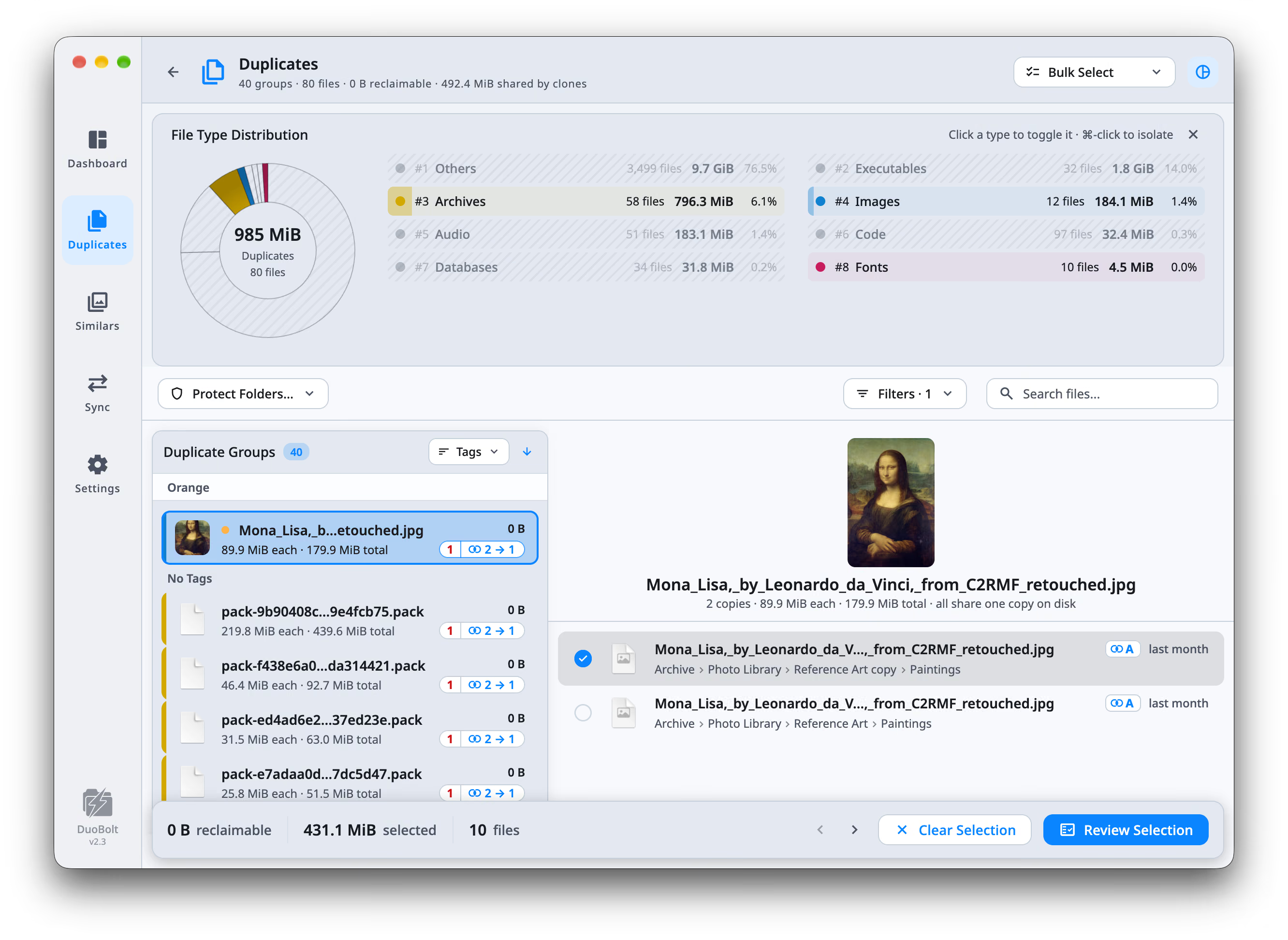
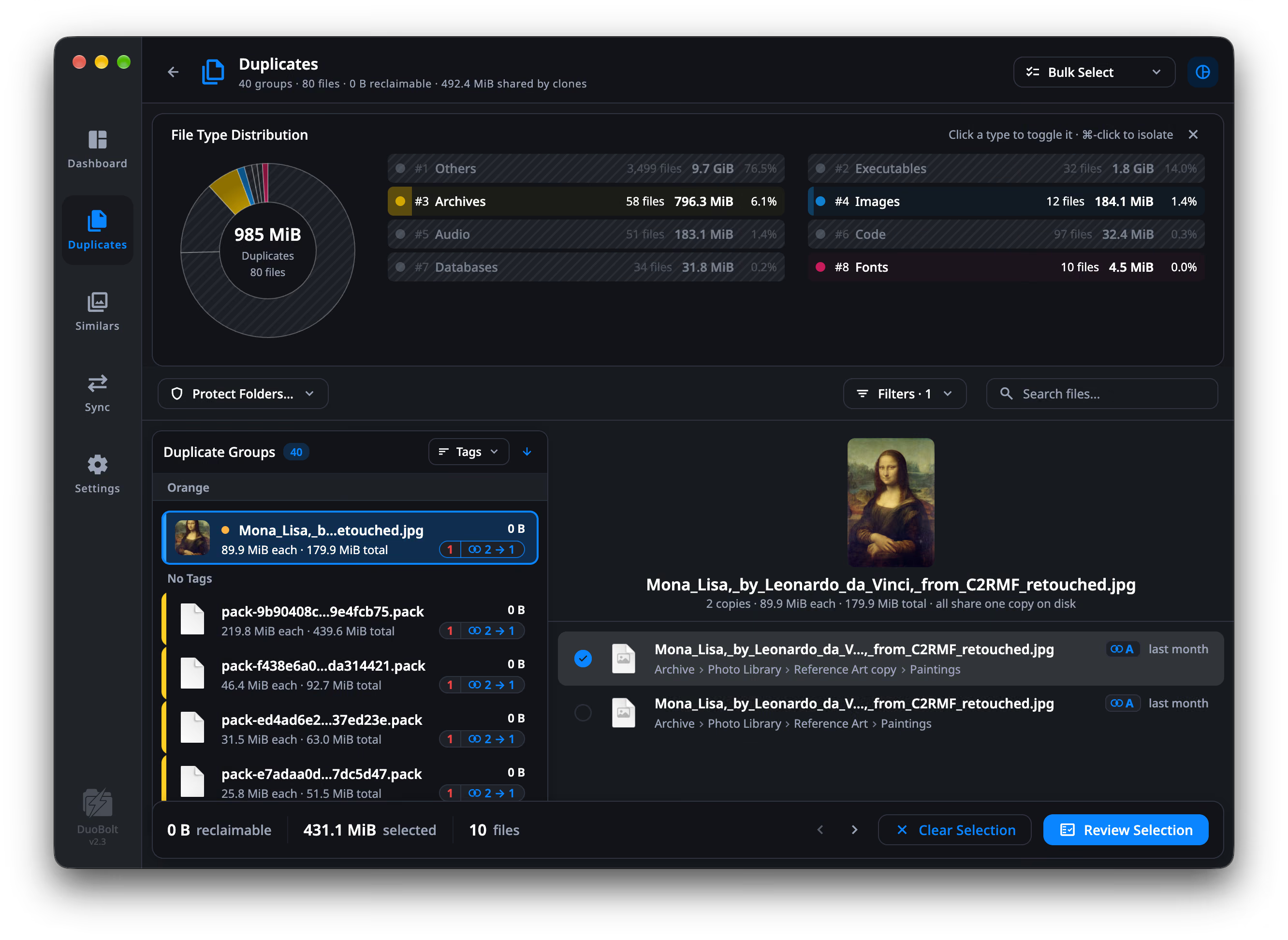
The header. Beside the reclaimable figure, the header says how much the clones account for:
40 groups · 80 files · 0 B reclaimable · 492.4 MiB shared by clones
That second figure is what adding up file sizes would have promised on top of what is really reclaimable. It is left out when nothing is shared.
The group list. A group made entirely of clones reads 0 B, even though
each file has a real size. When some of a group’s copies share storage, its
pill shows the clone glyph and reads copies → on disk: 2 → 1 is two copies
occupying the space of one.
The detail pane. The caption says how the copies share their storage — all share one copy on disk, or for a mixed group something like 2 clone sets + 1 independent · 3 on disk. Each copy in a clone set carries the set’s letter, A, B and so on, and the copies of a set are listed next to each other. A copy with no letter has storage of its own.
The footer. It shows two numbers whenever they disagree: how much you have selected, and how much is reclaimable. The second is what the disk gives back.
Selection math follows the same rule — a clone set frees bytes only when every file in it is selected. Leave one behind and the blocks stay allocated.
When at least one group has copies that share storage, Filters has a Clones row with three choices:
The header’s figures follow the filter.
Clone detection accounts for clones that already exist. Replace with clone makes new ones.
In Review, on files that sit on an APFS volume, the operation menu has a fifth choice. Each marked copy is replaced by a clone of a copy the group keeps, on the same volume. The file stays where it was, with its own name, dates, permissions and extended attributes; only where its blocks live changes. Nothing is removed, and the footer’s figure reads to free.
Before replacing a file, DuoBolt hashes it and the copy it will clone from again, and goes ahead only if the two are still identical. The clone is built beside the file under a temporary name and renamed over it, so an interruption leaves either the original or the finished clone, never half of one.
Two kinds of marked file are left out, and the confirmation says how many of each before anything runs:
On the free tier, one run replaces up to 25 files and 500 MiB, the same cap as a removal. See Tiers.
Finder’s Duplicate and cp -c both make clones when the copy stays on the same
APFS volume. A folder that has been copied that way can show many duplicates
and very little to reclaim, and the header’s shared-by-clones figure is where
the difference goes.
Where the numbers come from
How duplicate matching works — the pipeline, and what it does not claim.
Turning it on or off
Setting up a scan — under Performance.
A whole drive at once
Clonemap, free: how much of a drive is stored once as clones, where those clones live, and what a local snapshot is holding back.