Before this
Setting up a scan — the controls that decided what you are looking at.
The results screen answers one question first — how much space you can recover — and then lets you work down from there.
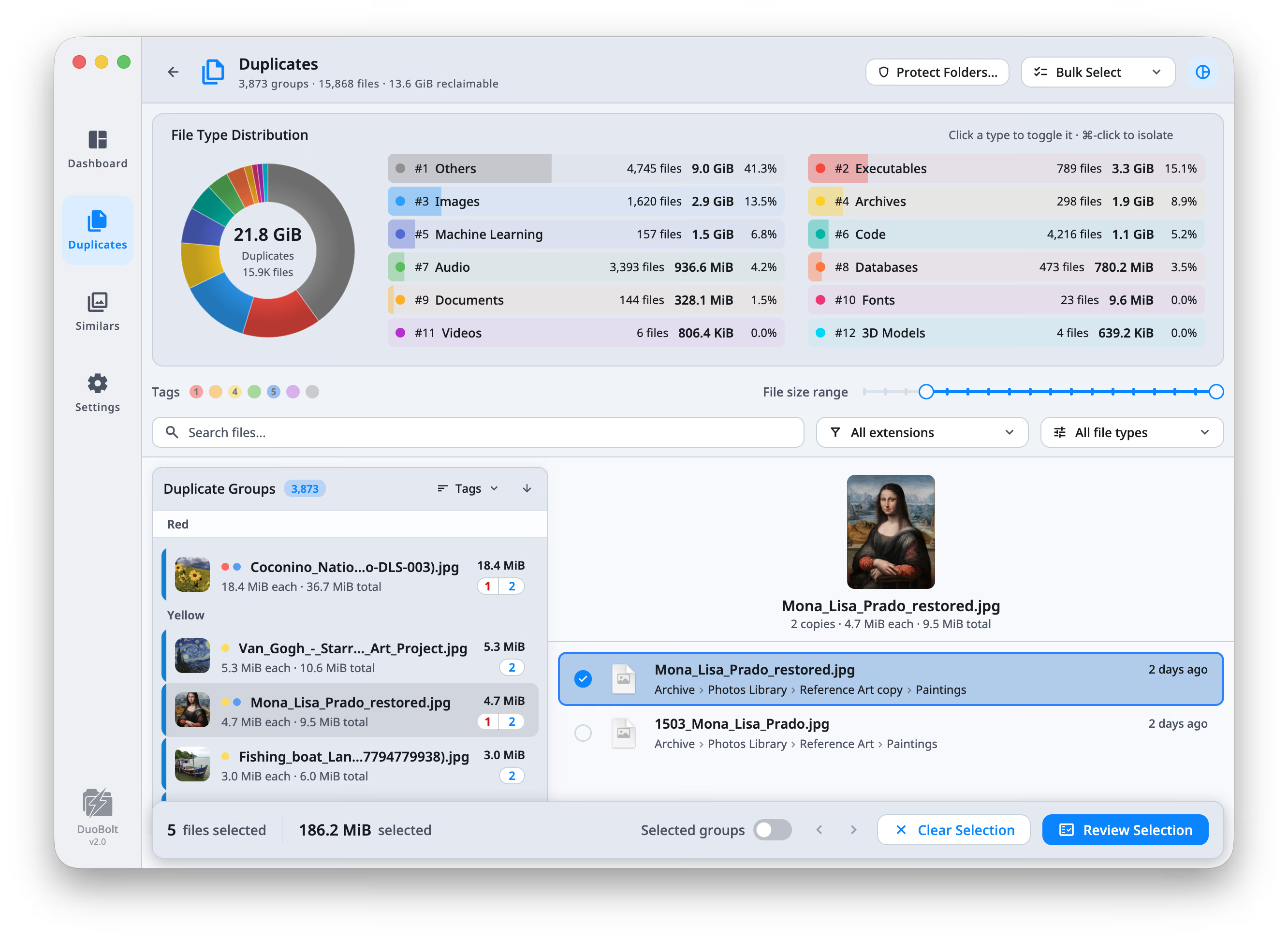
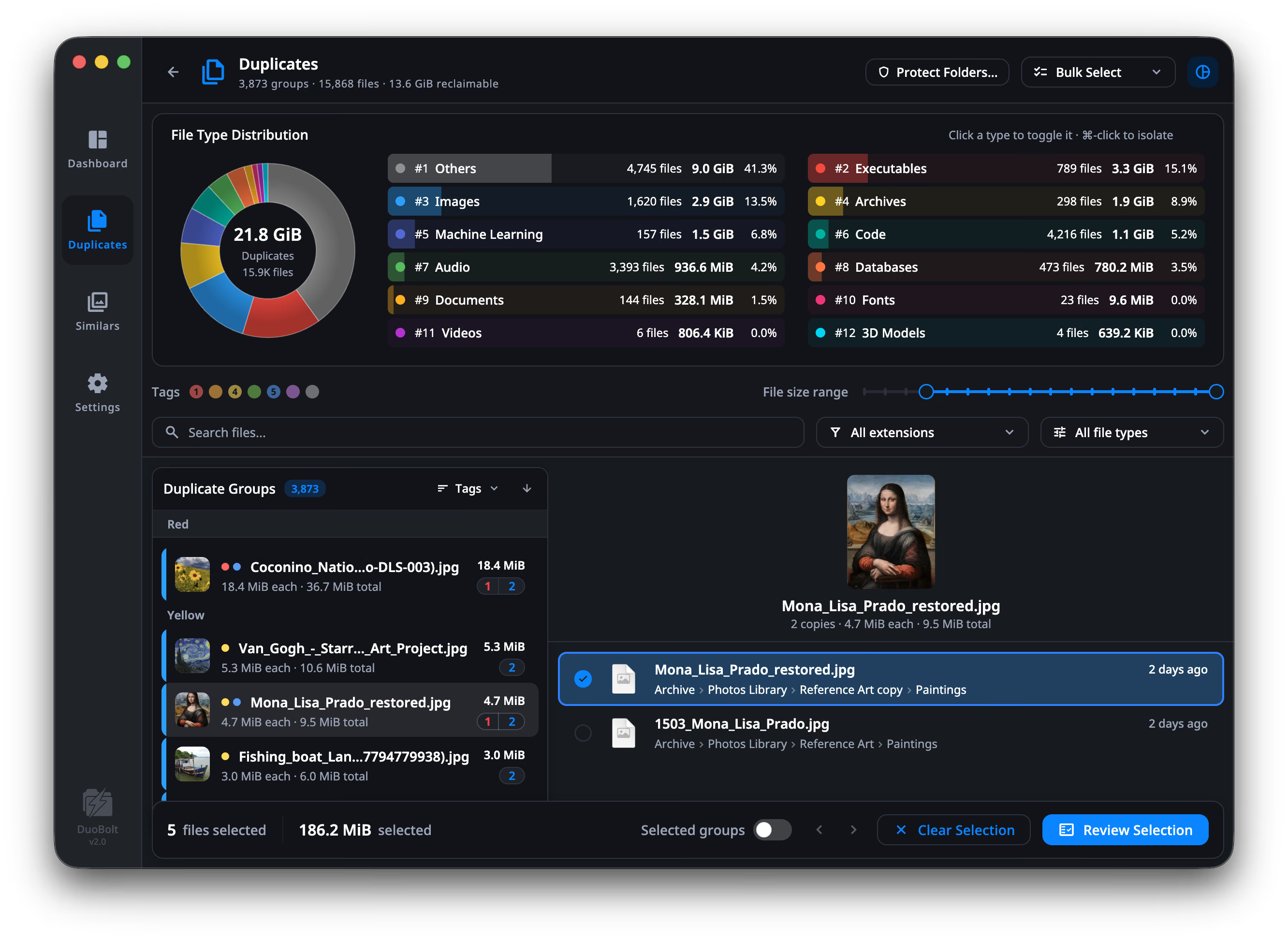
The header states the scan:
412 groups · 1,286 files · 38.4 GiB reclaimable
Both figures can be smaller than the sum of file sizes, and when they are, the
header
says why: · 7.1 GiB shared by clones for APFS clones, and
34,833 linked names for files reachable under more than one name, such as
hard links.
When a filter is active, that reclaimable figure is the filtered total, not the scan’s.
Each group headline is the space it would free — not its total size. Under it:
4.7 MiB each · 23.5 MiB total5 copies · 4.7 MiBThe difference between each, total and reclaimable matters: removing four of five copies frees four copies’ worth, and on macOS possibly less than that if some are APFS clones.
Groups are ordered by recoverable space by default, so the top of the list is where the disk space is.
File types are filtered on the File Type Distribution itself. Each type in its list carries its file count, size and share; click one to toggle it, or ⌘-click to show that type alone. The panel can be hidden.
Search files… matches paths, debounced; Escape clears it.
Everything else is in the Filters popover, whose button counts how many are on:
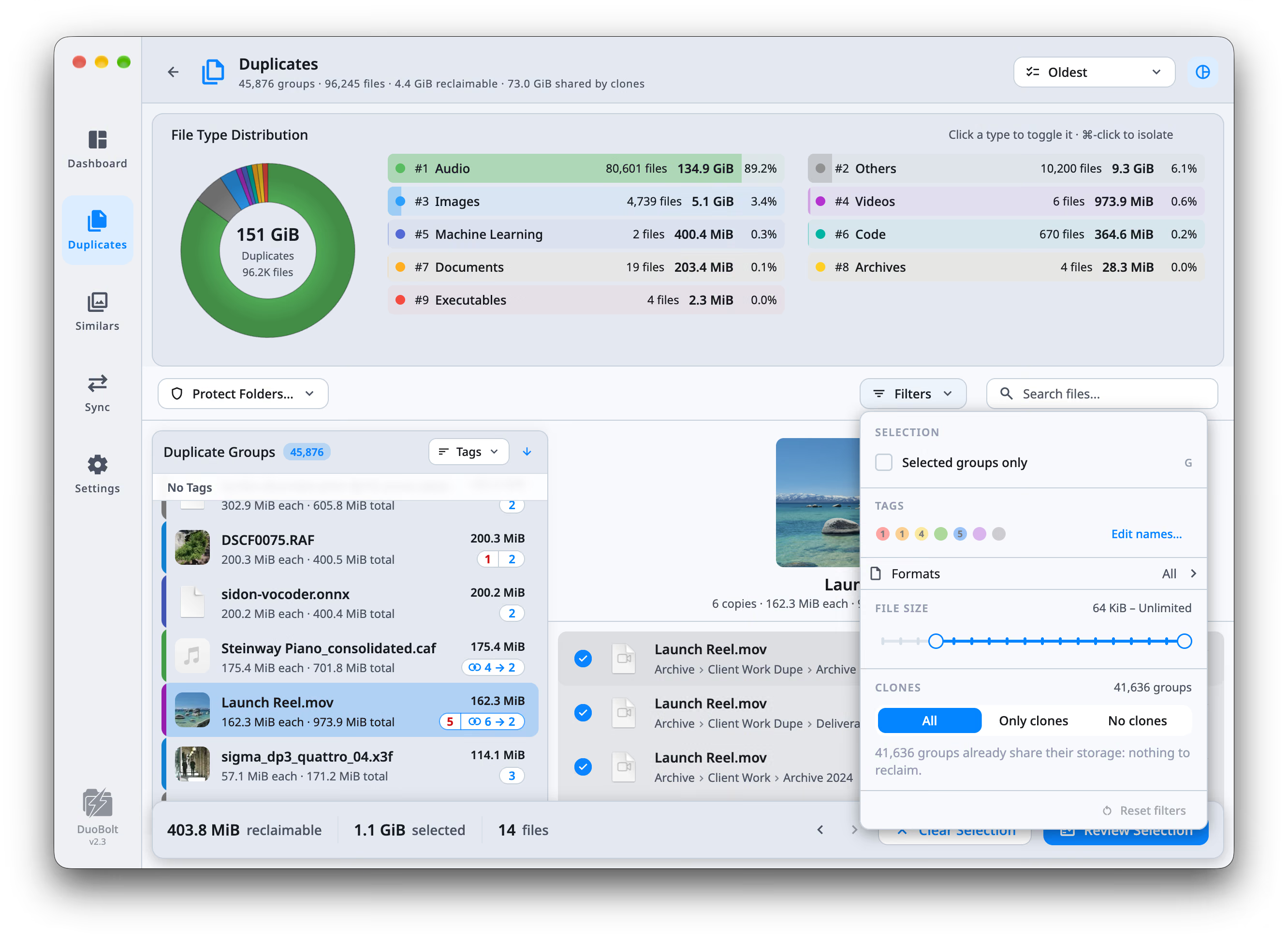
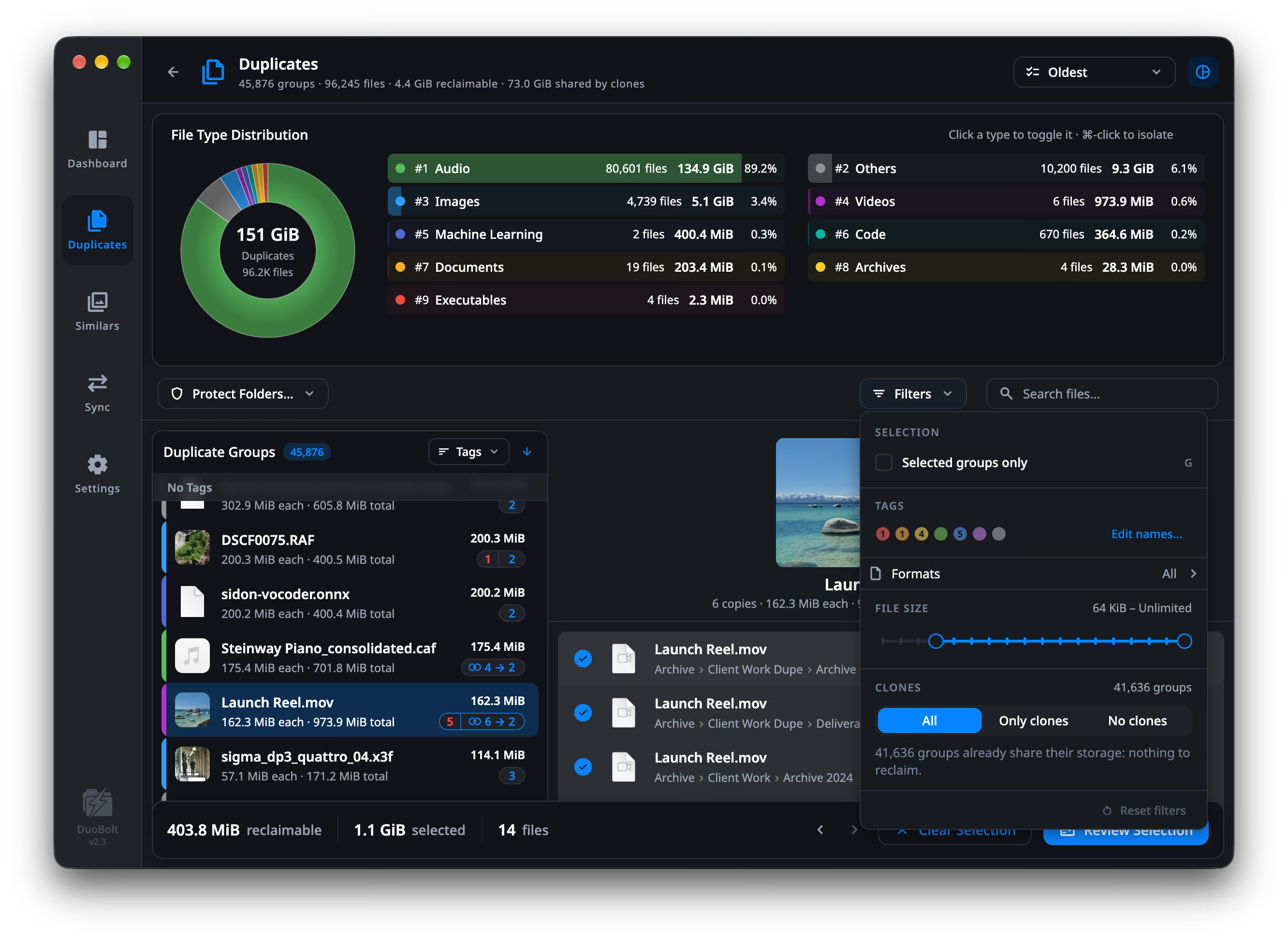
64 KiB – Unlimited.Reset filters, at the foot of the popover, turns them all off.
| Sort | What it keys on |
|---|---|
| Recoverable space (default) | the space a group would free |
| Copies | how many files are in the group |
| File size | the size of one file |
| File type | category — images, videos, audio, documents |
| Tags | tag color |
Sticky bucket headers follow the sort: From 1 GiB and up … From 0 to 100 KiB
for the size sorts, From 100 files and up … From 0 to 10 files for copies,
and the tag names for tags.
Right-click a group for Select All, Deselect All, Keep Protected Files, Keep Oldest File, Keep Newest File, and Tags.
Bulk Select in the header applies the same rules across everything visible. Once you have used one, the button reads that rule — Oldest, My rules:
⌘R, Ctrl+R on Windows) — your own order from
Settings → SelectionThe menu ends with Edit my rules…, which opens Settings on that section.
Byte-for-byte copies are identical in every way the pixels could be read, so the rules that decide here are the ones about names and places: the name without a copy marker, the shorter path, the copy inside a folder you name.
The outcome is reported, not assumed: 128 files marked · 12 left protected · 3 groups untouched.
The footer counts what you have marked and — when the two differ — shows a second figure labeled reclaimable.
They differ because of APFS clones. A group of clones reads 0 B reclaimable
even though the files have a real size: deleting a clone frees nothing, the
blocks are shared. Both numbers are true; only the second is what you get back.
Selected groups only, in Filters or with G, hides everything you did not touch. Then Review Selection — nothing leaves a folder before that screen.
Read the first one with the floor in mind: a scan that finds nothing at the 64 KiB default usually means the duplicates are smaller than the floor, not that there are none.
Duplicates results are not truncated by tier: every group and file is shown. What free caps is how much a single operation may move: 25 files or 500 MiB, with the rest staying marked for the next pass. See Review Selection.
Before this
Setting up a scan — the controls that decided what you are looking at.
Next
Review Selection — the screen between marking and removing.