Next
Reading the results — the light table, zoom, and what the badges mean.
Pick folders and press Find Similars — the scan runs on its defaults. This page is the other case — every control on the screen and in Scan parameters, what it defaults to, and what changing it costs.
The screen is laid out the way the scan reads it, top to bottom: Quick picks, Selected folders, Excluded folders, the Filters row, and the button.
On macOS the header carries one more choice: Folders or Photos. The second scans the Photos library directly, with no folders to pick and no exclusions to keep — it has a page of its own. Everything below is the folder scan.
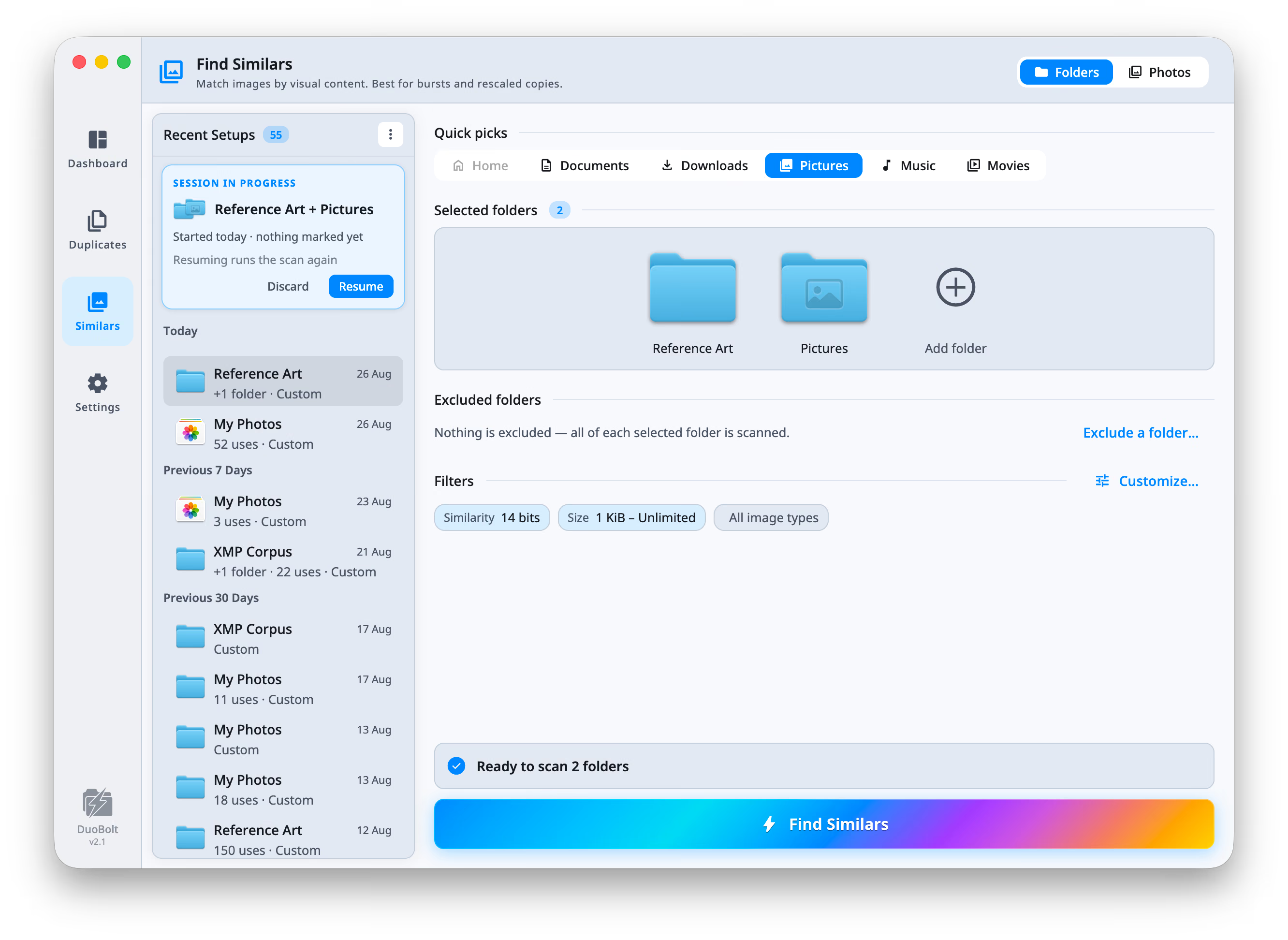
Under Selected folders is a second list that carves specific folders back out of the ones you picked. What it carves out is never opened and never hashed. It works exactly as it does for duplicates, including the two refusals at pick time — see Excluded folders.
The two scans keep separate lists. Excluding Archive from a similars scan
leaves your duplicates setup untouched, and the other way round.
The dialog opens from Customize… beside the Filters row, or from any of its chips, at the page that holds it. It has four pages, chosen on its left rail: Matching (the similarity threshold and max group size), Files (size range, extension filter, ignore options), Folders (skip folders) and Advanced (symlinks and cloud files).
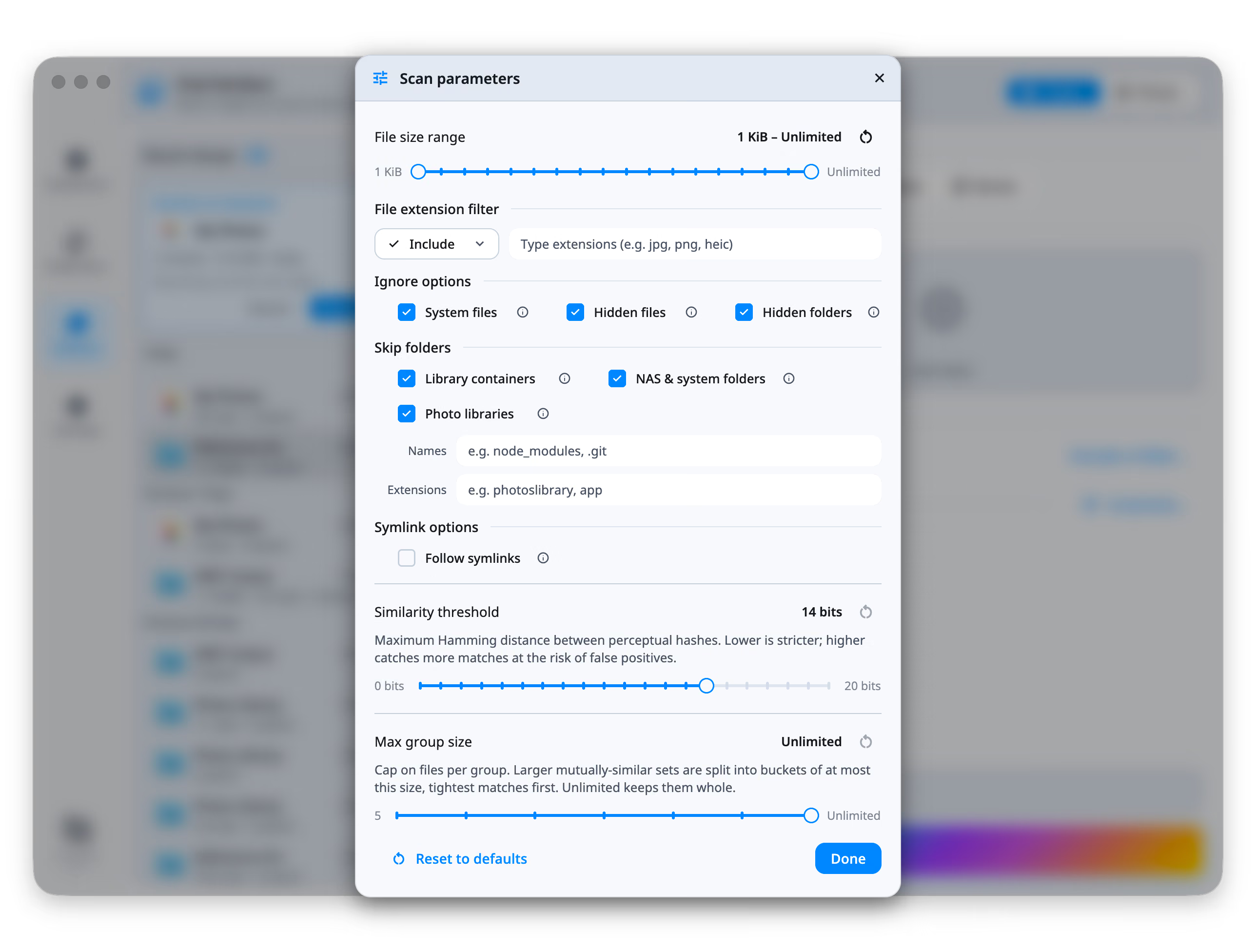
Two handles over a fixed ladder, from 1 KiB to Unlimited, defaulting to 64 KiB and up.
For photos the lower handle matters less than it does for duplicates — a JPEG under 64 KiB is usually a thumbnail or an icon, which is exactly what you do not want grouped against its own original. Raising it is the cheapest way to keep sidecar art out of a scan.
A dropdown — Include or Exclude — and a token field. Include narrows the scan to the extensions you name; Exclude scans everything else. It defaults to Include with nothing listed, which means every supported image format.
| Toggle | What it skips | Default |
|---|---|---|
| System files | .DS_Store, Thumbs.db, desktop.ini, etc. |
On |
| Hidden files | Files starting with . or flagged hidden |
On |
| Hidden folders | .git, .svn, .cache, etc. |
On |
Hidden folders carries more weight here than in a duplicates scan: caches
and .thumbnails directories are full of shrunken copies of your own photos,
and a shrunken copy is visually near-identical to the original it came from.
Library containers (on) — skips ~/Library/Containers and
~/Library/Group Containers. App containers cache message attachments and image
assets that look like copies of your photos.
NAS & system folders (on) — skips the snapshot, recycle and thumbnail folders that Synology, QNAP and TrueNAS keep inside shares.
Photo libraries (on, macOS) — skips Photos, iPhoto and Aperture library packages wherever the scan meets them. A library holds a copy of everything you also keep in folders, plus the thumbnails and edits Photos derives from it, so a scan that walks into one pairs your whole collection with itself. To scan the library itself, choose Photos at the top of the setup — this rule is grayed out there, since it has nothing to skip.
Names — a token field, e.g. node_modules, .git. Matched at any depth,
case-insensitively.
Extensions — a token field, e.g. app, photoslibrary. A folder whose
extension matches is pruned along with everything inside it. This is what keeps
photo libraries and app bundles — directory trees full of internal near-copies —
out of a scan.
Follow symlinks (off) — scan through symlinked folders. May increase scan time, and the same photo reached by two paths can pair with itself.
There is no Collapse symlinks here. That flag is read only by the duplicates pipeline, and a checkbox for it on this screen would control nothing.
Download cloud-only files (off) — download files kept only in iCloud, Dropbox or OneDrive to compare them. Off, a photo that lives only in the cloud is left where it is and not grouped, and the results say how many were left out.
The one control that decides what “similar” means. It is measured in bits, from 0 to 20, and defaults to 14.
Maximum Hamming distance between perceptual hashes. Lower is stricter; higher catches more matches at the risk of false positives.
What the number does to a group — and why loosening it is not simply “more results” — is on how grouping works, along with the gates that run after it.
A cap on files per group, over the presets 5, 10, 25, 50, 100, 250 and Unlimited. It defaults to Unlimited.
Larger mutually-similar sets are split into buckets of at most this size, tightest matches first. Unlimited keeps them whole. Reach for it when a single burst produces a group too long to review in one pass — the split is by similarity, so the first bucket holds the shots most alike.
Each page shows on the rail how many of its parameters differ from their defaults, and each changed parameter is marked on its page with a bar beside it. The footer counts them all — Reset 2 changes — and puts every one back; it appears only when something differs from its default. The threshold, group-size and size sliders also carry their own reset buttons.
Next
Reading the results — the light table, zoom, and what the badges mean.
The engine
How grouping works — hashes, gates, and Variants versus Look-alikes.