What the tiers change
Free, Standard and Pro — what each one unlocks.
Five panels: General, Storage, Selection, License and Updates.
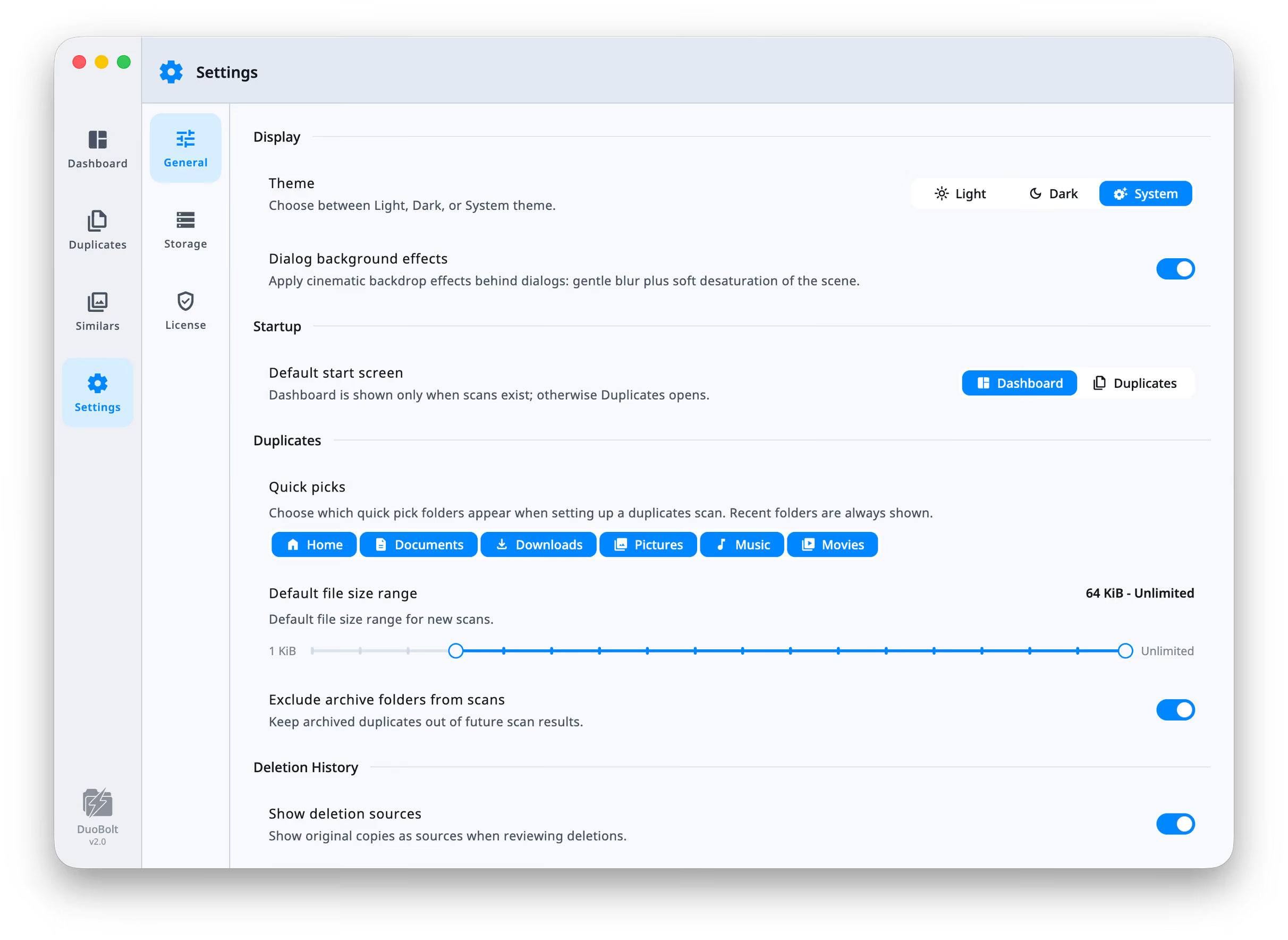
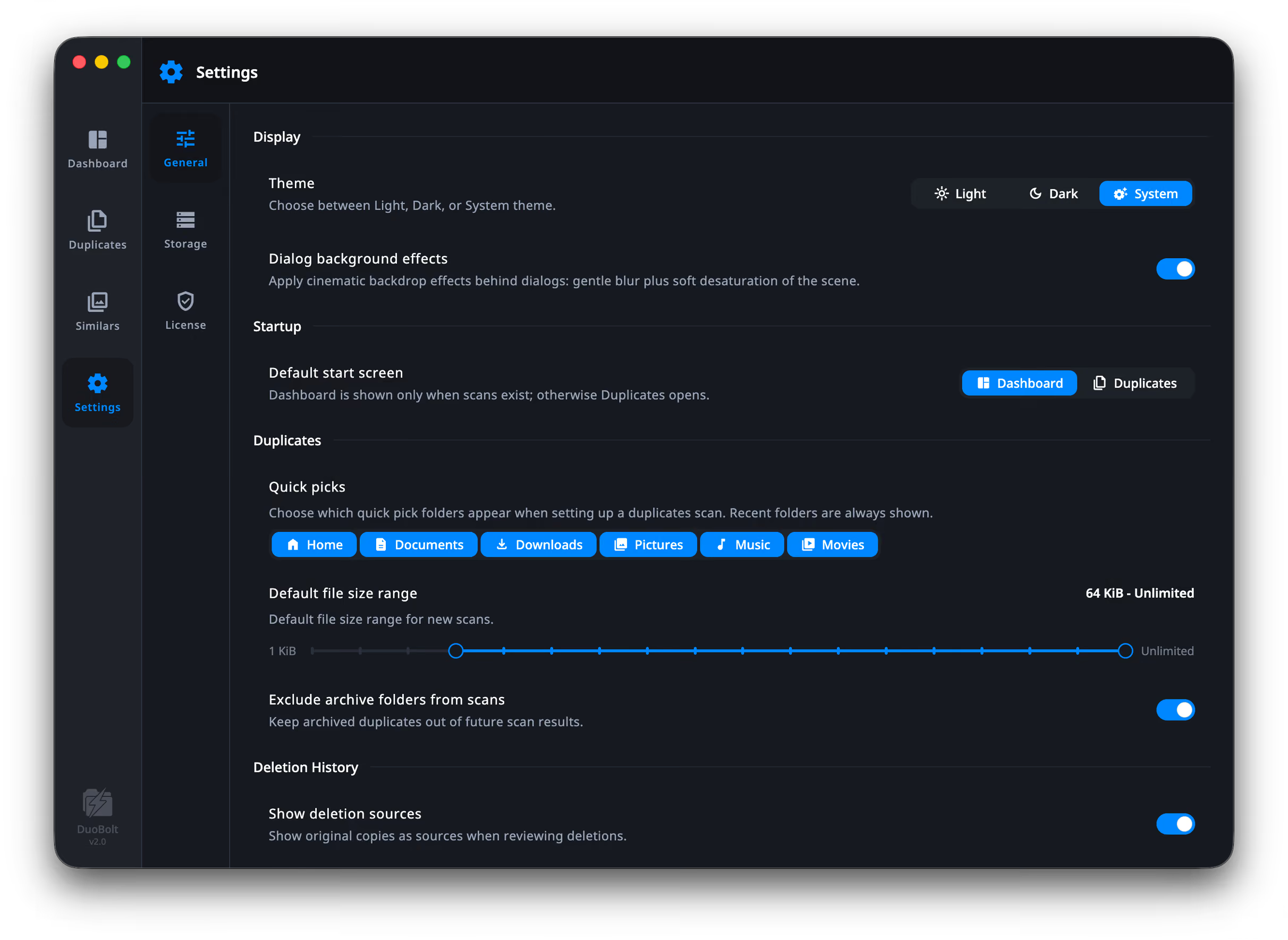
Theme — Choose between Light, Dark, or System theme. Defaults to System.
Dialog background effects — Apply cinematic backdrop effects behind dialogs: gentle blur plus soft desaturation of the scene. On. Turn it off on older hardware if dialogs feel sluggish.
Default start screen — Dashboard, Duplicates, Similars, Sync, or Last used, which opens the section you were in when you quit. If there is no history yet, Duplicates opens in place of the Dashboard.
Quick picks — Choose which quick pick folders appear when setting up a duplicates scan. Home, Documents, Downloads, Pictures, Music, Movies. Recent folders are always shown regardless.
Default file size range — the starting range for new scans. Defaults to 64 KiB and up. Changing it here saves setting it on every scan; changing it in Scan parameters affects only that one.
Exclude archive folders from scans — Keep archived duplicates out of future scan results. On, and worth leaving on: an archive folder is full of files you already decided about, and without this they come back as duplicates of themselves.
Show deletion sources — Show original copies as sources when reviewing deletions. Off by default. Turn it on to see, for each removed file, the surviving copy a restore would rebuild from.
Reset global scan stats — Clears aggregated scan statistics. Deletion history and summaries remain.
Reset window size and position — Resets the window to the default size and centers it on screen. Disabled when the window is already there.
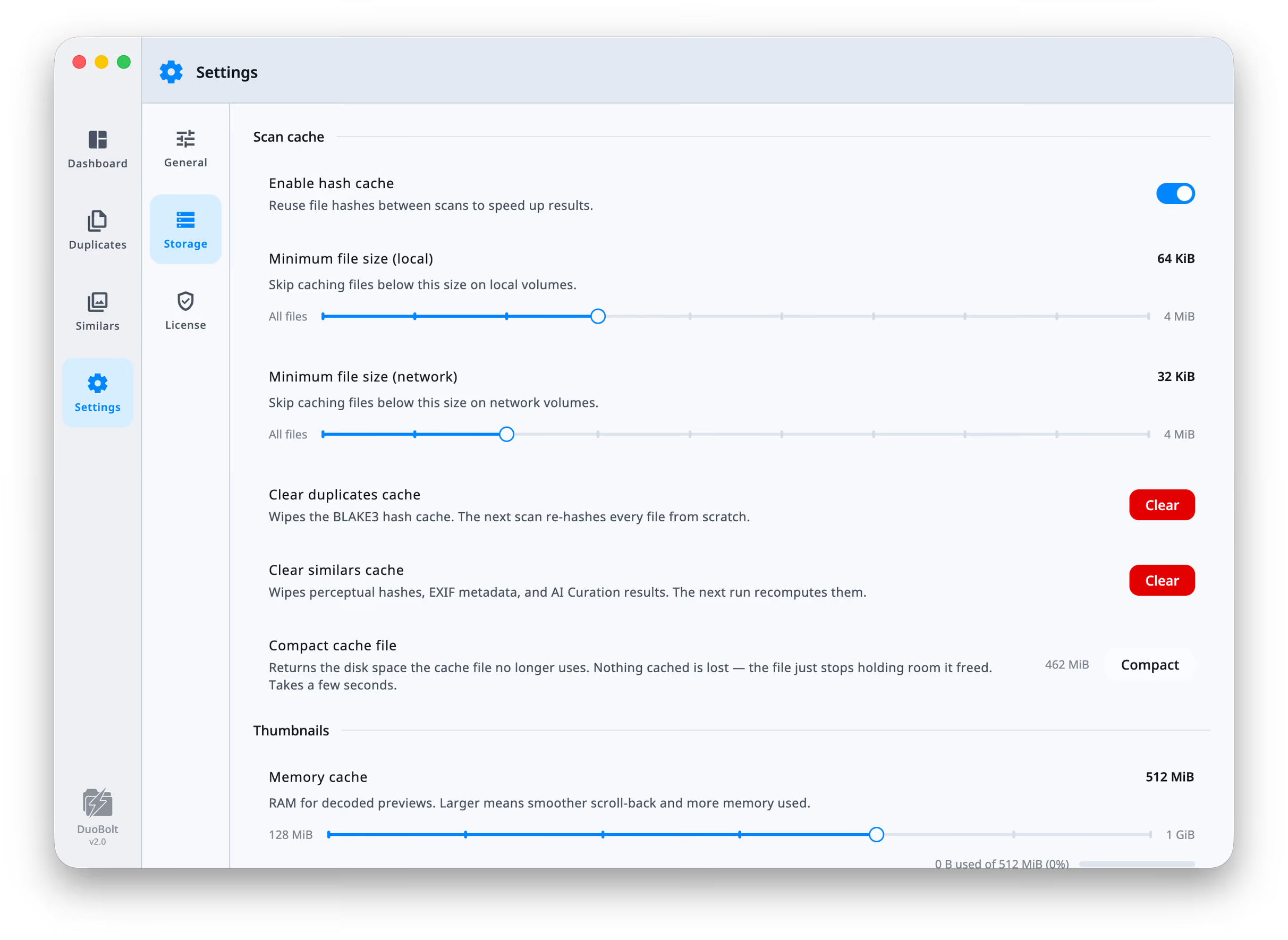
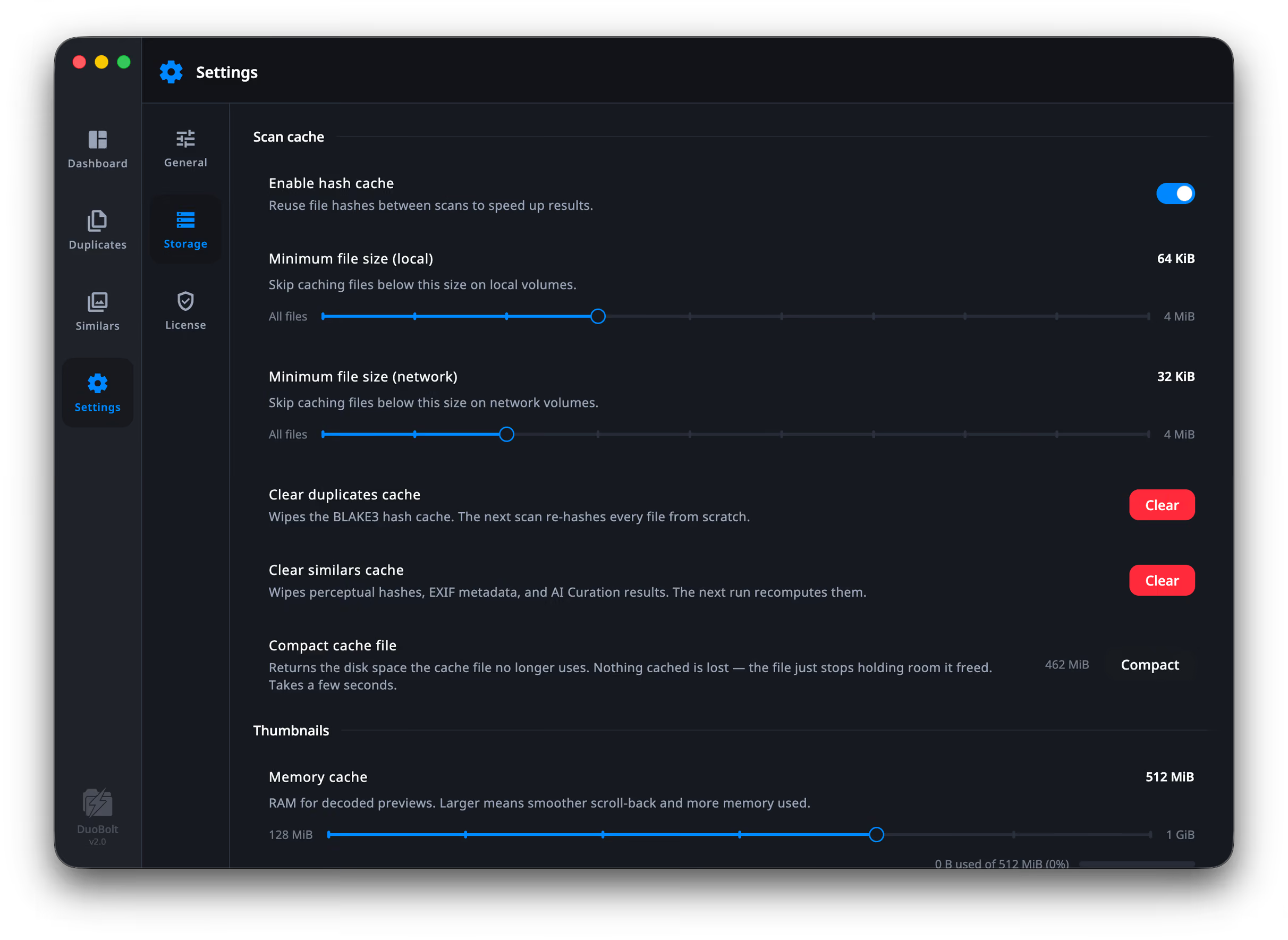
Enable hash cache — Reuse file hashes between scans to speed up results. On. This is what makes a repeat scan fast: unchanged files are not re-read.
Minimum file size (local) — Skip caching files below this size on local volumes. 64 KiB.
Minimum file size (network) — Skip caching files below this size on network volumes. 32 KiB — lower than local, because re-reading a small file over a network costs far more than caching it does.
Clear duplicates cache — Wipes the BLAKE3 hash cache. The next scan re-hashes every file from scratch.
Clear similars cache — Wipes perceptual hashes, EXIF metadata, and AI Curation results. The next run recomputes them.
Compact cache file — Returns the disk space the cache file no longer uses. Nothing cached is lost — the file just stops holding room it freed. Takes a few seconds.
Memory cache — RAM for decoded previews. Larger means smoother scroll-back and more memory used. 512 MiB.
Disk cache — Maximum disk space for encoded WebP previews, per finder. Older previews are evicted first. 2 GiB.
Both show a live gauge of what is actually in use, so you can tell whether raising the ceiling would change anything.
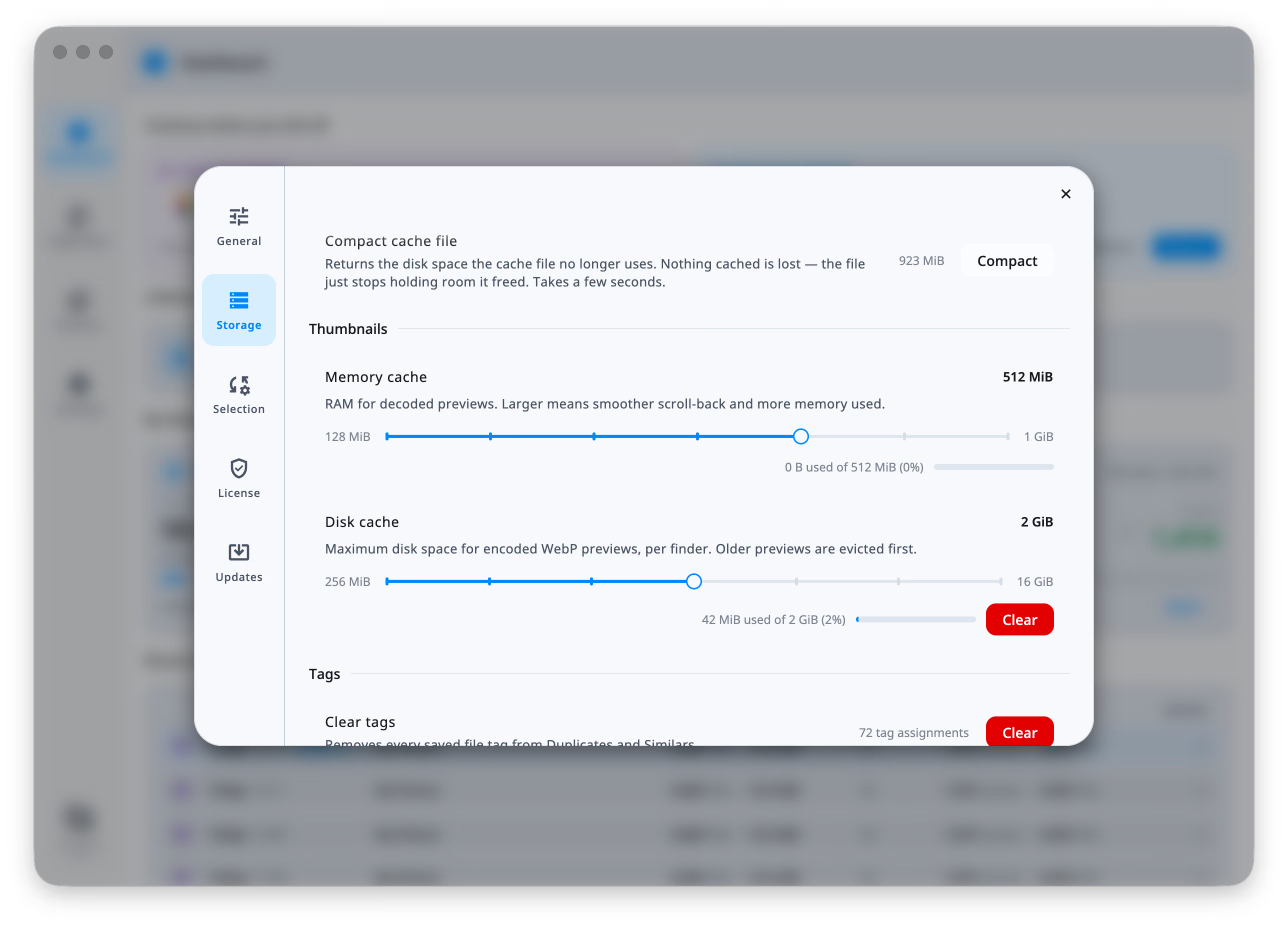
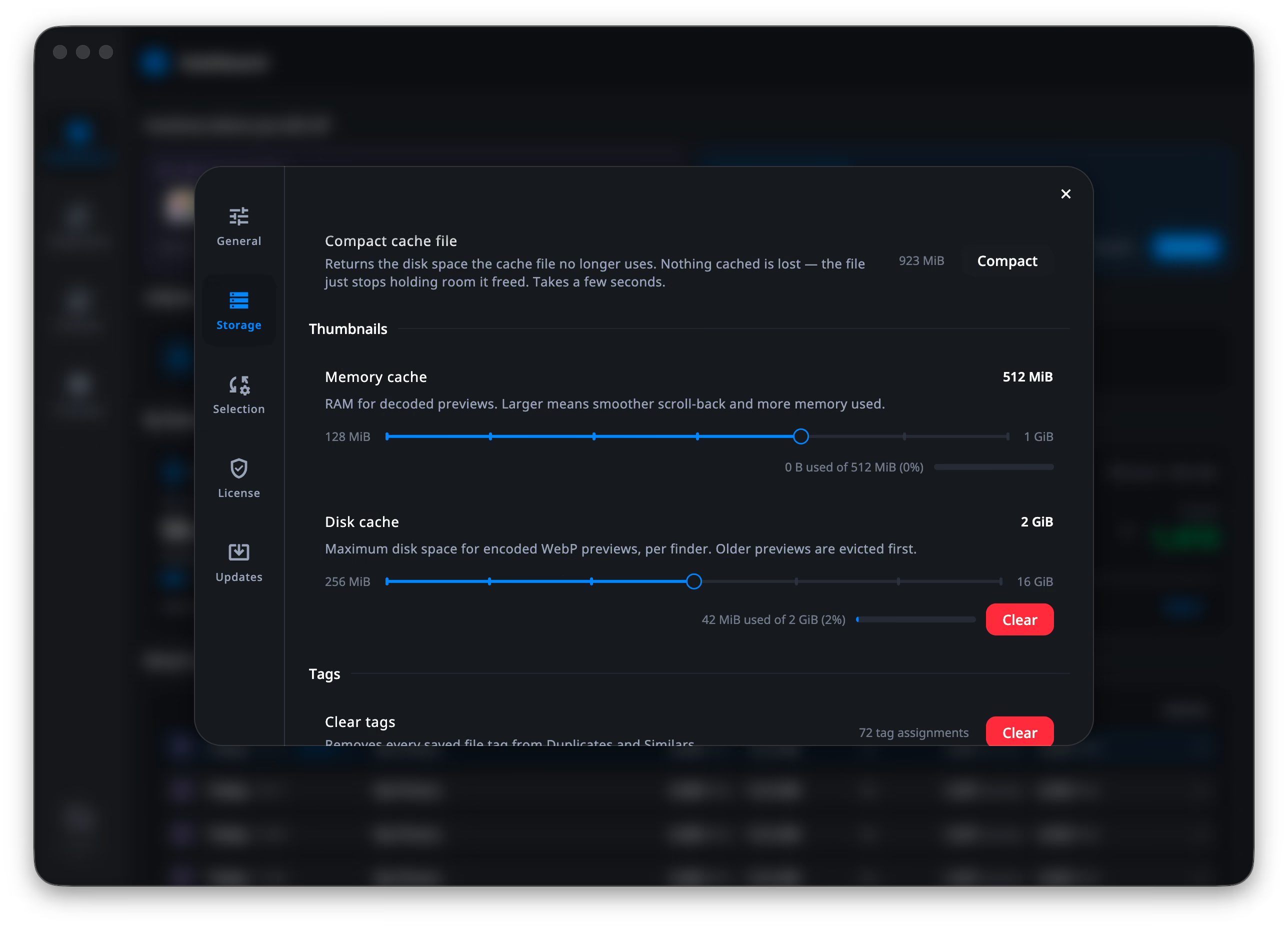
Clear tags — Removes every saved file tag from Duplicates and Similars. Asks first.
Two things live here: the folders DuoBolt may never select from, and the order of rules that decides which copy it keeps.
Protected folders is the canonical list — the same one the results header edits, with its own Add folder… for when no scan is open. See Protected folders.
Rule order holds one order per finder. The switch chooses which one you are looking at, and each side offers DuoBolt’s rules — the order we maintain — or My rules, edited behind Customize…. The whole subject has its own page: Keep rules.
Shows the state — Licensed — Pro, Licensed — Standard, Pro trial active — 4 days left, Trial expired — free mode, No license — and for a license: customer, email, plan, activation date, expiry (Never (perpetual)) and the key itself, masked, with one click to copy it.
The actions are Enter License, Buy License, Upgrade to Pro (Standard only), Refresh License, Devices and Deactivate.
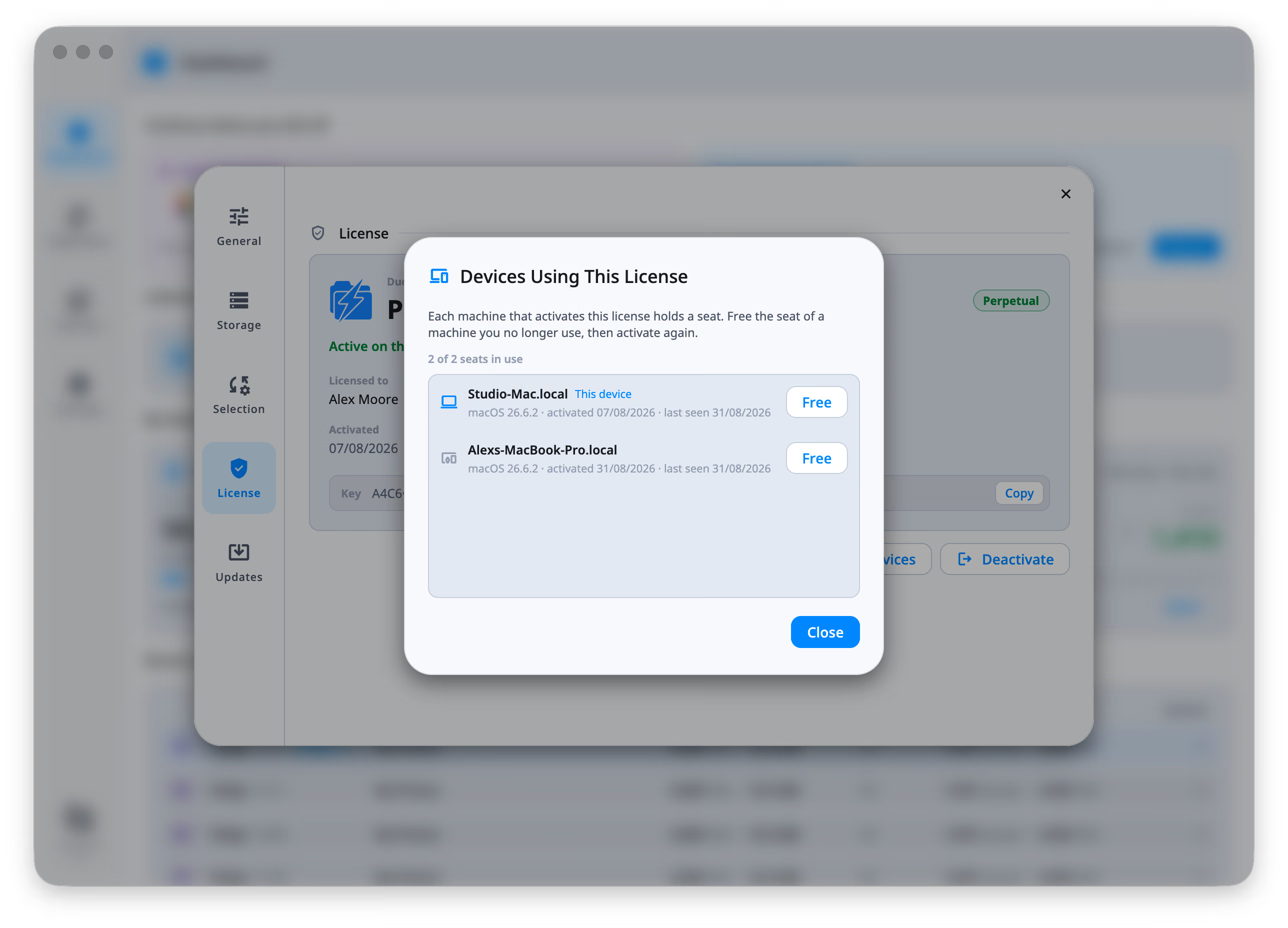
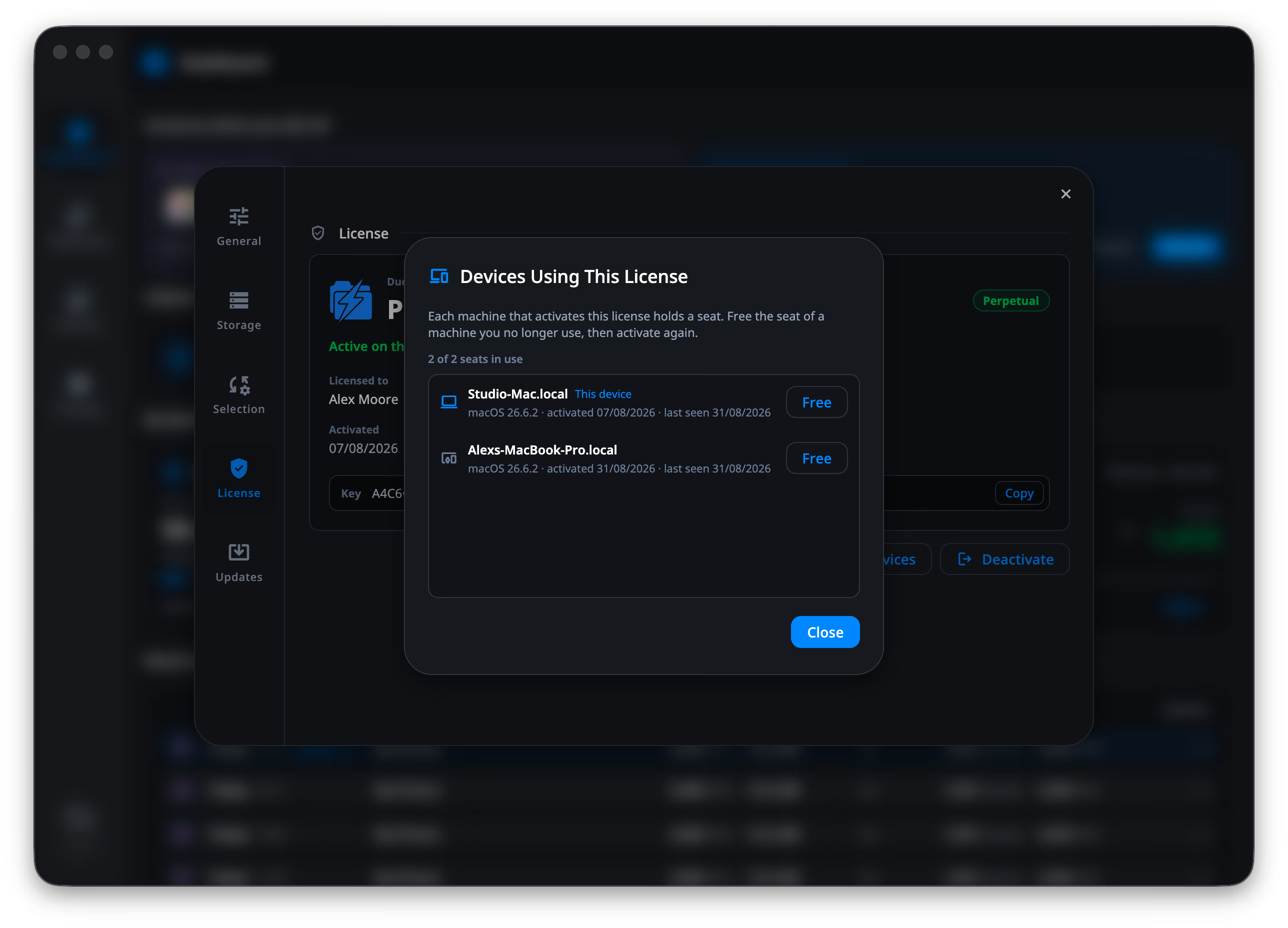
Devices lists the machines using this license: what each one is called, what it runs, when it was activated and when it was last seen, with This device marked. Free releases the seat of one you no longer have.
That is what a formatted or sold machine needs: it cannot deactivate itself, so its seat stays held and the next activation fails with “activation limit reached”. The same list appears when an activation is refused for that reason, with Free a Seat… beside the key field; free one and DuoBolt activates.
If this machine is licensed but holds no seat — released from somewhere else, say — the License section says so, and Devices is where you take one back.
Where new versions come from, and a way to ask now.
On macOS: Check automatically — Looks for new versions in the background, about once a day — and Check for updates, which looks now and says so either way.
On Windows the Microsoft Store delivers updates, so the section says that and offers a link to DuoBolt’s page in the Store rather than controls that would do nothing. A build installed outside either channel says that too.
What the tiers change
Free, Standard and Pro — what each one unlocks.
Scan-time settings
Setting up a scan — the controls that apply to one scan rather than to all of them.