Next
Reading the results — filters, sorts, bulk rules, and the two numbers in the footer.
Pick folders, press Find Duplicates, and the defaults apply. This page is for changing them — how to carve folders back out of what you picked, and every control in Scan parameters, what it defaults to, and what you give up by changing it.
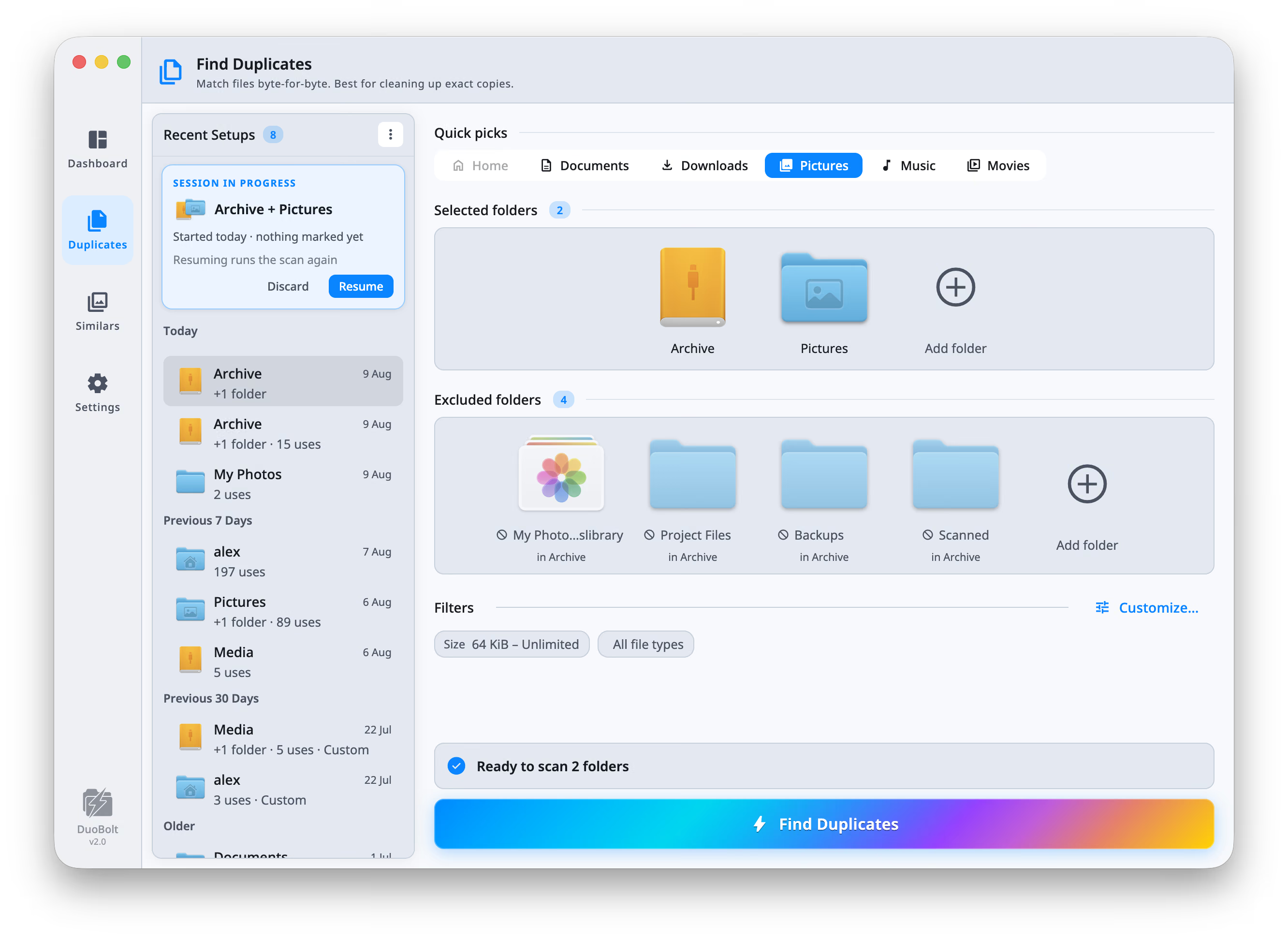
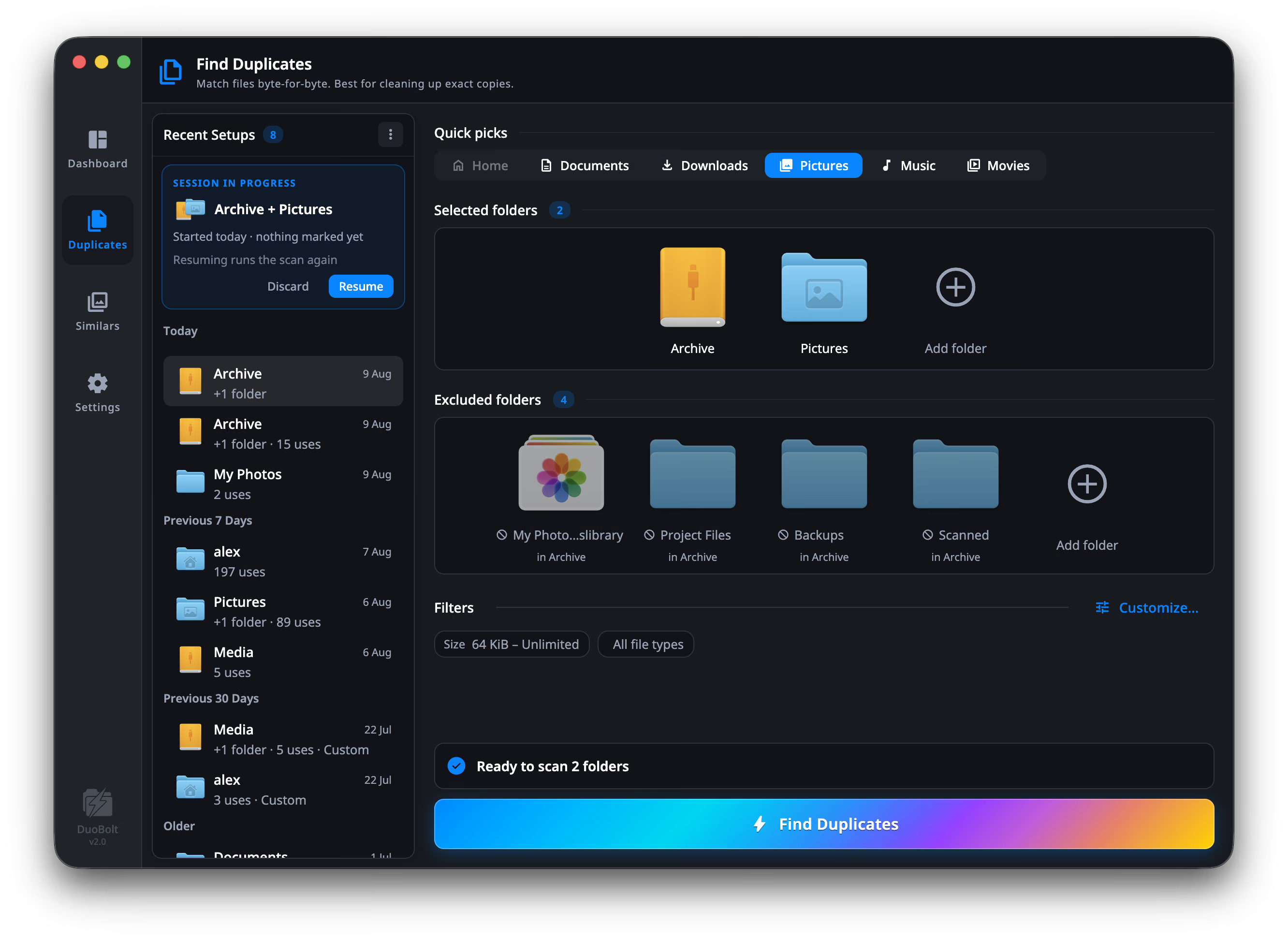
Under Selected folders, on the setup screen itself, is a second list: Excluded folders. It carves specific folders out of the ones you picked, and what it carves out is not opened, hashed or counted.
While it is empty it reads Nothing is excluded — all of each selected folder is
scanned, with an Exclude a folder… button beside it. Once there is one, the
line is replaced by a strip of tiles — struck-through name, parent folder
underneath, so Archive and Archive are told apart — and a + tile to add
the next.
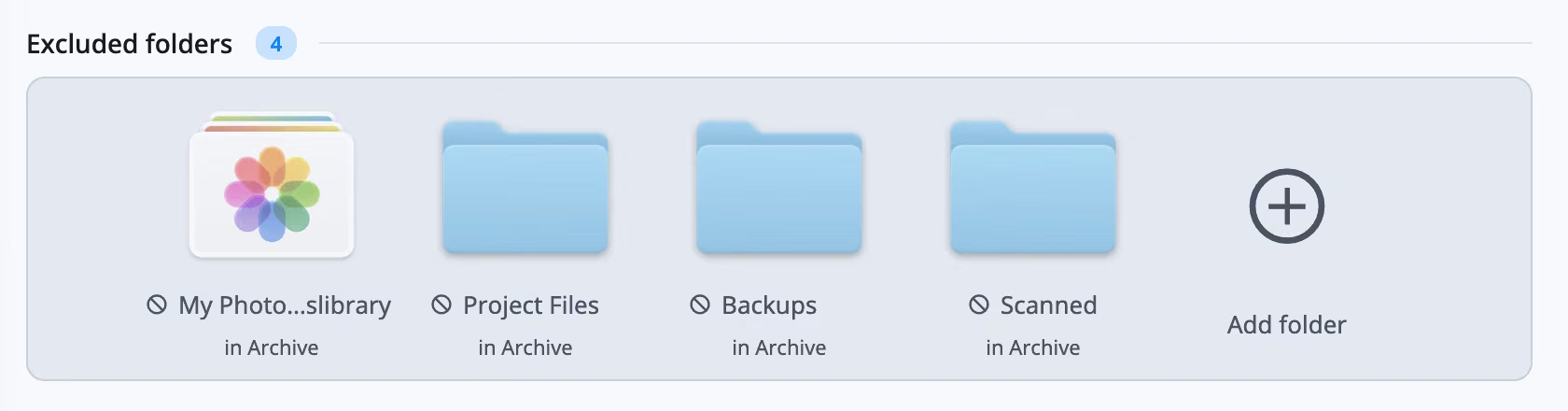
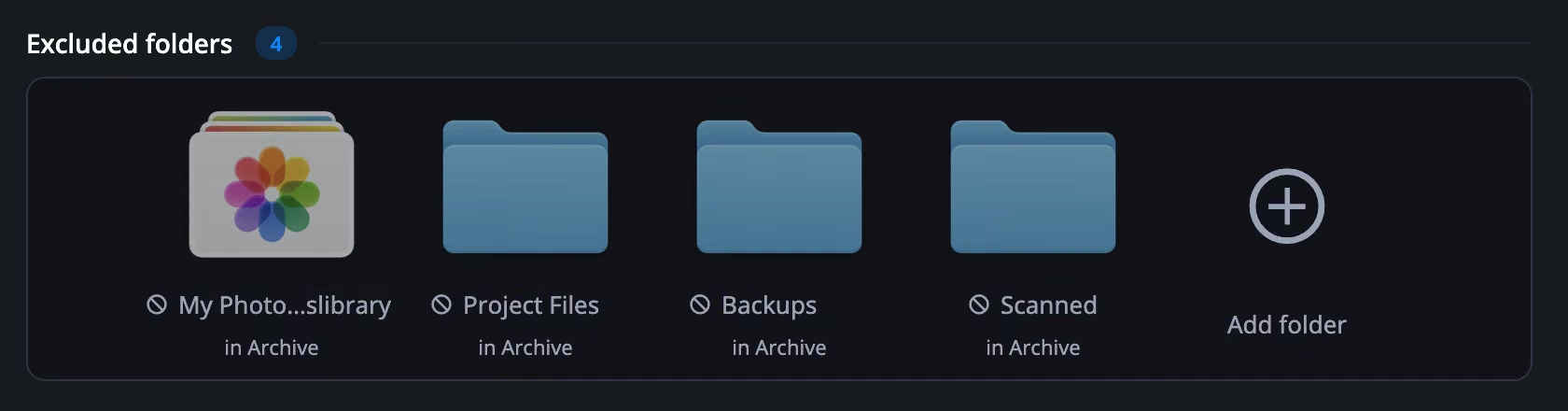
An exclusion has to sit inside something you selected, and DuoBolt says so at the moment you pick rather than silently keeping a rule that can never fire:
Exclusions live with the scan you set up: Duplicates and Similars keep their own lists, and both are saved into the setup that Scan History replays.
Before you scan, the Filters row under the folder lists summarizes the setup in chips: the size range, the file types, and only the settings that deviate from the defaults. A chip opens Scan parameters at the page that holds it. If it says nothing about symlinks, symlinks are at their default.
The status line reads Ready to scan 3 folders, or No folders selected.
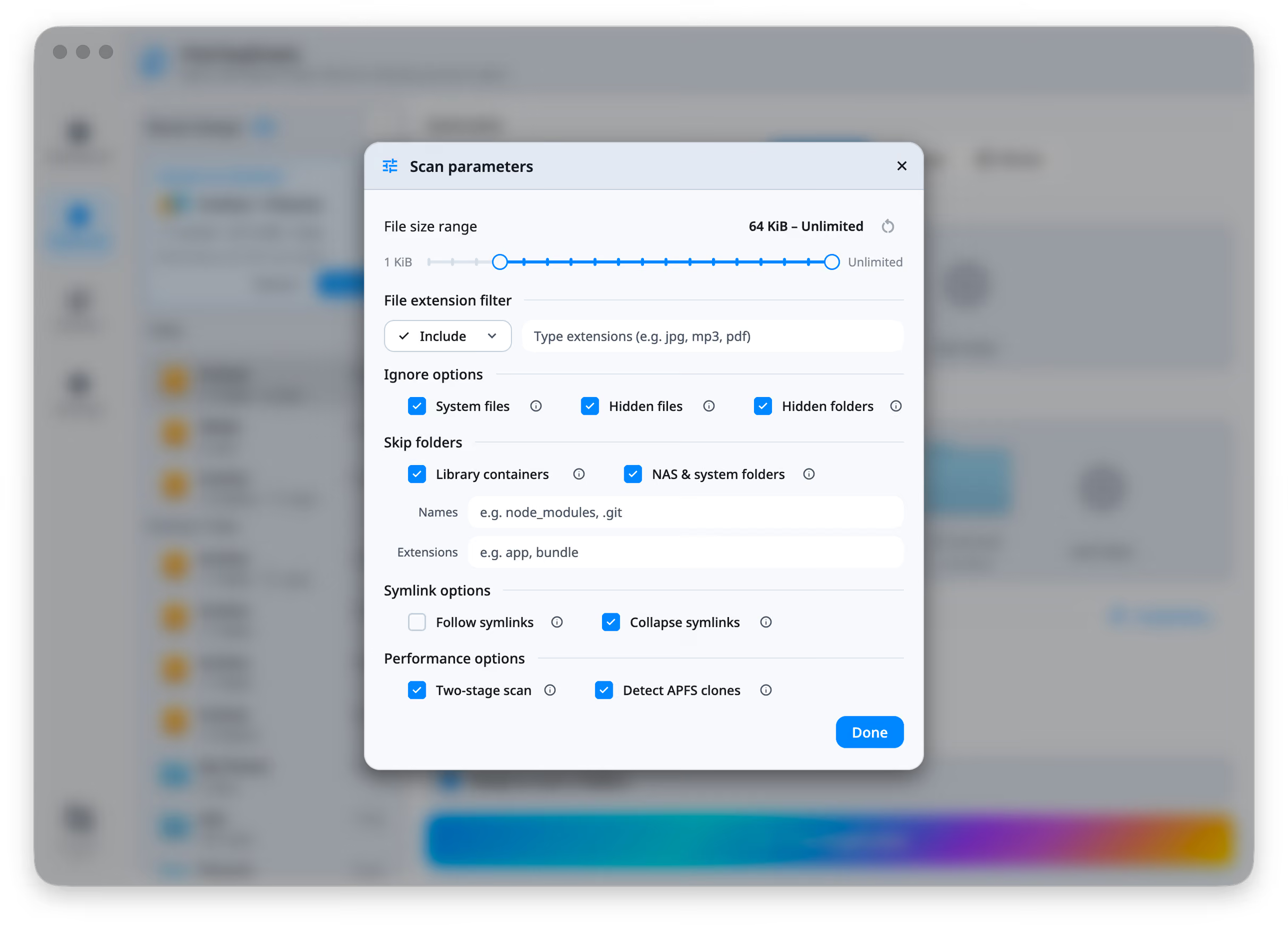
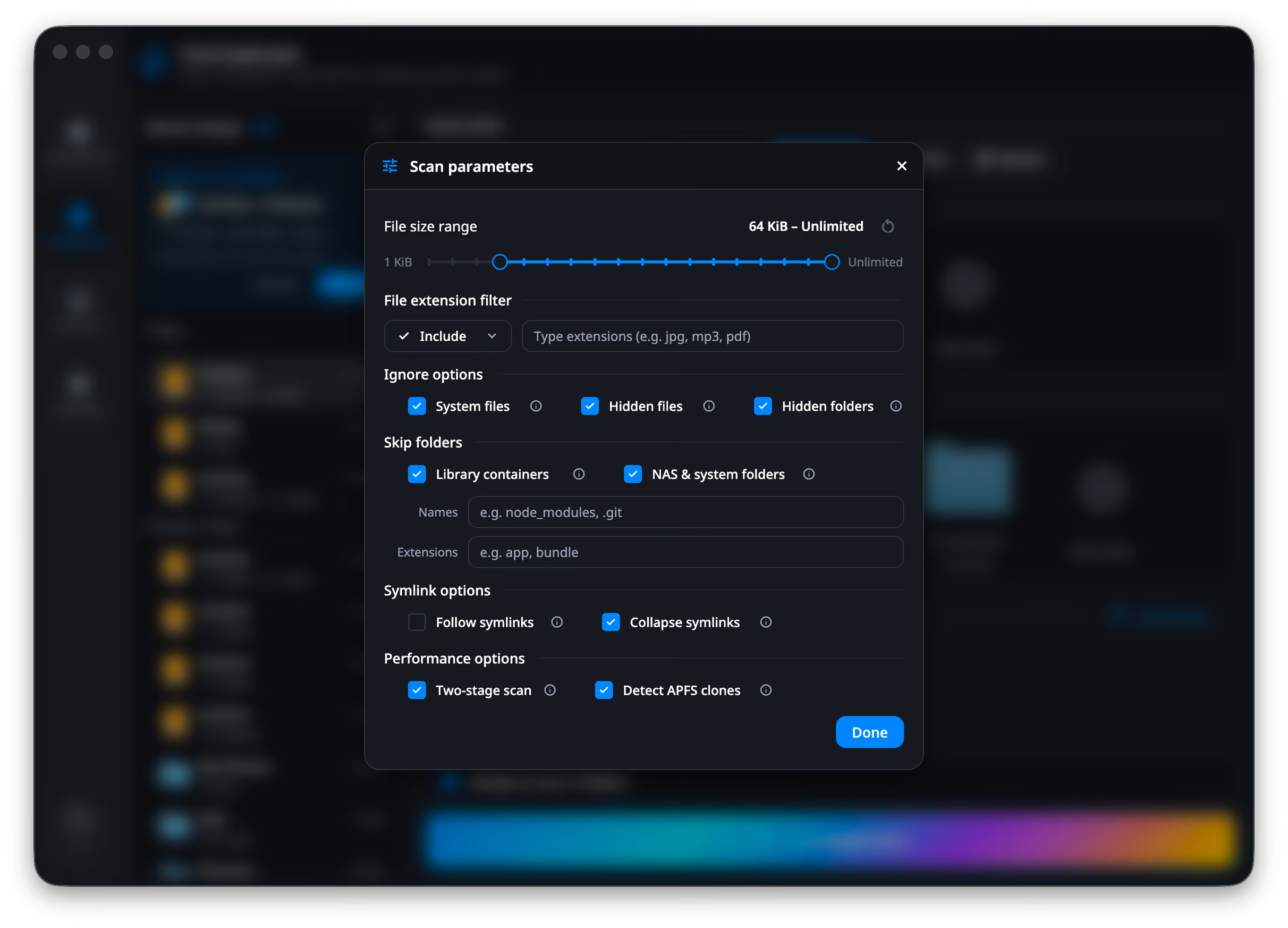
The dialog has three pages, chosen on its left rail: Files holds what a file must be to enter the scan (size range, extension filter, ignore options), Folders where the walk does not go (skip folders), and Advanced how it is read (symlinks, performance, cloud files). Each filter chip on the setup screen opens the dialog at the page that holds it.
Two handles over a fixed ladder, from 1 KiB to Unlimited. It defaults to 64 KiB and up.
That default is the one worth knowing about: everything smaller — small text files, config files, and every zero-byte file — is outside the scan entirely. Drag the lower handle to 1 KiB if that is what you want to find.
An upper bound is occasionally useful in the other direction: cap it to exclude the video files you already know about and let the scan finish sooner.
A dropdown — Include or Exclude — and a token field: Type extensions (e.g. jpg, mp3, pdf). The two are exclusive; choosing one clears the other.
With Include set, a scan restricted to jpg, heic, raf does not stat the
rest of the disk.
| Toggle | What it skips | Default |
|---|---|---|
| System files | .DS_Store, Thumbs.db, desktop.ini, etc. |
On |
| Hidden files | Files starting with . or flagged hidden |
On |
| Hidden folders | .git, .svn, .cache, etc. |
On |
Turning these off is how you get the widest possible scan — and a lot of noise you almost certainly do not want to clean.
Library containers (on) — skips ~/Library/Containers and
~/Library/Group Containers.
NAS & system folders (on) — skips the snapshot, recycle and thumbnail folders that Synology, QNAP and TrueNAS keep inside shares. Its help text gives the reason: snapshot copies are identical to your files, so scanning them invents duplicates.
Names — a token field, e.g. node_modules, .git.
Extensions — a token field, e.g. app, bundle. This is the one that handles
packages and bundles: a folder whose extension matches is pruned along with
everything inside it. On macOS, app, photoslibrary, aplibrary and
imovielibrary are the common ones — they look like single files in Finder
but are large directory trees full of internal near-copies.
Everything here is a rule, matched against every folder in the scan. To keep
one particular folder out — this Backups, not every folder named Backups —
use Excluded folders on the setup screen instead.
Follow symlinks (off) — may increase scan time and duplicate count.
Collapse symlinks (on) — treat symlinks as originals in duplicate detection. With it on, a file reached by several links is admitted once. This is also what keeps hardlinks from appearing as duplicates of themselves; see what DuoBolt does not claim.
Two-stage scan (on) — faster duplicate detection by hashing files in two passes. It changes speed only, never results.
Detect APFS clones (on, macOS) — avoid counting files that share storage on APFS as recoverable duplicates. Explained in full under APFS clones.
Download cloud-only files (off) — download files kept only in iCloud,
Dropbox or OneDrive to compare them. Off, a file that lives only in the cloud
is left where it is and not compared. The results say how many were left out —
38 cloud-only files not checked — and offer to download them and scan again.
Each page shows on the rail how many of its parameters differ from their defaults, and each changed parameter is marked on its page with a bar beside it. The footer counts them all — Reset 1 change, Reset 3 changes — and puts every one back; it appears only when something is actually non-default. A slider also carries its own reset button. If a page shows no count, nothing on it has been touched.
You do not have to rebuild a setup you have used before. Scan History keeps every scan with its full configuration — folders, size range, extensions, options — and Run again repeats it exactly. See history and restore.
Next
Reading the results — filters, sorts, bulk rules, and the two numbers in the footer.
On a NAS
DuoBolt for NAS — mounts, caching, and what to exclude on a share.