Skip to content
DuoBolt

DuoBolt Desktop

The DuoBolt Desktop app turns duplicate cleanup into a guided visual workflow on macOS and Windows: pick folders, watch real-time scan progress, review duplicate groups with previews, and safely remove duplicates — either to the system Trash or by moving them to an archive folder of your choice. For automation or server use, see the DuoBolt CLI guide instead.

Everything you get:

  • Guided scan setup with include/exclude rules
  • Real-time progress and statistics
  • Visual duplicate groups with previews
  • Smart selection rules so you keep the right copy
  • Safe deletion through the system Trash/Recycle Bin, or move-to-archive for reversible removal that doesn’t depend on the Trash’s time-to-live
  • APFS clone awareness on macOS so duplicates that share storage at the filesystem level don’t inflate the recoverable-space numbers

  1. Install DuoBolt Desktop from the Download page.

  2. Launch the app and click Add Folder (select multiple locations if needed).

  3. Toggle Ignore system files, Ignore hidden files, and Ignore hidden directories as preferred.

  4. Click Scan. Progress bars update as files are discovered and hashed.

  5. Review duplicate groups, select what to remove, and confirm — files go to the Trash/Recycle Bin, or to an archive folder of your choice via Move to Archive….


Extensions

Include / Exclude specific file types to focus on what matters (e.g., only media files).

Directory Filtering

Skip bundles like .app or .pkg when scanning macOS volumes.

Size Threshold

Set minimum file size to avoid hashing tiny files that don’t matter.

Symlinks

Choose to follow symlinks or treat them independently.

Two-Stage Hashing

Enable for very large datasets to accelerate scanning without sacrificing accuracy.

Detect APFS Clones (macOS)

On by default. Identifies files that share storage on disk so they’re reported as 0 B recoverable instead of inflating cleanup numbers. Turn off to see all logical duplicates regardless of physical sharing.


Duplicate Groups

Each group contains files with identical content.

Previews

Visual thumbnails help you compare photos and media quickly.

Details Panel

Inspect paths, sizes, and metadata before taking action.

Bulk Select

Auto-select by newest/oldest, largest/smallest, or path-based rules to speed up cleanup.

Once the scan finishes, the Scan Results panel lists every duplicate group with previews, sizes, and source paths. On macOS, groups whose files share storage via APFS clones display “X recoverable · Y total” so you know at a glance which groups can actually free disk space. Use the checkboxes or the Bulk select menu to mark files for removal:

DuoBolt Desktop Scan Results panel with file type distribution at the top, a duplicate group expanded showing two 228.54 MiB video files, one selected via checkbox, and a footer summarising three files selected totalling 451.86 MiB with Clear Selection and Review Selection buttons

Click Review Selection to open a final confirmation tree showing exactly which files will be removed, grouped by source directory. Uncheck any file at this stage to remove it from the batch, or toggle Delete empty folders created by this removal to also clean up directories left empty by the operation. From this screen you can either Delete Selected (sends files to the Trash/Recycle Bin) or Move to Archive… (relocates them to a folder of your choice — see the next section):

DuoBolt Desktop Review Selection panel with a tree of three selected files from a Public directory, a Delete empty folders created by this removal checkbox, and a red Delete Selected action

After confirming a delete, DuoBolt moves the selected files to the OS Trash/Recycle Bin and summarises what was reclaimed, broken down by file type. On macOS, the reclaimed total reflects clone-aware accounting — files that share storage via APFS clones don’t free space on their own, and the summary number matches what your disk actually recovers:

DuoBolt Desktop Space Freed dialog confirming three of three files deleted totalling 451.9 MiB with a donut chart breaking down the freed space by file type and New Scan or Continue Reviewing buttons

From the Review Selection screen you can choose Move to Archive… instead of Delete. DuoBolt will:

  1. Prompt you for an archive folder (any local volume, external drive, or NAS).
  2. Move the selected files there with their original directory structure preserved (e.g., ~/Library/Application Support/Foo.preset<archive>/Library/Application Support/Foo.preset).
  3. Record the operation in Deletion History with a Review Archive page that can restore individual files later.
  4. Drop a .duobolt_archive marker file at the archive root so the folder is recognised by the “Exclude archive folders from scans” setting (on by default), keeping archived duplicates out of future scans.

Archives are useful when:

  • You want a reversible removal that doesn’t depend on the OS Trash’s time-to-live.
  • You’re cleaning across multiple sessions and want a single audit folder for everything you’ve removed.
  • You’d rather relocate duplicates than risk emptying them from Trash.

Every file DuoBolt Desktop removes — whether deleted to the Trash or moved to an archive folder — is tracked in a dedicated deletion history. Unlike the OS Trash (flat, time-limited, and without folder context), DuoBolt’s history groups removals by scan event and remembers each file’s original source path, so restoring a mistaken deletion is a one-click operation weeks or months later.

DuoBolt Desktop Deletion History view listing past deletion events with timestamps, file counts, file-type tags, space freed, and per-event Review & Restore buttons, with filter controls for file type and date range

The Deletion History view lists every removal event with its timestamp, file and group counts, file-type summary, and a size total. Each event is labelled either “Deleted” or “Archived” at the top of its card. Delete events show “X freed” (the space released by the operation, clone-aware on macOS APFS), while archive events show “X archived” (the size of the archived content at its destination, since cross-volume archives don’t free space at the source). Filter by File type (videos, images, archives, audio) or Date range (today, last 7 days, last 30 days, last 12 months, or all time) to narrow down. The Clean Restored button clears events where every file has already been restored, keeping the view focused on what still matters.

Open any event with Review & Restore (deletes) or Review Archive (archives) to inspect the files it contains:

DuoBolt Desktop Review & Restore panel showing the tree of files from a past deletion event grouped by original source directory, with checkboxes to select individual files and a Restore Selected action

The tree shows every file from that event grouped under its original source directory (toggle Show sources to hide the grouping). Select one, several, or all files with the checkboxes and hit Restore Selected — DuoBolt recovers the chosen files to their original paths. Nothing else in the event is affected, so you can cherry-pick specific files from a large batch deletion.

When the restore finishes, a confirmation summarises what was recovered:

DuoBolt Desktop Restoration Completed dialog confirming that two of two selected files were successfully restored, with the list of recovered filenames and a Done button

This extra safety layer is why DuoBolt Desktop can afford to be aggressive with bulk-select rules: even a careless selection is recoverable from the history panel long after the OS Trash has been emptied.


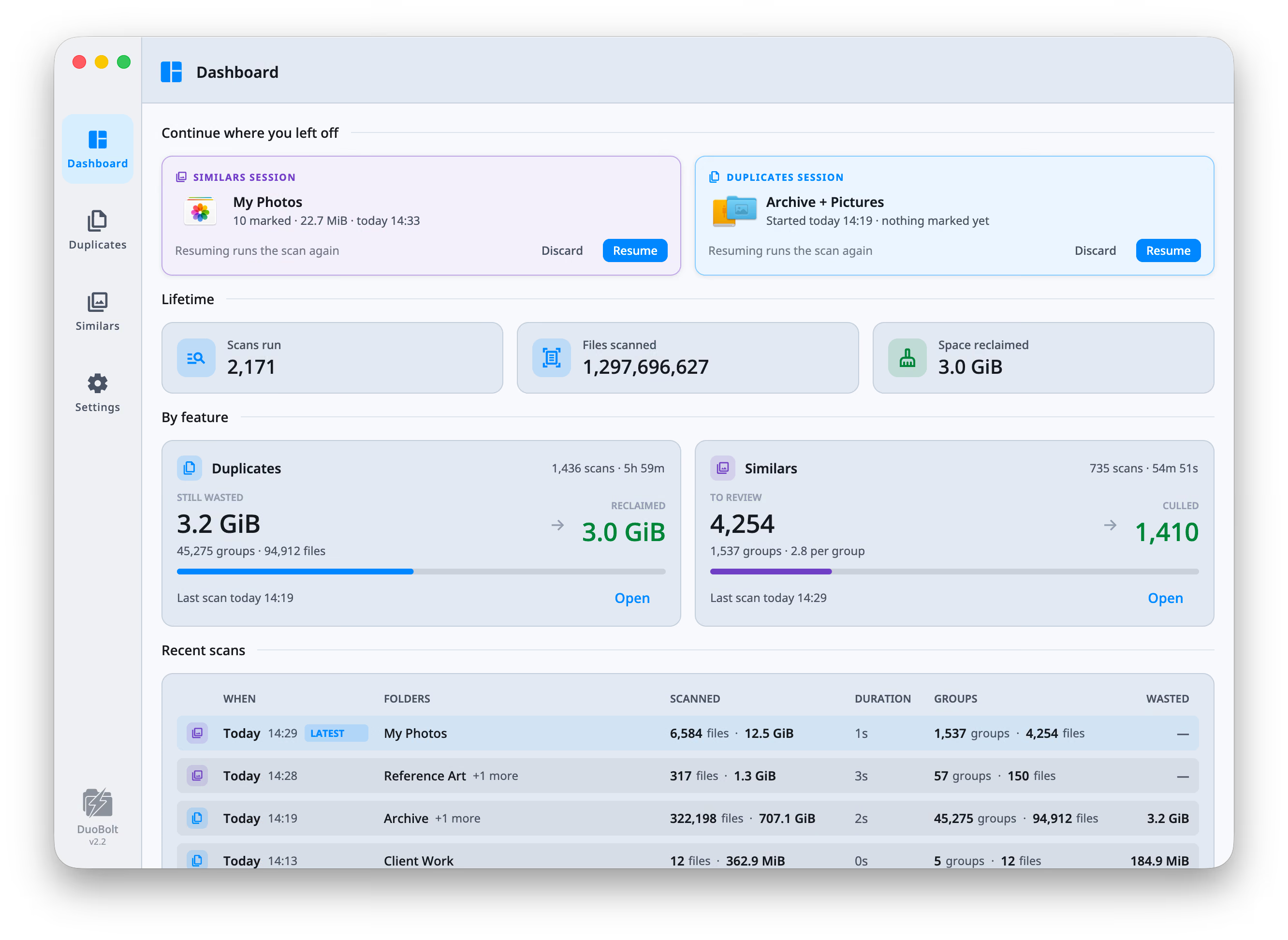
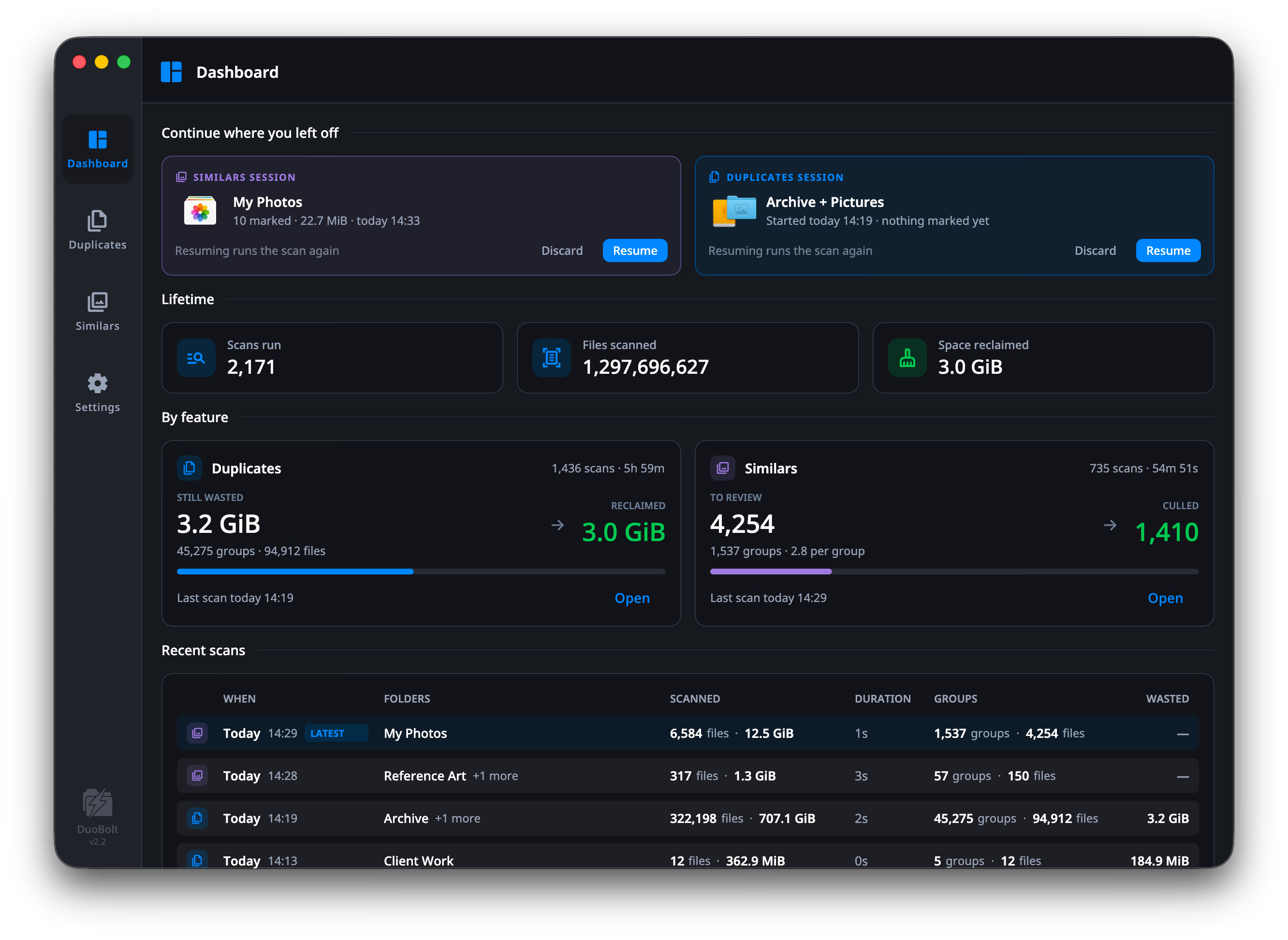
Long scans — especially on NAS volumes or large external drives — are painful to lose. If DuoBolt Desktop closes (intentionally or not) with an open scan result, the session is saved locally. The next launch detects the saved session and offers to pick up where you left off:

DuoBolt Desktop Resume Scan Results session dialog showing a saved session from a previous run with group and file counts, offering Discard or Resume Session

The modal reports when the session was saved and how many groups and files it contains. Resume Session reopens the full result set exactly as it was — duplicate groups, selections, sort order, and filters — with deletion fully enabled so you can continue cleaning up without re-scanning. Discard throws the session away and returns to the Dashboard.

Sessions are stored locally on the machine and are not synced across devices.


  • Export any scan to CSV, JSON, or text.
  • Use exports for audits, sharing with teammates, or keeping a record before deletion.
  • For automation-based exports, switch to the CLI workflow.